<?xml version="1.0" encoding="utf-8"?>
<feed xmlns="http://www.w3.org/2005/Atom">
  <title>Michael Stapelbergs Website: posts tagged fiber</title>
  <link href="https://michael.stapelberg.ch/posts/tags/fiber/feed.xml" rel="self"/>
  <link href="https://michael.stapelberg.ch/posts/tags/fiber/"/>


  <id>https://michael.stapelberg.ch/posts/tags/fiber/</id>
  <generator>Hugo -- gohugo.io</generator>
  <entry>
    <title type="html"><![CDATA[25 Gbit/s HTTP and HTTPS download speeds]]></title>
    <link href="https://michael.stapelberg.ch/posts/2022-05-14-http-and-https-download-25gbit/"/>
    <id>https://michael.stapelberg.ch/posts/2022-05-14-http-and-https-download-25gbit/</id>
    <published>2022-05-14T16:18:00+02:00</published>
    <content type="html"><![CDATA[<p>Now that I <a href="/posts/2022-04-23-fiber7-25gbit-upgrade/">recently upgraded my internet connection to 25
Gbit/s</a>, I was curious how hard or
easy it is to download files via HTTP and HTTPS over a 25 Gbit/s link. I don’t
have another 25 Gbit/s connected machine other than my router, so I decided to
build a little lab for tests like these 🧑‍🔬</p>
<h2 id="hardware-and-software-setup">Hardware and Software setup</h2>
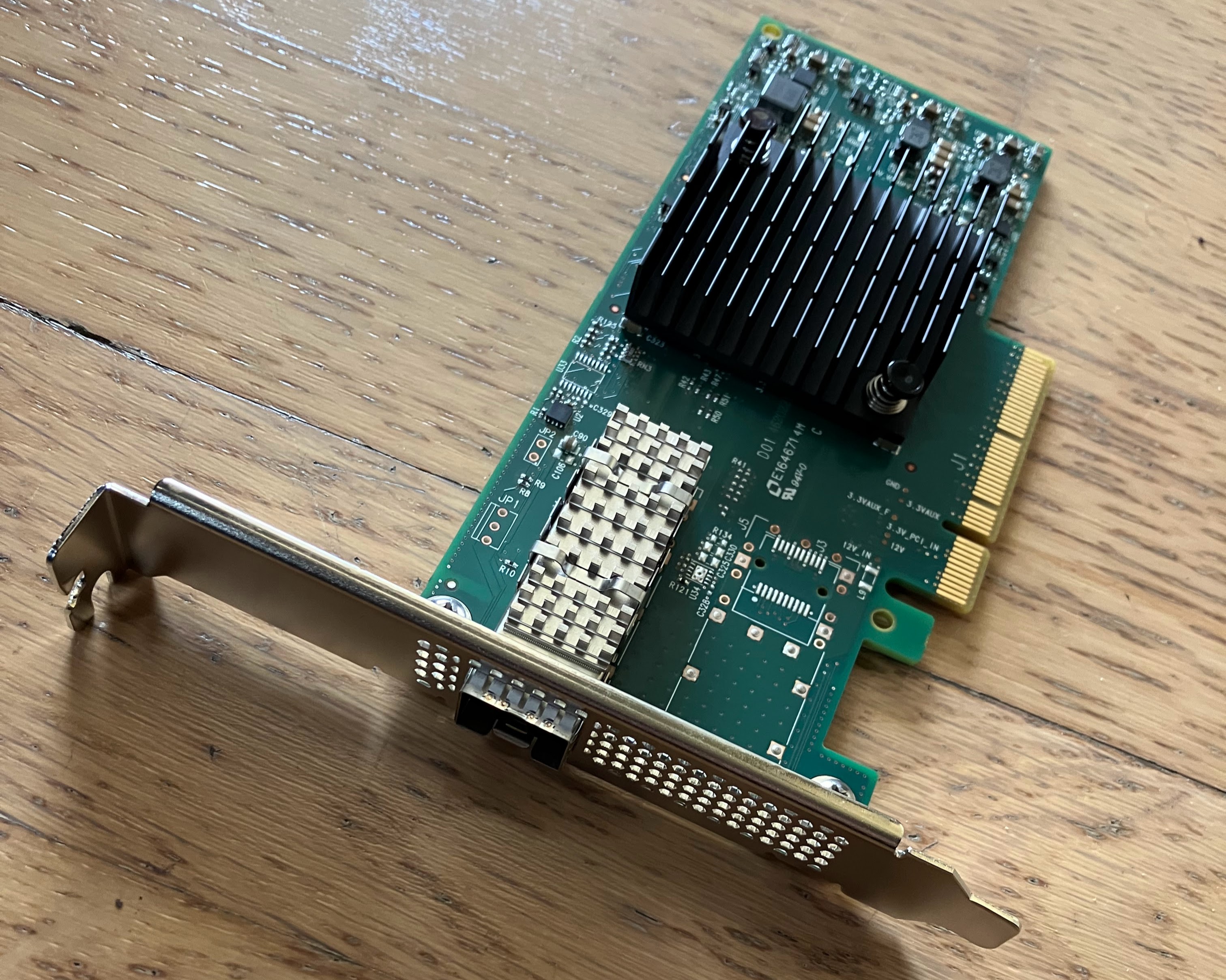
<p>I found a Mellanox ConnectX-4 Lx for the comparatively low price of 204 CHF on
digitec:</p>


<a href="https://michael.stapelberg.ch/posts/2022-05-14-http-and-https-download-25gbit/IMG_0209.jpg"><img
  srcset="https://michael.stapelberg.ch/posts/2022-05-14-http-and-https-download-25gbit/IMG_0209_hu_98ef0d6fbc9f8f88.jpg 2x,https://michael.stapelberg.ch/posts/2022-05-14-http-and-https-download-25gbit/IMG_0209_hu_bba81be879509160.jpg 3x"
  src="https://michael.stapelberg.ch/posts/2022-05-14-http-and-https-download-25gbit/IMG_0209_hu_cc67f65445f20e99.jpg"
  
  width="600"
  height="480"
  style="

border: 1px solid #000;

"
  
  loading="lazy"></a>


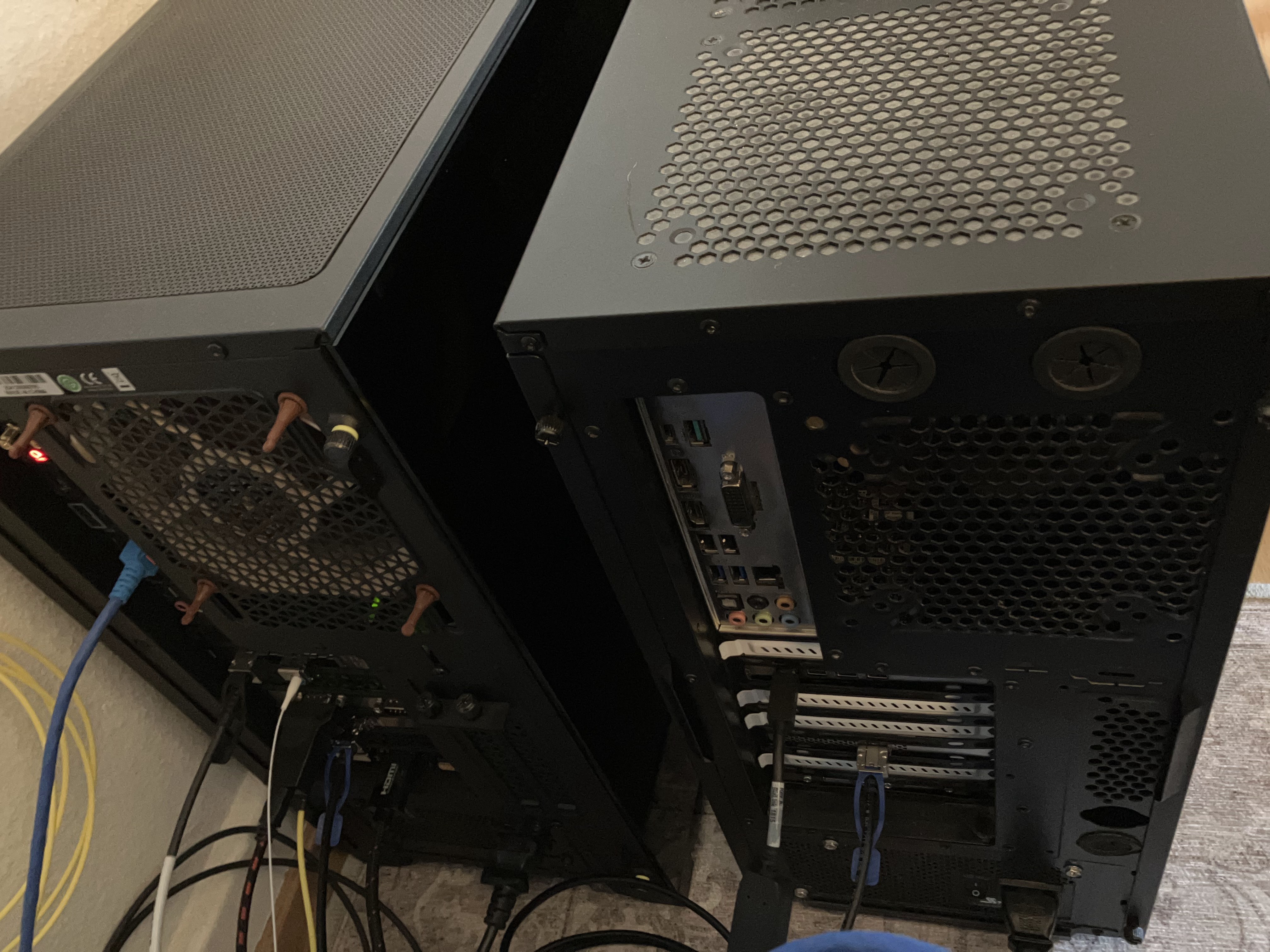
<p>To connect it to my router, I ordered a MikroTik XS+DA0003 SFP28/SFP+ Direct
Attach Cable (DAC) with it. I installed the network card into my old workstation
(on the right) and connected it with the 25 Gbit/s DAC to router7 (on the left):</p>


<a href="https://michael.stapelberg.ch/posts/2022-05-14-http-and-https-download-25gbit/IMG_0204.jpg"><img
  srcset="https://michael.stapelberg.ch/posts/2022-05-14-http-and-https-download-25gbit/IMG_0204_hu_ba13c40834fef98.jpg 2x,https://michael.stapelberg.ch/posts/2022-05-14-http-and-https-download-25gbit/IMG_0204_hu_297924f1e43ad007.jpg 3x"
  src="https://michael.stapelberg.ch/posts/2022-05-14-http-and-https-download-25gbit/IMG_0204_hu_54e65460201b80d5.jpg"
  
  width="600"
  height="450"
  style="

border: 1px solid #000;

"
  
  loading="lazy"></a>


<h3 id="25-gbits-router-left">25 Gbit/s router (left)</h3>
<table>
  <thead>
      <tr>
          <th>Component</th>
          <th>Model</th>
      </tr>
  </thead>
  <tbody>
      <tr>
          <td>Mainboard</td>
          <td>ASRock B550 Taichi</td>
      </tr>
      <tr>
          <td>CPU</td>
          <td>AMD Ryzen 5 5600X 6-Core Processor</td>
      </tr>
      <tr>
          <td>Network card</td>
          <td><a href="https://www.fs.com/de/products/75603.html">Intel XXV710</a></td>
      </tr>
      <tr>
          <td>Linux</td>
          <td>Linux 5.17.4 (<a href="https://router7.org">router7</a>)<br>curl 7.83.0 from debian bookworm<br>Go <code>net/http</code> from Go 1.18</td>
      </tr>
  </tbody>
</table>
<p>router7 comes with <a href="https://en.wikipedia.org/wiki/TCP_congestion_control#TCP_BBR">TCP
BBR</a> enabled by
default.</p>
<h3 id="old-workstation-right">Old workstation (right)</h3>
<table>
  <thead>
      <tr>
          <th>Component</th>
          <th>Model</th>
      </tr>
  </thead>
  <tbody>
      <tr>
          <td>Mainboard</td>
          <td>ASUS PRIME Z370-A</td>
      </tr>
      <tr>
          <td>CPU</td>
          <td>Intel i9-9900K CPU @ 3.60GHz</td>
      </tr>
      <tr>
          <td>Network card</td>
          <td>Mellanox ConnectX-4</td>
      </tr>
      <tr>
          <td>Linux</td>
          <td>5.17.5 (Arch Linux)<br>nginx 1.21.6<br>caddy 2.4.3</td>
      </tr>
  </tbody>
</table>
<h2 id="test-preparation">Test preparation</h2>
<p>Before taking any measurements, I do one full download so that the file contents
are entirely in the Linux page cache, and the measurements therefore no longer
contain the speed of the disk.</p>
<p><code>big.img</code> in the tests below refers to the 35 GB test file I’m downloading,
which consists of distri-disk.img repeated 5 times.</p>
<h2 id="http">T1: HTTP download speed (unencrypted)</h2>
<h3 id="http1">T1.1: Single TCP connection</h3>
<p>The simplest test is using just a single TCP connection, for example:</p>
<div class="highlight"><pre tabindex="0" style="background-color:#f0f0f0;-moz-tab-size:4;-o-tab-size:4;tab-size:4;"><code class="language-bash" data-lang="bash"><span style="display:flex;"><span>curl -v -o /dev/null http://oldmidna:8080/distri/tmp/big.img
</span></span><span style="display:flex;"><span>./httpget25 http://oldmidna:8080/distri/tmp/big.img
</span></span></code></pre></div><table>
  <thead>
      <tr>
          <th>Client</th>
          <th>Server</th>
          <th>Gbit/s</th>
      </tr>
  </thead>
  <tbody>
      <tr>
          <td><strong>curl</strong></td>
          <td><strong>nginx</strong></td>
          <td><strong>
<div class="barcon" style="width: calc(2 * 2.34em)"><div class="bar" style="width: calc(2 * (23.4em / 10)); background-color: blue; color: white">23.4</div></div>

</strong></td>
      </tr>
      <tr>
          <td>curl</td>
          <td>caddy</td>
          <td>
<div class="barcon" style="width: calc(2 * 2.34em)"><div class="bar" style="width: calc(2 * (23.4em / 10)); background-color: blue; color: white">23.4</div></div>

</td>
      </tr>
      <tr>
          <td>Go</td>
          <td>nginx</td>
          <td>
<div class="barcon" style="width: calc(2 * 2.34em)"><div class="bar" style="width: calc(2 * (20em / 10)); background-color: blue; color: white">20</div></div>

</td>
      </tr>
      <tr>
          <td>Go</td>
          <td>caddy</td>
          <td>
<div class="barcon" style="width: calc(2 * 2.34em)"><div class="bar" style="width: calc(2 * (20.2em / 10)); background-color: blue; color: white">20.2</div></div>

</td>
      </tr>
  </tbody>
</table>
<p>curl can saturate a 25 Gbit/s link without any trouble.</p>
<p>The Go <code>net/http</code> package is slower and comes in at 20 Gbit/s.</p>
<h3 id="http4">T1.2: Multiple TCP connections</h3>
<p>Running 4 of these downloads concurrently is a reliable and easy way to saturate
a 25 Gbit/s link:</p>
<div class="highlight"><pre tabindex="0" style="background-color:#f0f0f0;-moz-tab-size:4;-o-tab-size:4;tab-size:4;"><code class="language-bash" data-lang="bash"><span style="display:flex;"><span><span style="color:#007020;font-weight:bold">for</span> i in <span style="color:#007020;font-weight:bold">$(</span>seq <span style="color:#40a070">0</span> 4<span style="color:#007020;font-weight:bold">)</span>
</span></span><span style="display:flex;"><span><span style="color:#007020;font-weight:bold">do</span>
</span></span><span style="display:flex;"><span>  curl -v -o /dev/null http://oldmidna:8080/distri/tmp/big.img &amp;
</span></span><span style="display:flex;"><span><span style="color:#007020;font-weight:bold">done</span>
</span></span></code></pre></div><table>
  <thead>
      <tr>
          <th>Client</th>
          <th>Server</th>
          <th>Gbit/s</th>
      </tr>
  </thead>
  <tbody>
      <tr>
          <td>curl</td>
          <td>nginx</td>
          <td>
<div class="barcon" style="width: calc(2 * 2.34em)"><div class="bar" style="width: calc(2 * (23.4em / 10)); background-color: blue; color: white">23.4</div></div>

</td>
      </tr>
      <tr>
          <td>curl</td>
          <td>caddy</td>
          <td>
<div class="barcon" style="width: calc(2 * 2.34em)"><div class="bar" style="width: calc(2 * (23.4em / 10)); background-color: blue; color: white">23.4</div></div>

</td>
      </tr>
      <tr>
          <td>Go</td>
          <td>nginx</td>
          <td>
<div class="barcon" style="width: calc(2 * 2.34em)"><div class="bar" style="width: calc(2 * (23.4em / 10)); background-color: blue; color: white">23.4</div></div>

</td>
      </tr>
      <tr>
          <td>Go</td>
          <td>caddy</td>
          <td>
<div class="barcon" style="width: calc(2 * 2.34em)"><div class="bar" style="width: calc(2 * (23.4em / 10)); background-color: blue; color: white">23.4</div></div>

</td>
      </tr>
  </tbody>
</table>
<h2 id="https">T2: HTTPS download speed (encrypted)</h2>
<p>At link speeds this high, enabling TLS slashes bandwidth in half or worse.</p>
<p>Using 4 TCP connections allows saturating a 25 Gbit/s link.</p>
<p>Caddy uses more CPU to serve files compared to nginx.</p>
<h3 id="https1">T2.1: Single TCP connection</h3>
<p>This test works the same as T1.1, but with a HTTPS URL:</p>
<div class="highlight"><pre tabindex="0" style="background-color:#f0f0f0;-moz-tab-size:4;-o-tab-size:4;tab-size:4;"><code class="language-bash" data-lang="bash"><span style="display:flex;"><span>curl -v -o /dev/null --insecure https://oldmidna:8443/distri/tmp/big.img
</span></span><span style="display:flex;"><span>./httpget25 https://oldmidna:8443/distri/tmp/big.img
</span></span></code></pre></div><table>
  <thead>
      <tr>
          <th>Client</th>
          <th>Server</th>
          <th>Gbit/s</th>
      </tr>
  </thead>
  <tbody>
      <tr>
          <td>curl</td>
          <td>nginx</td>
          <td>
<div class="barcon" style="width: calc(2 * 2.34em)"><div class="bar" style="width: calc(2 * (8em / 10)); background-color: blue; color: white">8</div></div>

</td>
      </tr>
      <tr>
          <td>curl</td>
          <td>caddy</td>
          <td>
<div class="barcon" style="width: calc(2 * 2.34em)"><div class="bar" style="width: calc(2 * (7.5em / 10)); background-color: blue; color: white">7.5</div></div>

</td>
      </tr>
      <tr>
          <td><strong>Go</strong></td>
          <td><strong>nginx</strong></td>
          <td><strong>
<div class="barcon" style="width: calc(2 * 2.34em)"><div class="bar" style="width: calc(2 * (12em / 10)); background-color: blue; color: white">12</div></div>

</strong></td>
      </tr>
      <tr>
          <td>Go</td>
          <td>caddy</td>
          <td>
<div class="barcon" style="width: calc(2 * 2.34em)"><div class="bar" style="width: calc(2 * (7.2em / 10)); background-color: blue; color: white">7.2</div></div>

</td>
      </tr>
  </tbody>
</table>
<h3 id="https4">T2.2: Multiple TCP connections</h3>
<p>This test works the same as T1.2, but with a HTTPS URL:</p>
<div class="highlight"><pre tabindex="0" style="background-color:#f0f0f0;-moz-tab-size:4;-o-tab-size:4;tab-size:4;"><code class="language-bash" data-lang="bash"><span style="display:flex;"><span><span style="color:#007020;font-weight:bold">for</span> i in <span style="color:#007020;font-weight:bold">$(</span>seq <span style="color:#40a070">0</span> 4<span style="color:#007020;font-weight:bold">)</span>
</span></span><span style="display:flex;"><span><span style="color:#007020;font-weight:bold">do</span>
</span></span><span style="display:flex;"><span>  curl -v -o /dev/null --insecure https://oldmidna:8443/distri/tmp/big.img &amp;
</span></span><span style="display:flex;"><span><span style="color:#007020;font-weight:bold">done</span>
</span></span></code></pre></div><p>Curiously, the Go <code>net/http</code> client downloading from caddy cannot saturate a 25
Gbit/s link.</p>
<table>
  <thead>
      <tr>
          <th>Client</th>
          <th>Server</th>
          <th>Gbit/s</th>
      </tr>
  </thead>
  <tbody>
      <tr>
          <td>curl</td>
          <td>nginx</td>
          <td>
<div class="barcon" style="width: calc(2 * 2.34em)"><div class="bar" style="width: calc(2 * (23.4em / 10)); background-color: blue; color: white">23.4</div></div>

</td>
      </tr>
      <tr>
          <td>curl</td>
          <td>caddy</td>
          <td>
<div class="barcon" style="width: calc(2 * 2.34em)"><div class="bar" style="width: calc(2 * (23.4em / 10)); background-color: blue; color: white">23.4</div></div>

</td>
      </tr>
      <tr>
          <td>Go</td>
          <td>nginx</td>
          <td>
<div class="barcon" style="width: calc(2 * 2.34em)"><div class="bar" style="width: calc(2 * (23.4em / 10)); background-color: blue; color: white">23.4</div></div>

</td>
      </tr>
      <tr>
          <td>Go</td>
          <td>caddy</td>
          <td>
<div class="barcon" style="width: calc(2 * 2.34em)"><div class="bar" style="width: calc(2 * (21.6em / 10)); background-color: blue; color: white">21.6</div></div>

</td>
      </tr>
  </tbody>
</table>
<h2 id="httpsktls">T3: HTTPS with Kernel TLS (KTLS)</h2>
<p>Linux 4.13 got support for Kernel TLS back in 2017.</p>
<p>nginx 1.21.4 introduced support for Kernel TLS, and they have a <a href="https://www.nginx.com/blog/improving-nginx-performance-with-kernel-tls/">blog post on
how to configure
it</a>.</p>
<p>In terms of download speeds, there is no difference with or without KTLS. But,
enabling KTLS noticeably reduces CPU usage, from ≈10% to a steady 2%.</p>
<p>For even newer network cards such as the Mellanox ConnectX-6, the kernel can
even offload TLS onto the network card!</p>
<h3 id="httpsktls1">T3.1: Single TCP connection</h3>
<table>
  <thead>
      <tr>
          <th>Client</th>
          <th>Server</th>
          <th>Gbit/s</th>
      </tr>
  </thead>
  <tbody>
      <tr>
          <td>curl</td>
          <td>nginx</td>
          <td>
<div class="barcon" style="width: calc(2 * 2.34em)"><div class="bar" style="width: calc(2 * (8em / 10)); background-color: blue; color: white">8</div></div>

</td>
      </tr>
      <tr>
          <td><strong>Go</strong></td>
          <td><strong>nginx</strong></td>
          <td><strong>
<div class="barcon" style="width: calc(2 * 2.34em)"><div class="bar" style="width: calc(2 * (12em / 10)); background-color: blue; color: white">12</div></div>

</strong></td>
      </tr>
  </tbody>
</table>
<h3 id="httpsktls4">T3.2: Multiple TCP connections</h3>
<table>
  <thead>
      <tr>
          <th>Client</th>
          <th>Server</th>
          <th>Gbit/s</th>
      </tr>
  </thead>
  <tbody>
      <tr>
          <td>curl</td>
          <td>nginx</td>
          <td>
<div class="barcon" style="width: calc(2 * 2.34em)"><div class="bar" style="width: calc(2 * (23.4em / 10)); background-color: blue; color: white">23.4</div></div>

</td>
      </tr>
      <tr>
          <td>Go</td>
          <td>nginx</td>
          <td>
<div class="barcon" style="width: calc(2 * 2.34em)"><div class="bar" style="width: calc(2 * (23.4em / 10)); background-color: blue; color: white">23.4</div></div>

</td>
      </tr>
  </tbody>
</table>
<h2 id="conclusions">Conclusions</h2>
<p>When downloading from nginx with 1 TCP connection, with TLS encryption enabled
(HTTPS), the Go <code>net/http</code> client is faster than curl!</p>
<p>Caddy is slightly slower than nginx, which manifests itself in slower speeds
with curl and even slower speeds with Go’s <code>net/http</code>.</p>
<p>To max out 25 Gbit/s, even when using TLS encryption, just use 3 or more
connections in parallel. This helps with HTTP and HTTPS, with any combination of
client and server.</p>
<h2 id="appendix">Appendix</h2>
<details>
<summary>Go <code>net/http</code> test program <code>httpget25.go</code></summary>
<div class="highlight"><pre tabindex="0" style="background-color:#f0f0f0;-moz-tab-size:4;-o-tab-size:4;tab-size:4;"><code class="language-go" data-lang="go"><span style="display:flex;"><span><span style="color:#007020;font-weight:bold">package</span><span style="color:#bbb"> </span>main<span style="color:#bbb">
</span></span></span><span style="display:flex;"><span><span style="color:#bbb">
</span></span></span><span style="display:flex;"><span><span style="color:#bbb"></span><span style="color:#007020;font-weight:bold">import</span><span style="color:#bbb"> </span>(<span style="color:#bbb">
</span></span></span><span style="display:flex;"><span><span style="color:#bbb">	</span><span style="color:#4070a0">&#34;crypto/tls&#34;</span><span style="color:#bbb">
</span></span></span><span style="display:flex;"><span><span style="color:#bbb">	</span><span style="color:#4070a0">&#34;flag&#34;</span><span style="color:#bbb">
</span></span></span><span style="display:flex;"><span><span style="color:#bbb">	</span><span style="color:#4070a0">&#34;fmt&#34;</span><span style="color:#bbb">
</span></span></span><span style="display:flex;"><span><span style="color:#bbb">	</span><span style="color:#4070a0">&#34;io&#34;</span><span style="color:#bbb">
</span></span></span><span style="display:flex;"><span><span style="color:#bbb">	</span><span style="color:#4070a0">&#34;io/ioutil&#34;</span><span style="color:#bbb">
</span></span></span><span style="display:flex;"><span><span style="color:#bbb">	</span><span style="color:#4070a0">&#34;log&#34;</span><span style="color:#bbb">
</span></span></span><span style="display:flex;"><span><span style="color:#bbb">	</span><span style="color:#4070a0">&#34;net/http&#34;</span><span style="color:#bbb">
</span></span></span><span style="display:flex;"><span><span style="color:#bbb"></span>)<span style="color:#bbb">
</span></span></span><span style="display:flex;"><span><span style="color:#bbb">
</span></span></span><span style="display:flex;"><span><span style="color:#bbb"></span><span style="color:#007020;font-weight:bold">func</span><span style="color:#bbb"> </span><span style="color:#06287e">httpget25</span>()<span style="color:#bbb"> </span><span style="color:#902000">error</span><span style="color:#bbb"> </span>{<span style="color:#bbb">
</span></span></span><span style="display:flex;"><span><span style="color:#bbb">	</span>http.DefaultTransport.(<span style="color:#666">*</span>http.Transport).TLSClientConfig<span style="color:#bbb"> </span>=<span style="color:#bbb"> </span><span style="color:#666">&amp;</span>tls.Config{InsecureSkipVerify:<span style="color:#bbb"> </span><span style="color:#007020;font-weight:bold">true</span>}<span style="color:#bbb">
</span></span></span><span style="display:flex;"><span><span style="color:#bbb">
</span></span></span><span style="display:flex;"><span><span style="color:#bbb">	</span><span style="color:#007020;font-weight:bold">for</span><span style="color:#bbb"> </span>_,<span style="color:#bbb"> </span>arg<span style="color:#bbb"> </span><span style="color:#666">:=</span><span style="color:#bbb"> </span><span style="color:#007020;font-weight:bold">range</span><span style="color:#bbb"> </span>flag.<span style="color:#06287e">Args</span>()<span style="color:#bbb"> </span>{<span style="color:#bbb">
</span></span></span><span style="display:flex;"><span><span style="color:#bbb">		</span>resp,<span style="color:#bbb"> </span>err<span style="color:#bbb"> </span><span style="color:#666">:=</span><span style="color:#bbb"> </span>http.<span style="color:#06287e">Get</span>(arg)<span style="color:#bbb">
</span></span></span><span style="display:flex;"><span><span style="color:#bbb">		</span><span style="color:#007020;font-weight:bold">if</span><span style="color:#bbb"> </span>err<span style="color:#bbb"> </span><span style="color:#666">!=</span><span style="color:#bbb"> </span><span style="color:#007020;font-weight:bold">nil</span><span style="color:#bbb"> </span>{<span style="color:#bbb">
</span></span></span><span style="display:flex;"><span><span style="color:#bbb">			</span><span style="color:#007020;font-weight:bold">return</span><span style="color:#bbb"> </span>err<span style="color:#bbb">
</span></span></span><span style="display:flex;"><span><span style="color:#bbb">		</span>}<span style="color:#bbb">
</span></span></span><span style="display:flex;"><span><span style="color:#bbb">		</span><span style="color:#007020;font-weight:bold">if</span><span style="color:#bbb"> </span>resp.StatusCode<span style="color:#bbb"> </span><span style="color:#666">!=</span><span style="color:#bbb"> </span>http.StatusOK<span style="color:#bbb"> </span>{<span style="color:#bbb">
</span></span></span><span style="display:flex;"><span><span style="color:#bbb">			</span><span style="color:#007020;font-weight:bold">return</span><span style="color:#bbb"> </span>fmt.<span style="color:#06287e">Errorf</span>(<span style="color:#4070a0">&#34;unexpected HTTP status code: want %v, got %v&#34;</span>,<span style="color:#bbb"> </span>http.StatusOK,<span style="color:#bbb"> </span>resp.Status)<span style="color:#bbb">
</span></span></span><span style="display:flex;"><span><span style="color:#bbb">		</span>}<span style="color:#bbb">
</span></span></span><span style="display:flex;"><span><span style="color:#bbb">		</span>io.<span style="color:#06287e">Copy</span>(ioutil.Discard,<span style="color:#bbb"> </span>resp.Body)<span style="color:#bbb">
</span></span></span><span style="display:flex;"><span><span style="color:#bbb">	</span>}<span style="color:#bbb">
</span></span></span><span style="display:flex;"><span><span style="color:#bbb">	</span><span style="color:#007020;font-weight:bold">return</span><span style="color:#bbb"> </span><span style="color:#007020;font-weight:bold">nil</span><span style="color:#bbb">
</span></span></span><span style="display:flex;"><span><span style="color:#bbb"></span>}<span style="color:#bbb">
</span></span></span><span style="display:flex;"><span><span style="color:#bbb">
</span></span></span><span style="display:flex;"><span><span style="color:#bbb"></span><span style="color:#007020;font-weight:bold">func</span><span style="color:#bbb"> </span><span style="color:#06287e">main</span>()<span style="color:#bbb"> </span>{<span style="color:#bbb">
</span></span></span><span style="display:flex;"><span><span style="color:#bbb">	</span>flag.<span style="color:#06287e">Parse</span>()<span style="color:#bbb">
</span></span></span><span style="display:flex;"><span><span style="color:#bbb">	</span><span style="color:#007020;font-weight:bold">if</span><span style="color:#bbb"> </span>err<span style="color:#bbb"> </span><span style="color:#666">:=</span><span style="color:#bbb"> </span><span style="color:#06287e">httpget25</span>();<span style="color:#bbb"> </span>err<span style="color:#bbb"> </span><span style="color:#666">!=</span><span style="color:#bbb"> </span><span style="color:#007020;font-weight:bold">nil</span><span style="color:#bbb"> </span>{<span style="color:#bbb">
</span></span></span><span style="display:flex;"><span><span style="color:#bbb">		</span>log.<span style="color:#06287e">Fatal</span>(err)<span style="color:#bbb">
</span></span></span><span style="display:flex;"><span><span style="color:#bbb">	</span>}<span style="color:#bbb">
</span></span></span><span style="display:flex;"><span><span style="color:#bbb"></span>}<span style="color:#bbb">
</span></span></span></code></pre></div></details>
<details>
<summary>Caddy config file <code>Caddyfile</code></summary>
<pre tabindex="0"><code>{
  local_certs
  http_port 8080
  https_port 8443
}

http://oldmidna:8080 {
  file_server browse
}

https://oldmidna:8443 {
  file_server browse
}
</code></pre></details>
<details>
<summary>nginx installation instructions</summary>
<pre tabindex="0"><code>mkdir -p ~/lab25
cd ~/lab25

wget https://nginx.org/download/nginx-1.21.6.tar.gz
tar tf nginx-1.21.6.tar.gz

wget https://www.openssl.org/source/openssl-3.0.3.tar.gz
tar xf openssl-3.0.3.tar.gz

cd nginx-1.21.6
./configure --with-http_ssl_module --with-http_v2_module --with-openssl=$HOME/lab25/openssl-3.0.3 --with-openssl-opt=enable-ktls
make -j8
cd objs
./nginx -c nginx.conf -p $HOME/lab25
</code></pre></details>
<details>
<summary>nginx config file <code>nginx.conf</code></summary>
<pre tabindex="0"><code>worker_processes  auto;

pid        logs/nginx.pid;

daemon off;

events {
    worker_connections  1024;
}

http {
    include       mime.types;
    default_type  application/octet-stream;

    access_log /home/michael/lab25/logs/access.log  combined;

    sendfile        on;
    sendfile_max_chunk 2m;

    keepalive_timeout  65;

    server {
        listen       8080;
        listen [::]:8080;
        server_name  localhost;

        root /srv/repo.distr1.org/;

        location / {
            index index.html index.htm;
        }

        error_page   500 502 503 504  /50x.html;
        location = /50x.html {
            root /usr/share/nginx/html;
        }

        location /distri {
            autoindex on;
        }
    }

    server {
        listen 8443 ssl;
        listen [::]:8443 ssl;
        server_name localhost;

        ssl_certificate nginx-ecc-p256.pem;
        ssl_certificate_key nginx-ecc-p256.key;

        #ssl_conf_command Options KTLS;

        ssl_buffer_size 32768;
        ssl_protocols TLSv1.3;

        root /srv/repo.distr1.org/;

        location / {
            index index.html index.htm;
        }

        error_page   500 502 503 504  /50x.html;
        location = /50x.html {
            root /usr/share/nginx/html;
        }

        location /distri {
            autoindex on;
        }
    }
}
</code></pre></details>
]]></content>
  </entry>
  <entry>
    <title type="html"><![CDATA[My upgrade to 25 Gbit/s Fiber To The Home]]></title>
    <link href="https://michael.stapelberg.ch/posts/2022-04-23-fiber7-25gbit-upgrade/"/>
    <id>https://michael.stapelberg.ch/posts/2022-04-23-fiber7-25gbit-upgrade/</id>
    <published>2022-04-23T16:00:00+02:00</published>
    <content type="html"><![CDATA[<p>My favorite internet service provider, init7, is rolling out faster speeds with their infrastructure upgrade. Last week, the point of presence (POP) that my apartment’s fiber connection terminates in was upgraded, so now I am enjoying a 25 Gbit/s fiber internet connection!</p>
<h2 id="firstinternet">My first internet connections</h2>
<p>(Feel free to skip right to the <a href="#announcement">25 Gbit/s announcement</a> section, but I figured this would be a good point to reflect on the last 20 years of internet connections for me!)</p>
<p>The first internet connection that I consciously used was a symmetric DSL connection that <a href="https://rent-a-guru.de">my dad († 2020)</a> shared between his home office and the rest of the house, which was around the year 2000. My dad was an early adopter and was connected to the internet well before then using dial up connections, but the SDSL connection in our second house was the first connection I remember using myself. It wasn’t particularly fast in terms of download speed — I think it delivered 256 kbit/s or something along those lines.</p>
<p>I encountered two surprises with this internet connection. The first surprise was that the upload speed (also 256 kbit/s — it was a symmetric connection) was faster than other people’s. At the time, even DSL connections with much higher download speeds were asymmetric (ADSL) and came with only 128 kbit/s upload. I learnt this while making first contact with file sharing: people kept asking me to stay online so that their transfers would complete more quickly.</p>
<p>The second surprise was the concept of a metered connection, specifically one where you pay more the more data you transfer. During the aforementioned file sharing experiments, it never crossed my mind that down- or uploading files could result in extra charges.</p>
<p>These two facts combined resulted in a 3000 € surprise bill for my dad!</p>
<p>Luckily, his approach to solve this problem wasn’t to restrict my internet usage, but rather to buy a cheap, separate ADSL flatrate line for the family (from Telekom, which he hated), while he kept the good SDSL metered line for his business.</p>
<p>I still vividly remember the first time that ADSL connection synchronized. It was a massive upgrade in download speed (768 kbit/s!), but a downgrade in upload speed (128 kbit/s). But, because it was a flatrate, it made possible new use cases for my dad, who would jump on this opportunity to download a number of CD images to upgrade the software of his SGI machines.</p>
<p>The different connection speeds and characteristics have always interested me, and I used several other connections over the years, all of which felt limiting. The ADSL connection at my parent’s place started at 1 Mbit/s, was upgraded first to 3 Mbit/s, then 6 Mbit/s, and eventually reached its limit at 16 Mbit/s. When I spent one semester in Ireland, I had a 9 Mbit/s ADSL connection, and then later in Zürich I started out with a 15 Mbit/s ADSL connection.</p>
<p>All of these connections have always felt limiting, like peeking through the keyhole to see a rich world behind, but not being able to open the door. We’ve had to set up (and tune) traffic shaping, and coordinate when large downloads were okay.</p>
<h2 id="firstfiber">My first fiber connection</h2>
<p>The dream was always to leave ADSL behind and get a fiber connection. The
advantages are numerous: lower latency (ADSL came with 40 ms at the time), much
higher bandwidth (possibly Gigabit/s?) and typically the connection was
established via ethernet (instead of PPPoE). Most importantly, once the fiber is
there, you can upgrade both ends to achieve higher speeds.</p>
<p>In Zürich, I managed to get a fiber connection set up in my apartment after fighting bureaucracy for many months. The issue was that there was no permission slip on file at Swisscom. Either the owner of my apartment never signed it to begin with, or it got lost. This is not a state that the online fiber availability checker can represent, but once you know it, the fix is easy: just have Swisscom send out the form again, have the owner sign it, and a few weeks later, you can order!</p>
<p>One wrinkle was that availability was only fixed in the Swisscom checker, and it was unclear when EWZ or other providers would get an updated data dump. Hence, I ordered Swisscom fiber to get things moving as quick as possible, and figured I could switch to a different provider later.</p>
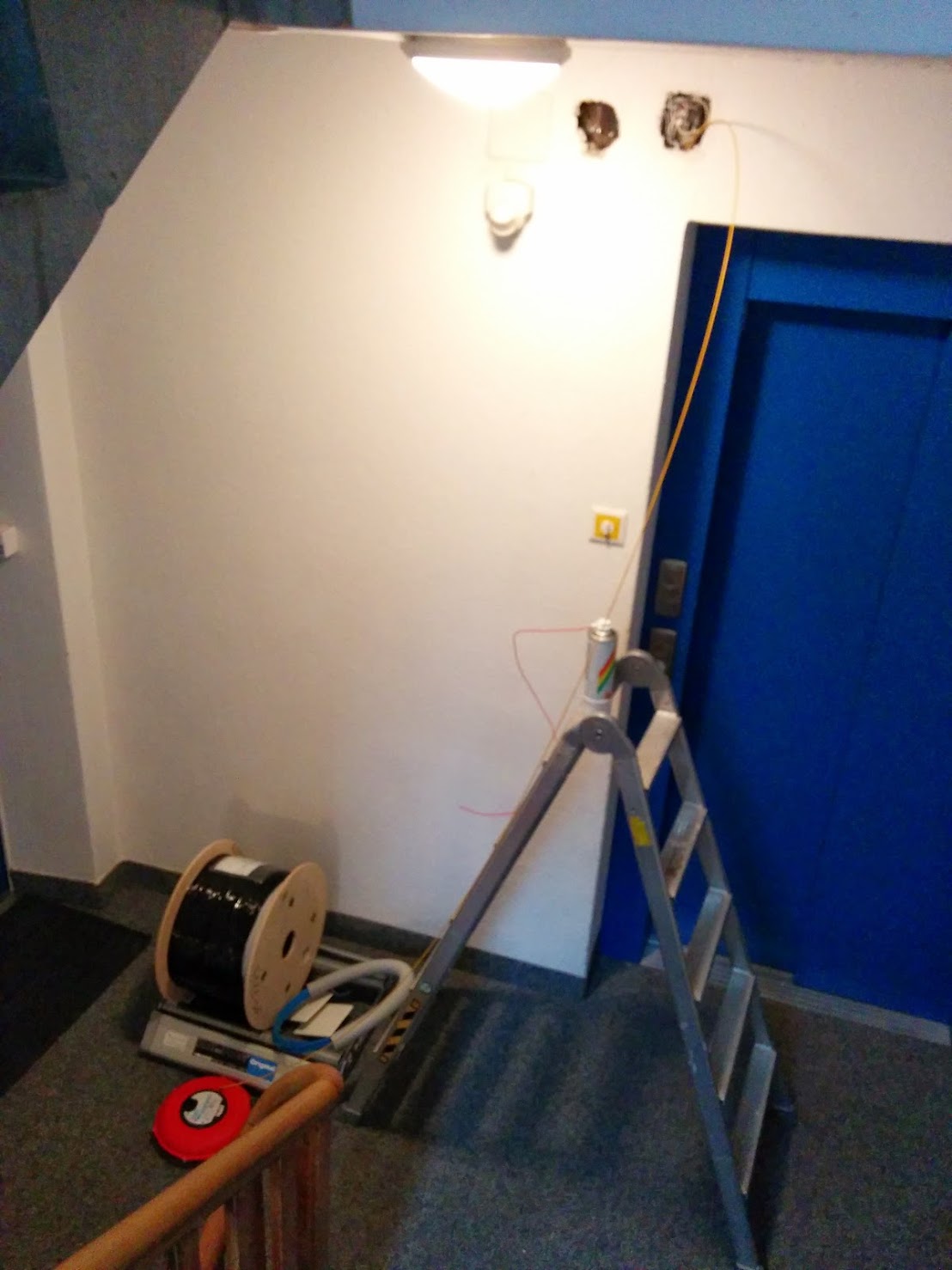
<p>Here’s a picture of when the electrician pulled the fiber from the building entry endpoint (BEP) in the basement into my flat, from March 2014:</p>


<a href="https://michael.stapelberg.ch/posts/2022-04-23-fiber7-25gbit-upgrade/2014-03-26-fiber-apartment.jpg"><img
  srcset="https://michael.stapelberg.ch/posts/2022-04-23-fiber7-25gbit-upgrade/2014-03-26-fiber-apartment_hu_a6c0fcd2e1b69faa.jpg 2x,https://michael.stapelberg.ch/posts/2022-04-23-fiber7-25gbit-upgrade/2014-03-26-fiber-apartment_hu_2dddc43956a2a184.jpg 3x"
  src="https://michael.stapelberg.ch/posts/2022-04-23-fiber7-25gbit-upgrade/2014-03-26-fiber-apartment_hu_65b394c06c5adb02.jpg"
  
  width="600"
  height="800"
  style="

border: 1px solid #000;

"
  
  loading="lazy"></a>


<h2 id="switching">Switching to fiber7</h2>
<p>Only two months after I first got my fiber connection, init7 launched their fiber7 offering, and I switched from Swisscom to fiber7 as quickly as I could.</p>
<p>The switch was worth it in every single dimension:</p>
<ul>
<li>Swisscom charged over 200 CHF per month for a 1 Gbit/s download, 100 Mbit/s upload fiber connection. fiber7 costs only 65 CHF per month and comes with a symmetric 1 Gbit/s connection. (Other providers had to follow, so now symmetric is standard.)</li>
<li>init7’s network performs much better than Swisscom’s: ping times dropped when I switched, and downloads are generally much faster. Note that this is with <em>the same physical fiber line</em>, so the difference is thanks to the numerous peerings that init7 maintains.</li>
<li>init7 gives you a static IPv6 prefix (if you want) for free, and even delegates reverse DNS to your servers of choice.</li>
<li>I enjoy init7’s unparalleled transparency. For example, check out <a href="https://blog.init7.net/de/rentabilitatsrechnung/">the blog post about cost calculation</a> if you’re ever curious if there could be a fiber7 POP in your area.</li>
</ul>
<p>I have been very happy with my fiber7 connection ever since. <a href="/posts/2014-09-05-fiber7_performance/">What I wrote in 2014 regarding its performance</a> remained true over the years — downloads were always fast for me, latencies were low, outages were rare (and came with good explanations).</p>
<p>I switched hardware multiple times over the years:</p>
<ul>
<li>First, I started with the <a href="/posts/2014-08-11-fiber7_ubnt_erlite/">Ubiquiti EdgeRouter Lite</a> which could handle the full Gigabit line rate (the MikroTik router I originally ordered maxed out at about 500 Mbit/s!).</li>
<li>In 2017, I switched to the <a href="/posts/2017-03-25-turris-omnia/">Turris Omnia</a>, an open hardware, open source software router that comes with automated updates.</li>
<li>In July 2018, after my connectivity was broken due to an incompatibility between the DHCPv6 client on the Turris Omnia and fiber7, I started developing my own <a href="https://router7.org">router7</a> in Go, <a href="/posts/2017-08-19-golang_favorite/">my favorite programming language</a>, mostly for fun, but also as a proof of concept for some cool features I think routers should have. For example, you can retro-actively start up Wireshark and open up a live ring buffer of the last few hours of network configuration traffic.</li>
</ul>
<p>Notably, init7 encourages people to use their preferred router (<a href="https://fsfe.org/activities/routers/routers.en.html">Router
Freedom</a>).</p>
<h2 id="announcement">The 25 Gbit/s announcement</h2>
<p>Over the years, other Swiss internet providers such as Swisscom and Salt introduced 10 Gbit/s offerings, so an obvious question was when init7 would follow suit.</p>
<p>People who were following init7 closely already knew that an infrastructure upgrade was coming. In 2020, init7 CEO Fredy Künzler <a href="https://twitter.com/kuenzler/status/1317841532813254659">disclosed that in 2021, init7 would start offering 10 Gbit/s</a>.</p>
<p>What nobody expected before init7 announced it on their seventh birthday, however, was that init7 started offering not only 10 Gbit/s (Fiber7-X), but also 25 Gbit/s connections (Fiber7-X2)! 🤯</p>
<p>This was init7’s announcement on Twitter:</p>
<blockquote class="twitter-tweet" data-dnt="true"><p lang="de" dir="ltr">Fünfundzwanzig ist das neue <a href="https://twitter.com/hashtag/Gigabit?src=hash&amp;ref_src=twsrc%5Etfw">#Gigabit</a>.<br><br>Sieben Jahre nach dem Launch von <a href="https://twitter.com/hashtag/Fiber7?src=hash&amp;ref_src=twsrc%5Etfw">#Fiber7</a> zünden wir die nächste Stufe 🚀 - Fiber7-X (10Gbps) und Fiber7-X2 (25Gbps) - zum selben Preis: CHF 777 pro Jahr.<br><br>Unsere Medienmitteilung: <a href="https://t.co/UnnWTexcD0">https://t.co/UnnWTexcD0</a> <a href="https://twitter.com/hashtag/MaxFix?src=hash&amp;ref_src=twsrc%5Etfw">#MaxFix</a> <a href="https://twitter.com/hashtag/FTTH?src=hash&amp;ref_src=twsrc%5Etfw">#FTTH</a> <a href="https://twitter.com/hashtag/Glasfaser?src=hash&amp;ref_src=twsrc%5Etfw">#Glasfaser</a></p>&mdash; Init7 (AS13030) (@init7) <a href="https://twitter.com/init7/status/1397111796914327552?ref_src=twsrc%5Etfw">May 25, 2021</a></blockquote>
<script async src="https://platform.twitter.com/widgets.js" charset="utf-8"></script>
<p>With this move, init7 has done it again: they introduced an offer that is better than anything else in the Swiss internet market, perhaps even world-wide!</p>
<p>One interesting aspect is init7’s so-called «<a href="https://www.init7.net/en/internet/offer/">MaxFix principle</a>»: maximum speed for a fixed price. No matter if you’re using 1 Gbit/s or 25 Gbit/s, you pay the same monthly fee. init7’s approach is to make the maximum bandwidth available to you, limited only by your physical connection. This is such a breath of fresh air compared to other ISPs that think rate-limiting customers to ridiculously low speeds is somehow acceptable on an FTTH offering 🙄 (<a href="https://twitter.com/kuenzler/status/1515062457731063815">recent example</a>).</p>
<p>If you’re curious about the infrastructure upgrade that enabled this change,
check out <a href="https://blog.init7.net/de/neue-infrastruktur/">init7’s blog post about their new POP
infrastructure</a>.</p>
<h2 id="usecase">What for? The use-case</h2>
<p>A common first reaction to fast network connections is the question: “For what do you need so much bandwidth?”</p>
<p>Interestingly enough, I heard this question as recently as last year, in the context of a Gigabit internet connection! Some people can’t imagine using more than 100 Mbit/s. And sure, from a certain perspective, I get it — that 100 Mbit/s connection will not be overloaded any time soon.</p>
<p>But, looking at when a line is overloaded is only one aspect to take into account when deciding how fast of a connection you want.</p>
<p>There is a lower limit where you notice your connection is slow. Back in 2014, a 2 Mbit/s connection was noticeably slow for regular web browsing. These days, even a 10 Mbit/s connection is noticeably slow when re-opening my browser and loading a few tabs in parallel.</p>
<p>So what should you get? A 100 Mbit/s line? 500 Mbit/s? 1000 Mbit/s? Personally, I like to not worry about it and just get the fastest line I can, to reduce any and all wait times as much as possible, whenever possible. It’s a freeing feeling! Here are a few specific examples:</p>
<ul>
<li>If I have to wait only <a href="https://twitter.com/zekjur/status/1494569749195468813">17 minutes</a> to download a PS5 game, that can make the difference between an evening waiting in frustration, or playing the title I’ve been waiting for.</li>
<li>If I can run a daily backup (over the internet) of all servers I care about without worrying that the transfers interfere with my work video calls, that gives me peace of mind.</li>
<li>If I can transfer a Debian Code Search index to my computer for debugging when needed, that might make the difference between being able to use the limited spare time I have to debug or improve Debian Code Search, or having to postpone that improvement until I find more time.</li>
</ul>
<p>Aside from my distaste for waiting, a fast and reliable fiber connection enables self-hosting. In particular for my <a href="https://distr1.org/">distri Linux</a> project where I explore fast package installation, it’s very appealing to connect it to the internet on as fast a line as possible. I want to optimize all the parts: software architecture and implementation, hardware, and network connectivity. But, for my hobby project budget, getting even a 10 Gbit/s line at a server hoster is too expensive, let alone a 25 Gbit/s line!</p>
<p>Lastly, even if there isn’t really a <em>need</em> to have such a fast connection, I hope you can understand that after spending so many years of my life limited by slow connections, that I’ll happily <em>take the opportunity</em> of a faster connection whenever I can. Especially at no additional monthly cost!</p>
<h2 id="gettingready">Getting ready</h2>
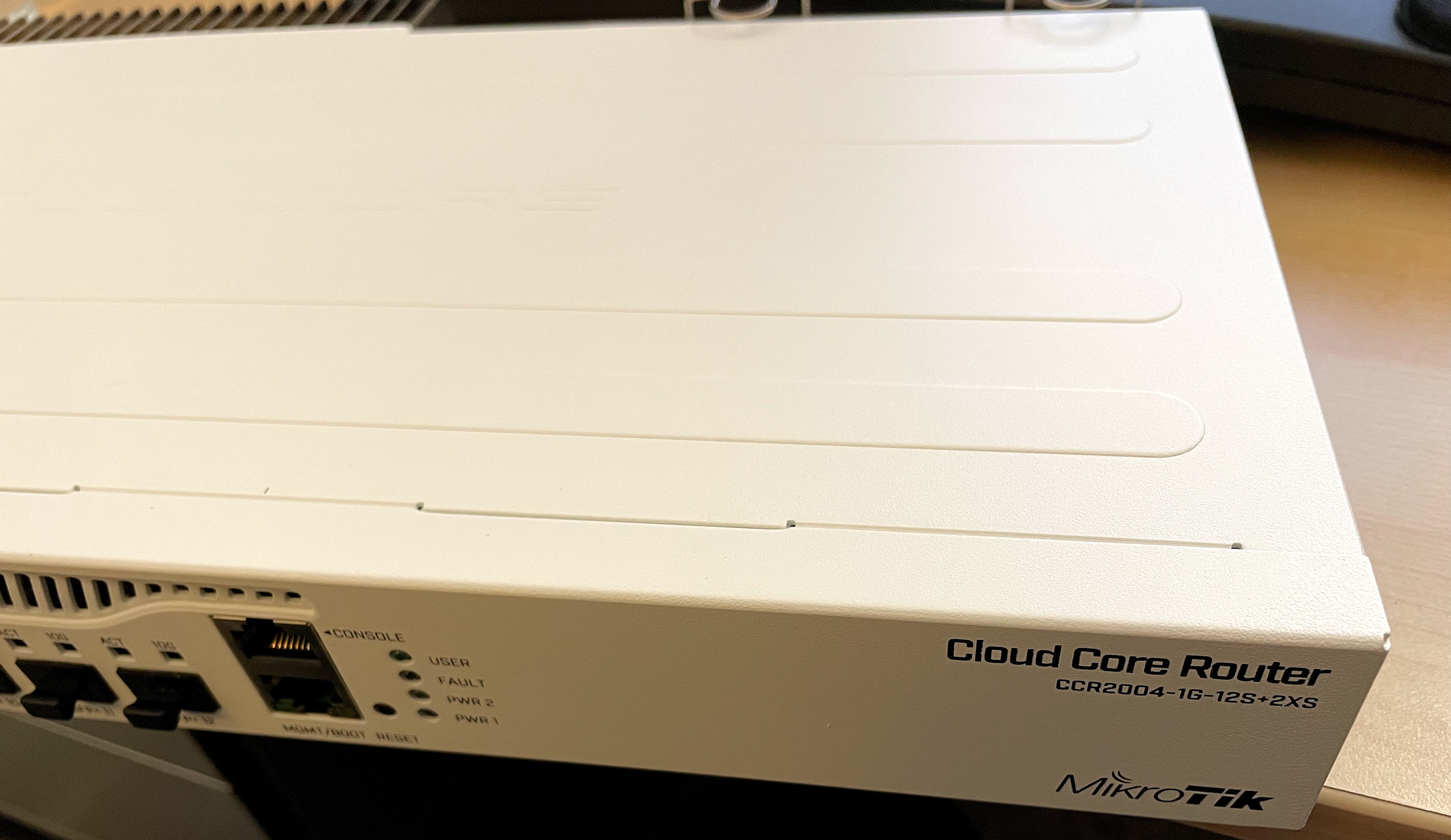
<p>Right after the announcement dropped, I wanted to prepare my side of the connection and therefore ordered a MikroTik CCR2004, the only router that init7 lists as compatible. I <a href="/posts/2021-05-28-configured-and-returned-mikrotik-ccr2004-for-fiber7/">returned the MikroTik CCR2004 shortly afterwards</a>, mostly because of its annoying fan regulation (spins up to top speed for about 1 minute every hour or so), and also because MikroTik seems to have made no progress at all since I last used their products almost 10 years ago. Table-stakes features such as DNS resolution for hostnames within the local network are still not included!</p>


<a href="https://michael.stapelberg.ch/posts/2022-04-23-fiber7-25gbit-upgrade/mikrotik-ccr2004.jpg"><img
  srcset="https://michael.stapelberg.ch/posts/2022-04-23-fiber7-25gbit-upgrade/mikrotik-ccr2004_hu_3e681715b76ff6d6.jpg 2x,https://michael.stapelberg.ch/posts/2022-04-23-fiber7-25gbit-upgrade/mikrotik-ccr2004_hu_38e88e2076077cc3.jpg 3x"
  src="https://michael.stapelberg.ch/posts/2022-04-23-fiber7-25gbit-upgrade/mikrotik-ccr2004_hu_f136ae7899e35186.jpg"
  
  width="600"
  height="347"
  style="

border: 1px solid #000;

"
  
  loading="lazy"></a>


<p>I expect that more and more embedded devices with SFP28 slots (like the MikroTik CCR2004) will become available over the next few years (hopefully with better fan control!), but at the moment, the selection seems to be rather small.</p>
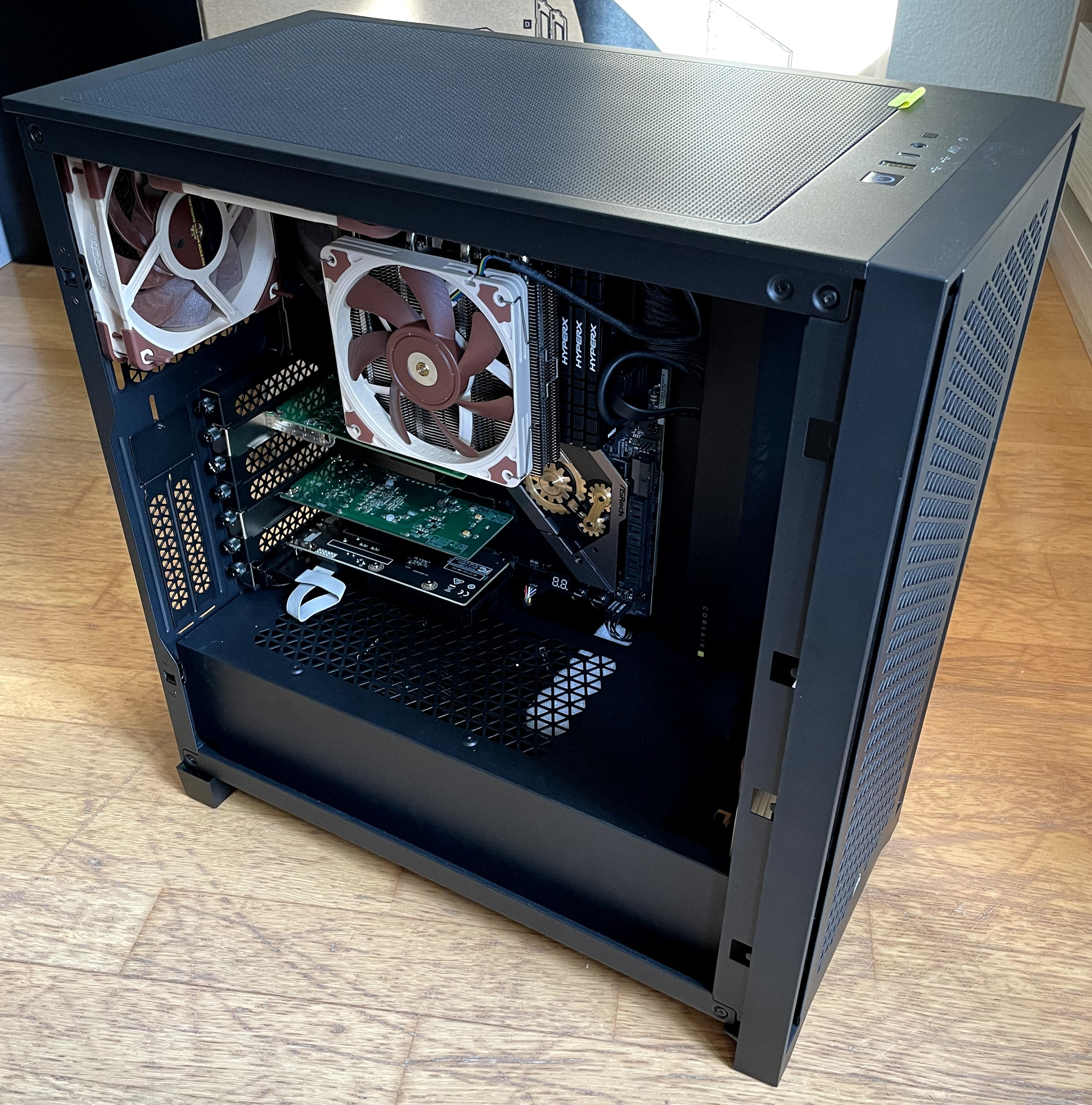
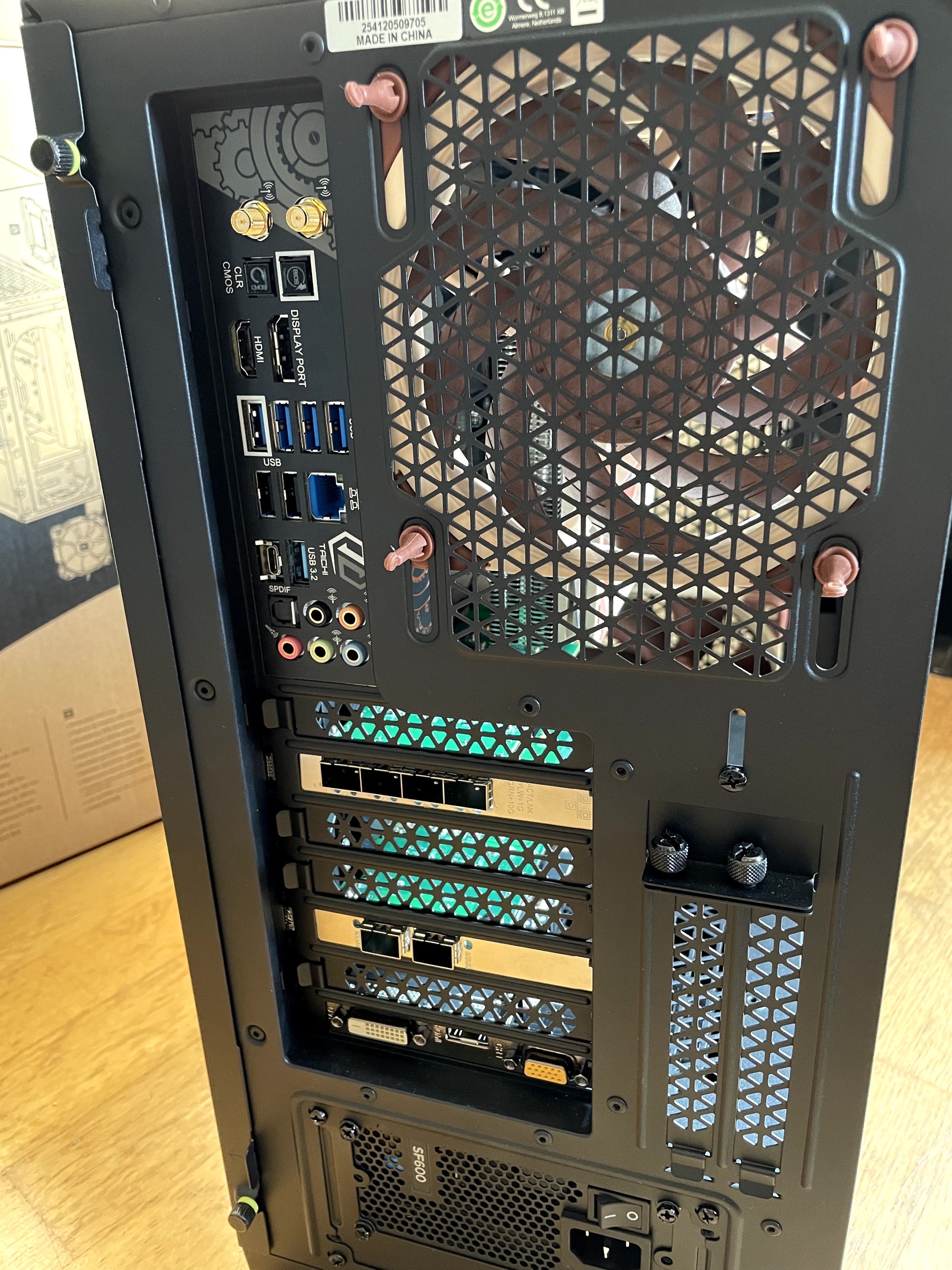
<p>For my router, I instead went with a <a href="/posts/2021-07-10-linux-25gbit-internet-router-pc-build/">custom PC build</a>. Having more space available means I can run larger, slow-spinning fans that are not as loud. Plugging in high-end Intel network cards (2 × 25 Gbit/s, and 4 × 10 Gbit/s on the other one) turns a PC into a 25 Gbit/s capable router.</p>


<a href="https://michael.stapelberg.ch/posts/2022-04-23-fiber7-25gbit-upgrade/2021-06-27-router25.jpg"><img
  srcset="https://michael.stapelberg.ch/posts/2022-04-23-fiber7-25gbit-upgrade/2021-06-27-router25_hu_ca02a165c273f12b.jpg 2x,https://michael.stapelberg.ch/posts/2022-04-23-fiber7-25gbit-upgrade/2021-06-27-router25_hu_50e2aa518afc9266.jpg 3x"
  src="https://michael.stapelberg.ch/posts/2022-04-23-fiber7-25gbit-upgrade/2021-06-27-router25_hu_2004f1d4ab8c4516.jpg"
  
  width="600"
  height="607"
  style="

border: 1px solid #000;

"
  
  loading="lazy"></a>


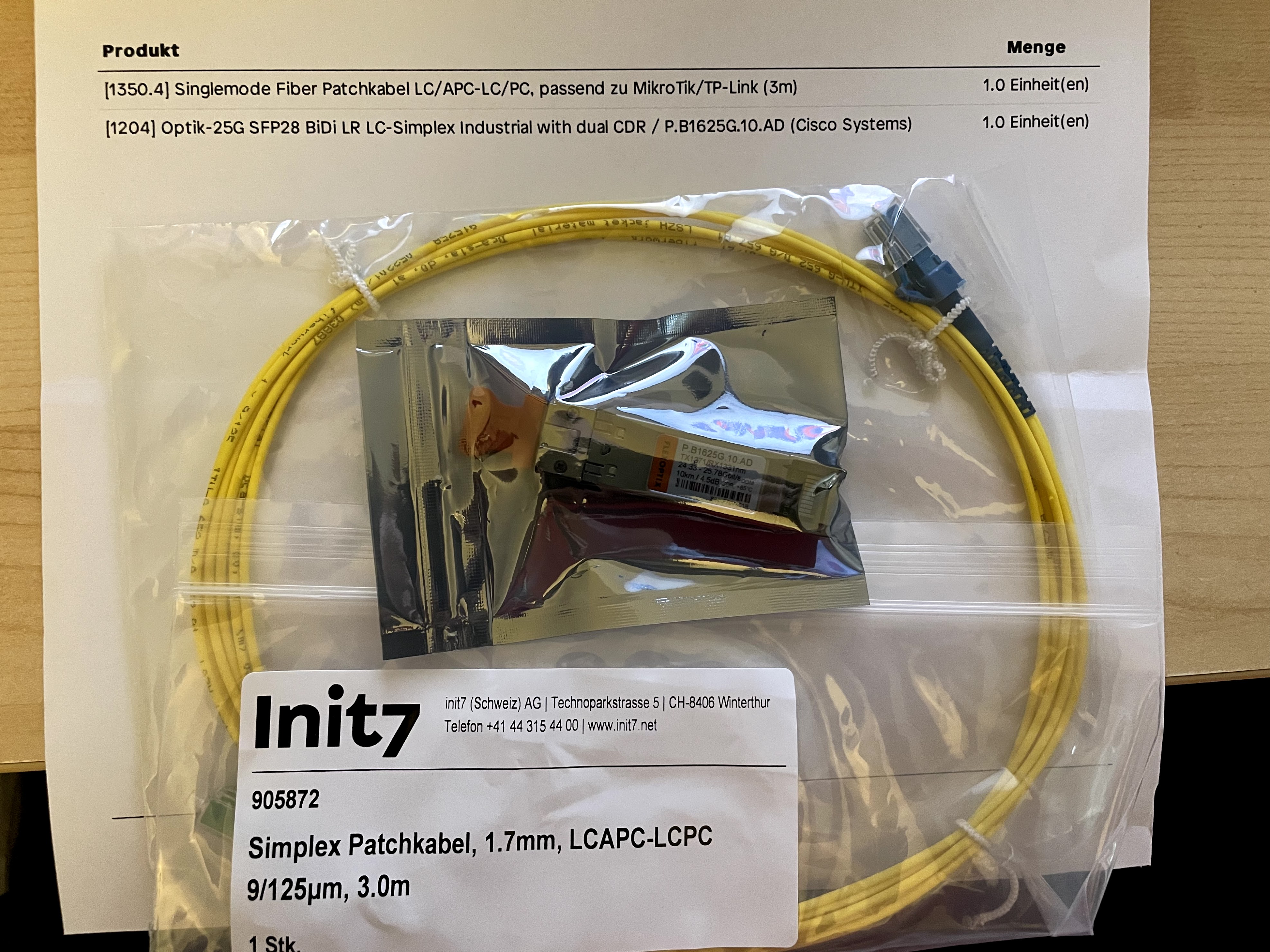
<p>With my equipment sorted out, I figured it was time to actually place the order. I wasn’t in a hurry to order, because it was clear that it would be months before my POP could be upgraded. But, it can’t hurt to register my interest (just in case it influences the POP upgrade plan). Shortly after, I got back this email from init7 where they promised to send me the SFP module via post:</p>


<a href="https://michael.stapelberg.ch/posts/2022-04-23-fiber7-25gbit-upgrade/2021-08-16-confirmation.jpg"><img
  srcset="https://michael.stapelberg.ch/posts/2022-04-23-fiber7-25gbit-upgrade/2021-08-16-confirmation_hu_5466ffb5b4dcb79e.jpg 2x,https://michael.stapelberg.ch/posts/2022-04-23-fiber7-25gbit-upgrade/2021-08-16-confirmation_hu_e473729fdb0dabf.jpg 3x"
  src="https://michael.stapelberg.ch/posts/2022-04-23-fiber7-25gbit-upgrade/2021-08-16-confirmation_hu_c6a1ae2357d07880.jpg"
  
  width="600"
  height="338"
  style="

border: 1px solid #000;

"
  
  loading="lazy"></a>


<p>And sure enough, a few days later, I received the SFP28 module in the mail:</p>


<a href="https://michael.stapelberg.ch/posts/2022-04-23-fiber7-25gbit-upgrade/2021-08-19-sfp-mail.jpg"><img
  srcset="https://michael.stapelberg.ch/posts/2022-04-23-fiber7-25gbit-upgrade/2021-08-19-sfp-mail_hu_12bc8d3457ae7801.jpg 2x,https://michael.stapelberg.ch/posts/2022-04-23-fiber7-25gbit-upgrade/2021-08-19-sfp-mail_hu_812546ee2b177a3b.jpg 3x"
  src="https://michael.stapelberg.ch/posts/2022-04-23-fiber7-25gbit-upgrade/2021-08-19-sfp-mail_hu_648b1fd4ace8b2.jpg"
  
  width="600"
  height="450"
  style="

border: 1px solid #000;

"
  
  loading="lazy"></a>


<p>With my router build, and the SFP28 module, I had everything I needed for my side of the connection.</p>
<p>The other side of the connection was originally planned to be upgraded in fall 2021, but <a href="https://twitter.com/init7/status/1403287499175235584">the global supply shortage imposed various delays on the schedule</a>.</p>
<p>Eventually, the <a href="https://www.init7.net/en/infrastructure/fiber7-pops/">fiber7 POP list</a> showed an upgrade date of April 2022 for my POP, and that turned out to be correct.</p>
<h2 id="upgrade">The night of the upgrade</h2>
<p>I had read <a href="https://ipng.ch/s/articles/2021/08/28/fiber7-x.html">Pim’s blog post on the upgrade of the 1790BRE POP in Brüttisellen</a>, which contains a lot of super interesting details, so definitely check that one out, too!</p>
<p>Being able to plug in the SFP module into the new POP infrastructure yourself (like Pim did) sounded super cool to me, so I decided to reach out, and init7 actually agreed to let me stop by to plug in “my” fiber and SFP module!</p>
<p>Giddy with excitement, I left my place at just before 23:00 for a short walk to the POP building, which I had seen many times before, but never from the inside.</p>
<p><a href="https://twitter.com/patte8">Patrick</a>, the init7 engineer met me in front of the building and explained “Hey! You wrote my <a href="https://i3wm.org/">window manager</a>!” — what a coincidence :-). Luckily I had packed some i3 stickers that I could hand him as a small thank you.</p>
<p>Inside, I met the other init7 employee working on this upgrade. Pascal, init7’s CTO, was coordinating everything remotely.</p>
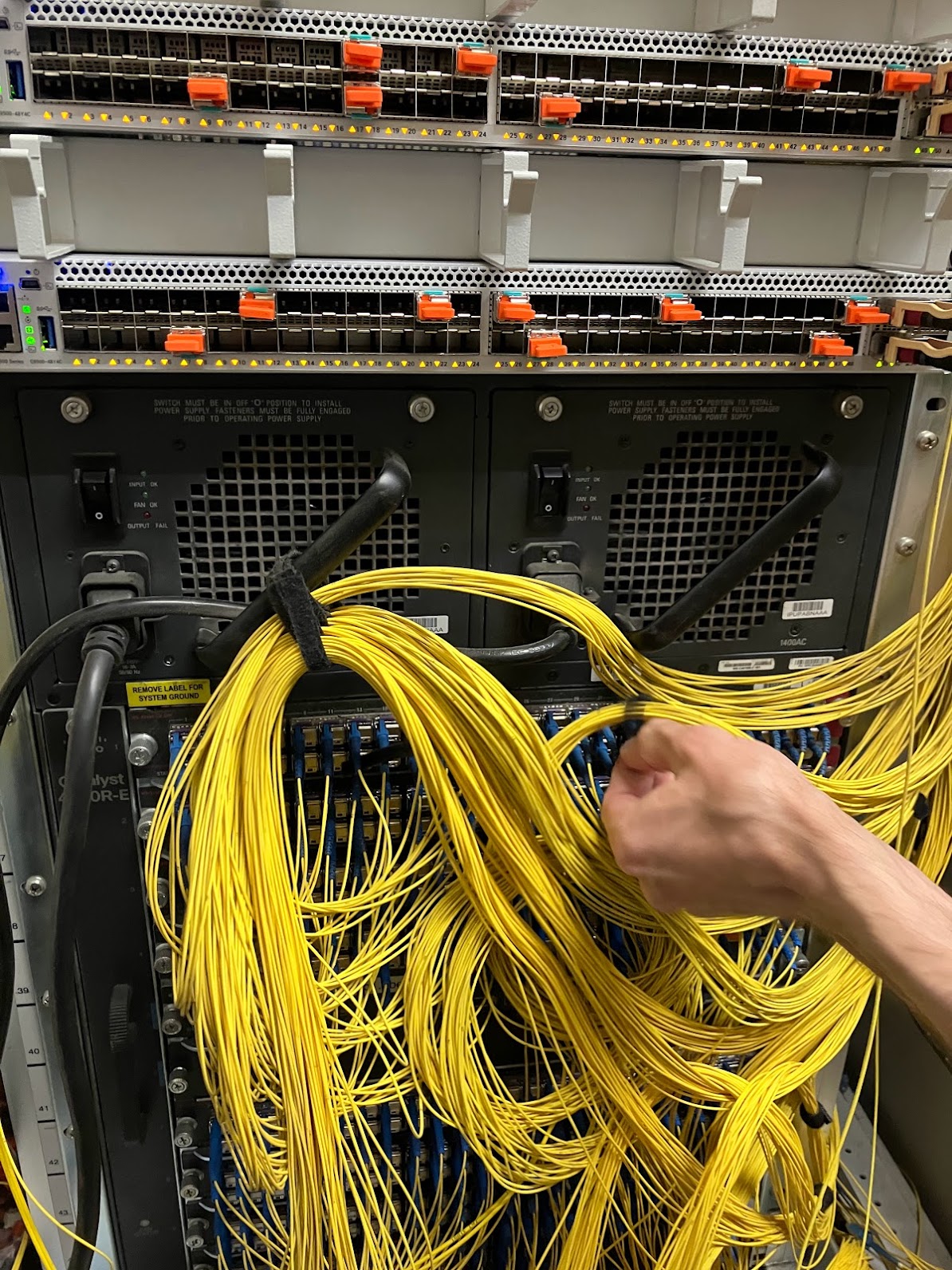
<p>Standing in front of init7’s rack, I spotted the old Cisco switch (at the bottom), and the new Cisco C9500-48Y4C switches that were already prepared (at the top). The SFP modules are for customers who decided to upgrade to 10 or 25 Gbit/s, whereas for the others, the old SFP modules would be re-used:</p>


<a href="https://michael.stapelberg.ch/posts/2022-04-23-fiber7-25gbit-upgrade/2022-04-12-pop-before.jpg"><img
  srcset="https://michael.stapelberg.ch/posts/2022-04-23-fiber7-25gbit-upgrade/2022-04-12-pop-before_hu_a91262e4dad9e112.jpg 2x,https://michael.stapelberg.ch/posts/2022-04-23-fiber7-25gbit-upgrade/2022-04-12-pop-before_hu_2d30568d14672d88.jpg 3x"
  src="https://michael.stapelberg.ch/posts/2022-04-23-fiber7-25gbit-upgrade/2022-04-12-pop-before_hu_985c87e5b84c295d.jpg"
  
  width="600"
  height="800"
  style="

border: 1px solid #000;

"
  
  loading="lazy"></a>


<p>We then spent the next hour pulling out fiber cables and SFP modules out of the old Cisco switch, and plugging them back into the new Cisco switch.</p>
<p>Just like the init7 engineer working with me (who is usually a software guy, too, he explained), I enjoy doing physical labor from time to time for variety. Especially with nice hardware like this, and when it’s for a good cause (faster internet)! It’s almost meditative, in a way, and I enjoyed the nice conversation we had while we were both moving the connections.</p>
<p>After completing about half of the upgrade (the top half of the old Cisco switch), I walked back to my place — still blissfully smiling all the way — to turn up my end of the connection while the others were still on site and could fix any mistakes.</p>
<p>After switching my <code>uplink0</code> network interface to the faster network card, it also took a full reboot of my router for some reason, but then it recognized the SFP28 module without trouble and successfully established a 25 Gbit/s link! 🎉 🥳</p>
<p>I did a quick speed test to confirm and called it a night.</p>
<h2 id="speedtest">Speed tests / benchmarks</h2>
<p>Just like in the early days of Gigabit connections, my internet connection is
now faster than the connection of many servers. It’s a luxury problem to be
sure, but in case you’re curious how far a 25 Gbit/s connection gets you in the
internet, in this section I collected some speed test results.</p>
<h3 id="ookla-speedtestnet">Ookla speedtest.net</h3>
<p>speedtest.net (run by Ookla) is the best way to measure fast connections that I’m aware of.</p>
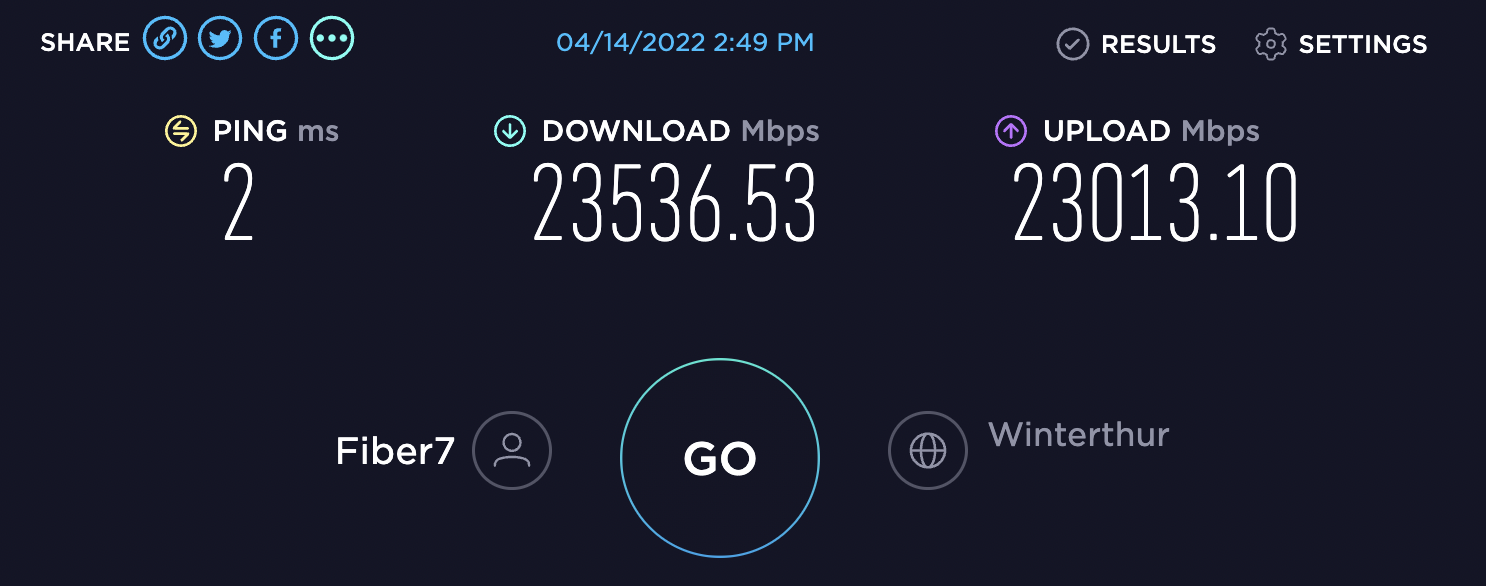
<p>Here is <a href="https://www.speedtest.net/result/c/ed97e48a-3655-4fc8-8e7f-4d18d48f10f5">my first 25 Gbit/s
speedtest</a>,
which was run using the <a href="https://speedtest.init7.net/">init7 speedtest server</a>:</p>


<a href="https://michael.stapelberg.ch/posts/2022-04-23-fiber7-25gbit-upgrade/2022-04-14-speedtest-ookla-featured.png"><img
  srcset="https://michael.stapelberg.ch/posts/2022-04-23-fiber7-25gbit-upgrade/2022-04-14-speedtest-ookla-featured_hu_bcb59ca76ccfc7d2.png 2x,https://michael.stapelberg.ch/posts/2022-04-23-fiber7-25gbit-upgrade/2022-04-14-speedtest-ookla-featured_hu_bc337fa63ece44f7.png 3x"
  src="https://michael.stapelberg.ch/posts/2022-04-23-fiber7-25gbit-upgrade/2022-04-14-speedtest-ookla-featured_hu_39d9e39bdbd11ce.png"
  
  width="600"
  height="237"
  style="

border: 1px solid #000;

"
  
  loading="lazy"></a>


<p>I also ran speedtests to all other servers that were listed for the broader
Zürich area at the time, using the
<a href="https://hub.docker.com/r/tamasboros/ookla-speedtest">tamasboros/ookla-speedtest</a>
Docker image. As you can see, most speedtest servers are connected with a 10
Gbit/s port, and some (GGA Maur) even only with a 1 Gbit/s port:</p>
<table>
  <thead>
      <tr>
          <th>Speedtest server</th>
          <th>latency</th>
          <th>download (mbps)</th>
          <th>upload (mbps)</th>
      </tr>
  </thead>
  <tbody>
      <tr>
          <td>Init7 AG - Winterthur</td>
          <td>1.45</td>
          <td>23530.27</td>
          <td>23031.24</td>
      </tr>
      <tr>
          <td>fdcservers.net</td>
          <td>18.15</td>
          <td>9386.29</td>
          <td>1262.92</td>
      </tr>
      <tr>
          <td>GIB-Solutions AG - Schlieren</td>
          <td>6.64</td>
          <td>9154.12</td>
          <td>2207.68</td>
      </tr>
      <tr>
          <td>Monzoon Networks AG</td>
          <td>0.74</td>
          <td>8874.85</td>
          <td>6427.66</td>
      </tr>
      <tr>
          <td>Glattwerk AG</td>
          <td>0.92</td>
          <td>8719.04</td>
          <td>4008.28</td>
      </tr>
      <tr>
          <td>AltusHost B.V.</td>
          <td>0.80</td>
          <td>8373.34</td>
          <td>8518.90</td>
      </tr>
      <tr>
          <td>iWay AG - Zurich</td>
          <td>2.13</td>
          <td>8337.56</td>
          <td>8194.89</td>
      </tr>
      <tr>
          <td>Sunrise Communication AG</td>
          <td>9.04</td>
          <td>8279.60</td>
          <td>3109.34</td>
      </tr>
      <tr>
          <td>31173 Services AB</td>
          <td>18.69</td>
          <td>8279.75</td>
          <td>1503.92</td>
      </tr>
      <tr>
          <td>Wingo</td>
          <td>4.25</td>
          <td>6179.57</td>
          <td>5248.36</td>
      </tr>
      <tr>
          <td>Netrics Zürich AG</td>
          <td>0.74</td>
          <td>7910.78</td>
          <td>8770.19</td>
      </tr>
      <tr>
          <td>Cloudflare - Zurich</td>
          <td>1.14</td>
          <td>7410.97</td>
          <td>2218.88</td>
      </tr>
      <tr>
          <td>Netprotect - Zurich</td>
          <td>0.87</td>
          <td>7034.62</td>
          <td>8948.01</td>
      </tr>
      <tr>
          <td>C41.ch - Zurich</td>
          <td>9.90</td>
          <td>6792.60</td>
          <td>690.33</td>
      </tr>
      <tr>
          <td>Goldenphone GmbH</td>
          <td>18.91</td>
          <td>3116.32</td>
          <td>659.23</td>
      </tr>
      <tr>
          <td>GGA Maur</td>
          <td>0.99</td>
          <td>940.24</td>
          <td>941.24</td>
      </tr>
  </tbody>
</table>
<h3 id="linux-mirrors">Linux mirrors</h3>
<p>For a few popular Linux distributions, I went through the mirror list and tried
all servers in Switzerland and Germany. Only one or two would be able to deliver
files at more than 1 Gigabit/s. Other miror servers were either capped at 1
Gigabit/s, or wouldn’t even reach that (slow disks?).</p>
<p>Here are the fast ones:</p>
<ul>
<li><strong>Debian:</strong> <code>mirror1.infomaniak.com</code> and <code>mirror2.infomaniak.com</code></li>
<li><strong>Arch Linux:</strong> <code>mirror.puzzle.ch</code></li>
<li><strong>Fedora Linux:</strong> <code>mirrors.xtom.de</code></li>
<li><strong>Ubuntu Linux:</strong> <code>mirror.netcologne.de</code> and <code>ubuntu.ch.altushost.com</code></li>
</ul>
<h3 id="iperf3">iperf3</h3>
<p>Using <code>iperf3 -P 2 -c speedtest.init7.net</code>, iperf3 shows 23 Gbit/s:</p>
<pre tabindex="0"><code>[SUM]   0.00-10.00  sec  26.9 GBytes  23.1 Gbits/sec  597             sender
[SUM]   0.00-10.00  sec  26.9 GBytes  23.1 Gbits/sec                  receiver
</code></pre><p>It’s hard to find public iperf3 servers that are connected with a fast-enough
port. I could only find one that claims to be connected via a 40 Gbit/s port,
but it was unavailable when I wanted to test.</p>
<h3 id="interested-in-a-speed-test">Interested in a speed test?</h3>
<p>Do you have a ≥ 10 Gbit/s line in Europe, too? Are you interested in a speed
test? Reach out to me and we can set something up.</p>
<h2 id="conclusion">Conclusion</h2>
<p>What an exciting time to be an init7 customer! I still can’t quite believe that
I now have a 25 Gbit/s connection in 2022, and it feels like I’m living 10 years
in the future.</p>
<p>Thank you to <a href="https://twitter.com/kuenzler">Fredy</a>,
<a href="https://twitter.com/spale75">Pascal</a>, <a href="https://twitter.com/patte8">Patrick</a>,
and all the other former and current init7 employees for showing how to run an
amazing Internet Service Provider. Thank you for letting me peek behind the
curtains, and keep up the good work! 💪</p>
<p>If you want to learn more, check out Pascal’s talk at DENOG:</p>
<div style="position: relative; padding-bottom: 56.25%; height: 0; overflow: hidden;">
      <iframe allow="accelerometer; autoplay; clipboard-write; encrypted-media; gyroscope; picture-in-picture; web-share; fullscreen" loading="eager" referrerpolicy="strict-origin-when-cross-origin" src="https://www.youtube-nocookie.com/embed/fmzst6I5LwQ?autoplay=0&amp;controls=1&amp;end=0&amp;loop=0&amp;mute=0&amp;start=0" style="position: absolute; top: 0; left: 0; width: 100%; height: 100%; border:0;" title="Wie wir unabsichtlich das schnellste residential Internet access gebaut haben - Pascal Gloor"></iframe>
    </div>

]]></content>
  </entry>
  <entry>
    <title type="html"><![CDATA[25 Gigabit Linux internet router PC build]]></title>
    <link href="https://michael.stapelberg.ch/posts/2021-07-10-linux-25gbit-internet-router-pc-build/"/>
    <id>https://michael.stapelberg.ch/posts/2021-07-10-linux-25gbit-internet-router-pc-build/</id>
    <published>2021-07-10T13:43:00+02:00</published>
    <content type="html"><![CDATA[<p>init7 recently announced that with their <a href="https://www.init7.net/en/internet/fiber7/">FTTH fiber offering
Fiber7</a>, they will now sell and
connect you with 25 Gbit/s (Fiber7-X2) or 10 Gbit/s (Fiber7-X) fiber optics, if
you want more than 1 Gbit/s.</p>
<p>While this offer will only become available at my location late this year (<a href="https://twitter.com/init7/status/1403287499175235584">or
possibly later due to the supply chain
shortage</a>), I already
wanted to get the hardware on my end sorted out.</p>
<p>After my <a href="/posts/2021-05-28-configured-and-returned-mikrotik-ccr2004-for-fiber7/">previous
disappointment</a>
with the MikroTik CCR2004, I decided to try a custom PC build.</p>
<p>An alternative to many specialized devices, including routers, is to use a PC
with an expansion card. An internet router’s job is to configure a network
connection and forward network packets. So, in our case, we’ll build a PC and
install some network expansion cards!</p>


<a href="https://michael.stapelberg.ch/posts/2021-07-10-linux-25gbit-internet-router-pc-build/2021-06-27-router-featured.jpg"><img
  srcset="https://michael.stapelberg.ch/posts/2021-07-10-linux-25gbit-internet-router-pc-build/2021-06-27-router-featured_hu_ca02a165c273f12b.jpg 2x,https://michael.stapelberg.ch/posts/2021-07-10-linux-25gbit-internet-router-pc-build/2021-06-27-router-featured_hu_50e2aa518afc9266.jpg 3x"
  src="https://michael.stapelberg.ch/posts/2021-07-10-linux-25gbit-internet-router-pc-build/2021-06-27-router-featured_hu_2004f1d4ab8c4516.jpg"
  alt="router PC build" title="router PC build"
  width="600"
  height="607"
  style="

border: 1px solid #000;

"
  
  loading="lazy"></a>


<h2 id="goals">Goals</h2>
<p>For this PC internet router build, I had the following goals, highest priority
to lowest priority:</p>
<ol>
<li>Enough performance to saturate 25 Gbit/s, e.g. with two 10 Gbit/s downloads.</li>
<li>Silent: no loud fan noise.</li>
<li>Power-efficient: low power usage, as little heat as possible.</li>
<li>Low cost (well, for a high-end networking build…).</li>
</ol>
<h2 id="network-port-plan">Network Port Plan</h2>
<p>The simplest internet router has 2 network connections: one uplink to the
internet, and the local network. You can build a router without extra cards by
using a mainboard with 2 network ports.</p>
<p>Because there are no mainboards with SFP28 slots (for 25 Gbit/s SFP28 fiber
modules), we need at least 1 network card for our build. You might be able to
get by with a dual-port SFP28 network card if you have an SFP28-compatible
network switch already, or need just one fast connection.</p>
<p>I want to connect a few fast devices (directly and via fiber) to my router, so
I’m using 2 network cards: an SFP28 network card for the uplink, and a quad-port
10G SFP+ network card for the local network (LAN). This leaves us with the
following network ports and connections:</p>
<table>
  <thead>
      <tr>
          <th>Network Card</th>
          <th>max speed</th>
          <th>cable</th>
          <th>effective</th>
          <th>Connection</th>
      </tr>
  </thead>
  <tbody>
      <tr>
          <td>Intel XXV710</td>
          <td>25 Gbit/s</td>
          <td>fiber</td>
          <td>25 Gbit/s</td>
          <td>Fiber7-X2 uplink</td>
      </tr>
      <tr>
          <td>Intel XXV710</td>
          <td>25 Gbit/s</td>
          <td>DAC</td>
          <td>10 Gbit/s</td>
          <td>workstation</td>
      </tr>
      <tr>
          <td>Intel XL710</td>
          <td>10 Gbit/s</td>
          <td>RJ45</td>
          <td>1 Gbit/s</td>
          <td>rest (RJ45 Gigabit)</td>
      </tr>
      <tr>
          <td>Intel XL710</td>
          <td>10 Gbit/s</td>
          <td>fiber</td>
          <td>10 Gbit/s</td>
          <td>MikroTik 1</td>
      </tr>
      <tr>
          <td>Intel XL710</td>
          <td>10 Gbit/s</td>
          <td>fiber</td>
          <td>10 Gbit/s</td>
          <td>MikroTik 2</td>
      </tr>
      <tr>
          <td>Intel XL710</td>
          <td>10 Gbit/s</td>
          <td>/</td>
          <td>10 Gbit/s</td>
          <td>(unused)</td>
      </tr>
      <tr>
          <td>onboard</td>
          <td>2.5 Gbit/s</td>
          <td>RJ45</td>
          <td>1 Gbit/s</td>
          <td>(management)</td>
      </tr>
  </tbody>
</table>


<a href="https://michael.stapelberg.ch/posts/2021-07-10-linux-25gbit-internet-router-pc-build/2021-06-27-back-connectors.jpg"><img
  srcset="https://michael.stapelberg.ch/posts/2021-07-10-linux-25gbit-internet-router-pc-build/2021-06-27-back-connectors_hu_cf2960be27bee433.jpg 2x,https://michael.stapelberg.ch/posts/2021-07-10-linux-25gbit-internet-router-pc-build/2021-06-27-back-connectors_hu_d81e5cd5c5720ed.jpg 3x"
  src="https://michael.stapelberg.ch/posts/2021-07-10-linux-25gbit-internet-router-pc-build/2021-06-27-back-connectors_hu_d6f2c034bd089de9.jpg"
  alt="network connectors" title="network connectors"
  width="600"
  height="800"
  style="

border: 1px solid #000;

"
  
  loading="lazy"></a>


<h2 id="hardware-selection">Hardware selection</h2>
<p>Now that we have defined the goals and network needs, let’s select the actual
hardware!</p>
<h3 id="network-cards">Network Cards</h3>
<p>My favorite store for 10 Gbit/s+ network equipment is
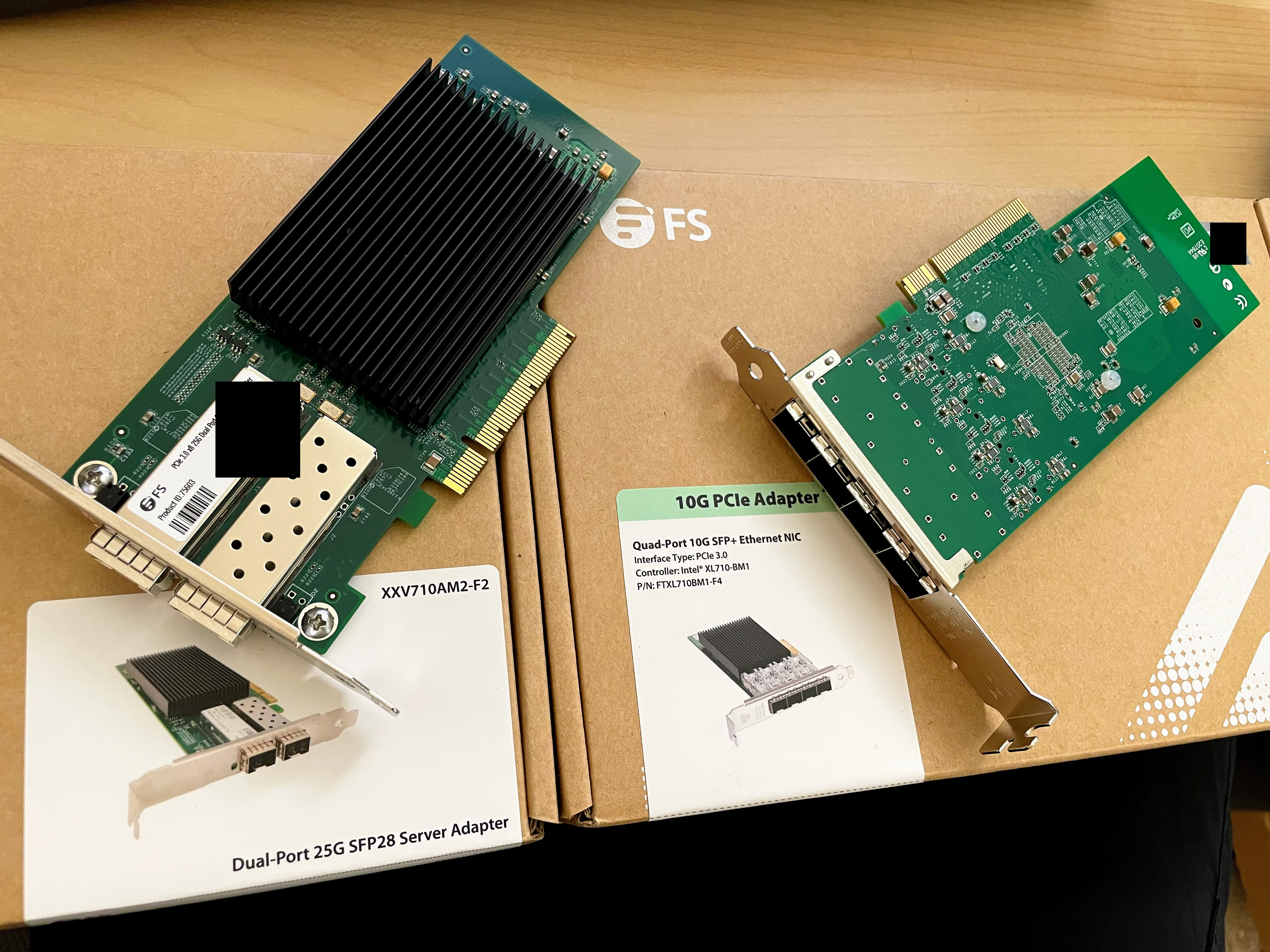
<a href="https://www.fs.com/">FS.COM</a>. They offer Intel-based cards:</p>


<a href="https://michael.stapelberg.ch/posts/2021-07-10-linux-25gbit-internet-router-pc-build/2021-06-03-network-cards.jpg"><img
  srcset="https://michael.stapelberg.ch/posts/2021-07-10-linux-25gbit-internet-router-pc-build/2021-06-03-network-cards_hu_5fb8ddcb0a4d8b8b.jpg 2x,https://michael.stapelberg.ch/posts/2021-07-10-linux-25gbit-internet-router-pc-build/2021-06-03-network-cards_hu_328225827af2ae28.jpg 3x"
  src="https://michael.stapelberg.ch/posts/2021-07-10-linux-25gbit-internet-router-pc-build/2021-06-03-network-cards_hu_89e7b15dcfa494b.jpg"
  alt="Network cards" title="Network cards"
  width="600"
  height="450"
  style="

border: 1px solid #000;

"
  
  loading="lazy"></a>


<ul>
<li>
<p>(347 CHF) PCIe 3.0 x8 Dual-Port 25G SFP28 Ethernet Network Card (Intel XXV710) <br>
<a href="https://www.fs.com/de/products/75603.html">FS.COM XXV710AM2-F2 #75603</a></p>
</li>
<li>
<p>(329 CHF) PCIe 3.0 x8 Quad-Port 10G SFP+ Ethernet Network Card (Intel XL710-BM1) <br>
<a href="https://www.fs.com/de/products/75602.html">FS.COM FTXL710BM1-F4 #75602</a></p>
</li>
</ul>
<p>Both cards work out of the box with the <a href="https://www.kernel.org/doc/Documentation/networking/i40e.txt"><code>i40e</code> Linux kernel
driver</a>, no
firmware blobs required.</p>
<p>For a good overview over the different available Intel cards, check out the
second page (“Product View”) in the card’s <a href="https://img-en.fs.com/file/user_manual/network-adapter-user-manual.pdf">User
Manual</a>.</p>
<h3 id="cpu-and-chipset">CPU and Chipset</h3>
<p>I read on many different sites that AMD’s current CPUs beat Intel’s CPUs in
terms of performance per watt. We can better achieve goals 2 and 3 (low noise
and low power usage) by using fewer watts, so we’ll pick an AMD CPU and
mainboard for this build.</p>
<p>AMD’s current CPU generation is Zen 3, and <a href="https://en.wikipedia.org/wiki/List_of_AMD_Ryzen_processors#Zen_3_based">current Zen 3 based
CPUs</a>
can be divided into 65W <a href="https://en.wikipedia.org/wiki/Thermal_design_power">TDP (Thermal Design
Power)</a> and 105W TDP
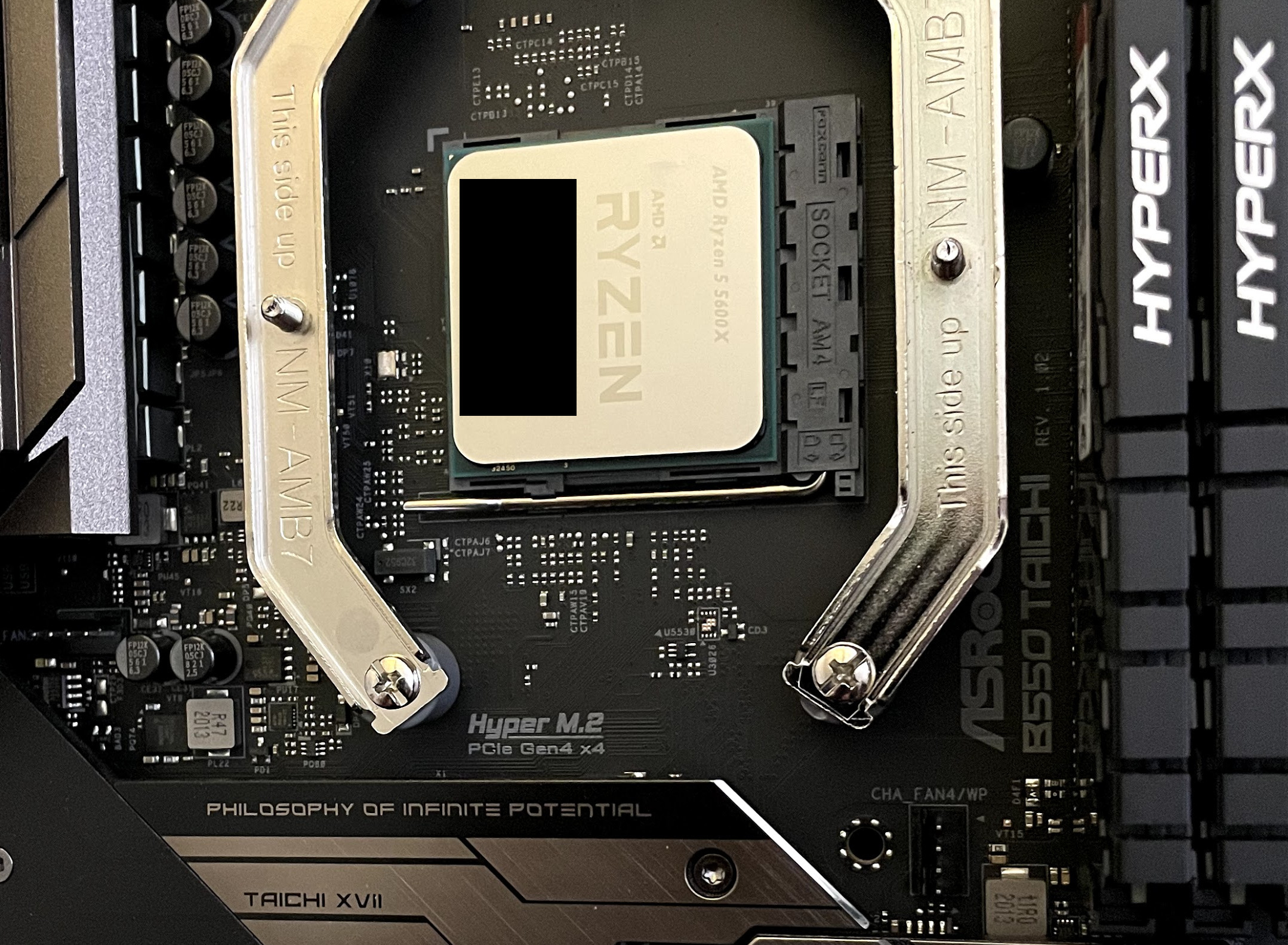
models. Only one 65W model is available to customers right now: the Ryzen 5
5600X.</p>
<aside class="admonition note">
  <div class="note-container">
    <div class="note-icon" style="width: 20px; height: 20px">
      <svg id="exclamation-icon" width="100%" height="100%" viewBox="0 0 24 24" version="1.1" xmlns="http://www.w3.org/2000/svg" xmlns:xlink="http://www.w3.org/1999/xlink" xml:space="preserve" style="fill-rule:evenodd;clip-rule:evenodd;stroke-linejoin:round;stroke-miterlimit:1.41421;">
    <path d="M0,0L24,0L24,24L0,24L0,0Z" style="fill:none;"/>
    <g transform="matrix(1.2,0,0,1.2,-2.4,-2.4)">
        <path d="M12,2C6.48,2 2,6.48 2,12C2,17.52 6.48,22 12,22C17.52,22 22,17.52 22,12C22,6.48 17.52,2 12,2ZM13,17L11,17L11,15L13,15L13,17ZM13,13L11,13L11,7L13,7L13,13Z" style="fill-rule:nonzero;"/>
    </g>
</svg>

    </div>
    <div class="admonition-content"><p><strong>Update (2023):</strong> The <a href="https://www.digitec.ch/de/s1/product/amd-ryzen-7-pro-5750ge-46ghz-tray-am4-460-ghz-8-core-prozessor-20796931">AMD Ryzen 7 PRO
5750GE</a>
is now available, with a TDP of only 35W, and comparable performance.</p>
<p>In March 2023, I switched from the Ryzen 5 5600X to the Ryzen 7 PRO 5750GE, and
verified that my router can still forward and serve at 25 Gbit/s with ease.</p>
<p>The router now consumes 14W less power, and runs 7 to 10 ℃ cooler!</p>
</div>
  </div>
</aside>

<p>Mainboards are built for/with a certain so-called chipset. Zen 3 CPUs use the
AM4 socket, for which <a href="https://en.wikipedia.org/wiki/Socket_AM4#Chipsets">8 different
chipsets</a> exist. Our network
cards need PCIe 3.0, so that disqualifies 5 chipsets right away: only the A520,
B550 and X570 chipsets remain.</p>
<aside class="admonition note">
  <div class="note-container">
    <div class="note-icon" style="width: 20px; height: 20px">
      <svg id="exclamation-icon" width="100%" height="100%" viewBox="0 0 24 24" version="1.1" xmlns="http://www.w3.org/2000/svg" xmlns:xlink="http://www.w3.org/1999/xlink" xml:space="preserve" style="fill-rule:evenodd;clip-rule:evenodd;stroke-linejoin:round;stroke-miterlimit:1.41421;">
    <path d="M0,0L24,0L24,24L0,24L0,0Z" style="fill:none;"/>
    <g transform="matrix(1.2,0,0,1.2,-2.4,-2.4)">
        <path d="M12,2C6.48,2 2,6.48 2,12C2,17.52 6.48,22 12,22C17.52,22 22,17.52 22,12C22,6.48 17.52,2 12,2ZM13,17L11,17L11,15L13,15L13,17ZM13,13L11,13L11,7L13,7L13,13Z" style="fill-rule:nonzero;"/>
    </g>
</svg>

    </div>
    <div class="admonition-content"><strong>Note:</strong> Multiple people pointed out (thank you!) that the Wikipedia table only
lists PCIe lanes provided by the chipset, and strictly speaking, the older X470
chipset (released March 2018) supports CPUs which provide PCIe 3.0
lines. E.g. the <a href="https://www.asus.com/microsite/motherboard/AMD-X470/">ROG Strix
X470-F</a> with its x8/x8
mode should work, too.</div>
  </div>
</aside>


<a href="https://michael.stapelberg.ch/posts/2021-07-10-linux-25gbit-internet-router-pc-build/2021-06-08-ryzen5-on-mainboard.jpg"><img
  srcset="https://michael.stapelberg.ch/posts/2021-07-10-linux-25gbit-internet-router-pc-build/2021-06-08-ryzen5-on-mainboard_hu_23d3d7a02be73f4.jpg 2x,https://michael.stapelberg.ch/posts/2021-07-10-linux-25gbit-internet-router-pc-build/2021-06-08-ryzen5-on-mainboard_hu_a6aa883982d017d9.jpg 3x"
  src="https://michael.stapelberg.ch/posts/2021-07-10-linux-25gbit-internet-router-pc-build/2021-06-08-ryzen5-on-mainboard_hu_878be964927689f0.jpg"
  alt="Ryzen 5" title="Ryzen 5"
  width="600"
  height="440"
  style="

border: 1px solid #000;

"
  
  loading="lazy"></a>


<h3 id="mainboard-pcie-bandwidth">Mainboard: PCIe bandwidth</h3>
<p>I originally tried using the ASUS PRIME X570-P mainboard, but I ran into two
problems:</p>
<p>Too loud: X570 mainboards need an annoyingly loud chipset fan for their 15W
TDP. Other chipsets such as the B550 don’t need a fan for their 5W TDP. With a
loud chipset fan, goal 2 (low noise) cannot be achieved. Only the
<a href="https://www.golem.de/news/sockel-am4-x570s-mainboards-mit-passivkuehlung-verfuegbar-2106-157434.html">recently-released X570<strong>S</strong>
variant</a>
comes without fans.</p>
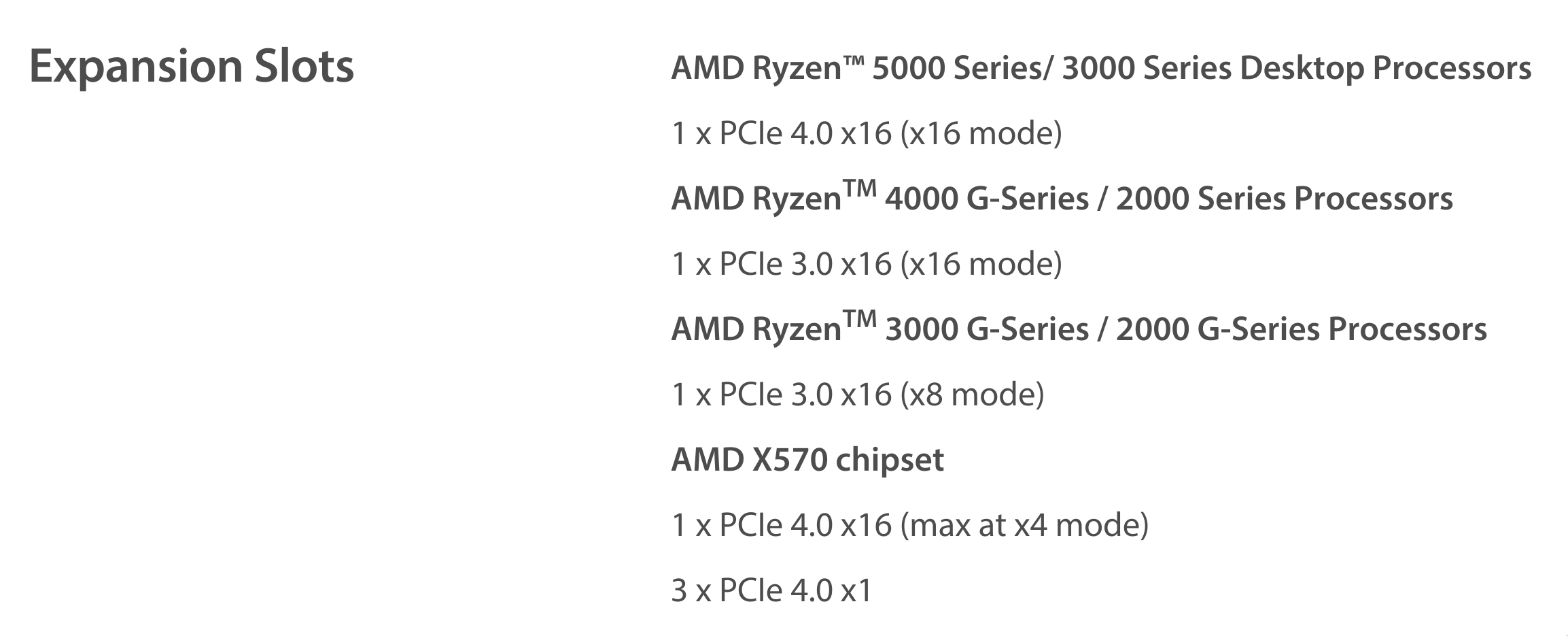
<p>Not enough PCIe bandwidth/slots! This is how the ASUS tech specs describe the slots:</p>


<a href="https://michael.stapelberg.ch/posts/2021-07-10-linux-25gbit-internet-router-pc-build/x570p_expansion.jpg"><img
  srcset="https://michael.stapelberg.ch/posts/2021-07-10-linux-25gbit-internet-router-pc-build/x570p_expansion_hu_cdb363d2f6d6af51.jpg 2x,https://michael.stapelberg.ch/posts/2021-07-10-linux-25gbit-internet-router-pc-build/x570p_expansion_hu_1eb62c6705e48606.jpg 3x"
  src="https://michael.stapelberg.ch/posts/2021-07-10-linux-25gbit-internet-router-pc-build/x570p_expansion_hu_66cdb07026cbf56f.jpg"
  
  width="600"
  height="244"
  style="

border: 1px solid #000;

"
  
  loading="lazy"></a>


<p>This means the board has 2 slots (1 CPU, 1 chipset) that are physically wide
enough to hold a full-length x16 card, but only the first port can
electronically be used as an x16 slot. The other port only has PCIe lanes
electronically connected for x4, hence “x16 (max at x4 mode)”.</p>
<p>Unfortunately, our network cards need electrical connection of all their PCIe x8
lanes to run at full speed. Perhaps Intel/FS.COM will one day offer a new
generation of network cards that use PCIe <strong>4.0</strong>, because PCIe 4.0 x4 achieves
the same 7.877 GB/s throughput as PCIe <strong>3.0</strong> x8. Until then, I needed to find
a new mainboard.</p>
<p>Searching mainboards by PCIe capabilities is rather tedious, as mainboard block
diagrams or PCIe tree diagrams are not consistently available from all mainboard
vendors.</p>
<p>Instead, we can look explicitly for a feature called <strong>PCIe Bifurcation</strong>. In a
nutshell, PCIe bifurcation lets us divide the PCIe bandwidth from the Ryzen CPU
from 1 PCIe 4.0 x16 into 1 PCIe 4.0 x8 + 1 PCIe 4.0 x8, definitely satisfying
our requirement for two x8 slots at full bandwidth.</p>
<p>I found a list of (only!) three B550 mainboards supporting PCIe Bifurcation in <a href="https://www.anandtech.com/show/15850/the-amd-b550-motherboard-overview-asus-gigabyte-msi-asrock-and-others/39">an
Anandtech
review</a>. Two
are made by Gigabyte, one by ASRock. I read the Gigabyte UEFI setup is rather
odd, so I went with the ASRock B550 Taichi mainboard.</p>
<h3 id="case">Case</h3>
<p>For the case, I needed a midi case (large enough for the B550 mainboard’s ATX
form factor) with plenty of options for large, low-spinning fans.</p>
<p>I stumbled upon the <a href="https://www.corsair.com/us/en/Categories/Products/Cases/Mid-Tower-ATX-Cases/4000D-Airflow-Tempered-Glass-Mid-Tower-ATX-Case/p/CC-9011200-WW">Corsair 4000D
Airflow</a>,
which is available for 80 CHF and <a href="https://www.gamersnexus.net/hwreviews/3624-corsair-4000d-airflow-case-review-vs-solid-panel">achieved positive
reviews</a>. I’m
pleased with the 4000D: there are no sharp corners, installation is quick, easy
and clean, and the front and top panels offer plenty of space for cooling behind
large air intakes:</p>


<a href="https://michael.stapelberg.ch/posts/2021-07-10-linux-25gbit-internet-router-pc-build/2021-06-01-airflow-case-top.jpg"><img
  srcset="https://michael.stapelberg.ch/posts/2021-07-10-linux-25gbit-internet-router-pc-build/2021-06-01-airflow-case-top_hu_b69505892c3851b3.jpg 2x,https://michael.stapelberg.ch/posts/2021-07-10-linux-25gbit-internet-router-pc-build/2021-06-01-airflow-case-top_hu_39ef421815a94f26.jpg 3x"
  src="https://michael.stapelberg.ch/posts/2021-07-10-linux-25gbit-internet-router-pc-build/2021-06-01-airflow-case-top_hu_d5cd8015f10696ce.jpg"
  alt="Airflow case (from the top)" title="Airflow case (from the top)"
  width="600"
  height="699"
  style="

border: 1px solid #000;

"
  
  loading="lazy"></a>


<p>Inside, the case offers plenty of space and options for routing cables on the back side:</p>


<a href="https://michael.stapelberg.ch/posts/2021-07-10-linux-25gbit-internet-router-pc-build/2021-06-27-case-back.jpg"><img
  srcset="https://michael.stapelberg.ch/posts/2021-07-10-linux-25gbit-internet-router-pc-build/2021-06-27-case-back_hu_5f3cd9e08bf1e35b.jpg 2x,https://michael.stapelberg.ch/posts/2021-07-10-linux-25gbit-internet-router-pc-build/2021-06-27-case-back_hu_80f05756d645181e.jpg 3x"
  src="https://michael.stapelberg.ch/posts/2021-07-10-linux-25gbit-internet-router-pc-build/2021-06-27-case-back_hu_5cc6a307364413d6.jpg"
  alt="Airflow case (back)" title="Airflow case (back)"
  width="600"
  height="536"
  style="

border: 1px solid #000;

"
  
  loading="lazy"></a>


<p>Which in turn makes for a clean front side:</p>


<a href="https://michael.stapelberg.ch/posts/2021-07-10-linux-25gbit-internet-router-pc-build/2021-06-27-case-front.jpg"><img
  srcset="https://michael.stapelberg.ch/posts/2021-07-10-linux-25gbit-internet-router-pc-build/2021-06-27-case-front_hu_25dcb2bd1eca7789.jpg 2x,https://michael.stapelberg.ch/posts/2021-07-10-linux-25gbit-internet-router-pc-build/2021-06-27-case-front_hu_ce612193e30e0787.jpg 3x"
  src="https://michael.stapelberg.ch/posts/2021-07-10-linux-25gbit-internet-router-pc-build/2021-06-27-case-front_hu_9e891fd61c514f0d.jpg"
  alt="Airflow case (front)" title="Airflow case (front)"
  width="600"
  height="800"
  style="

border: 1px solid #000;

"
  
  loading="lazy"></a>


<h3 id="fans">Fans</h3>
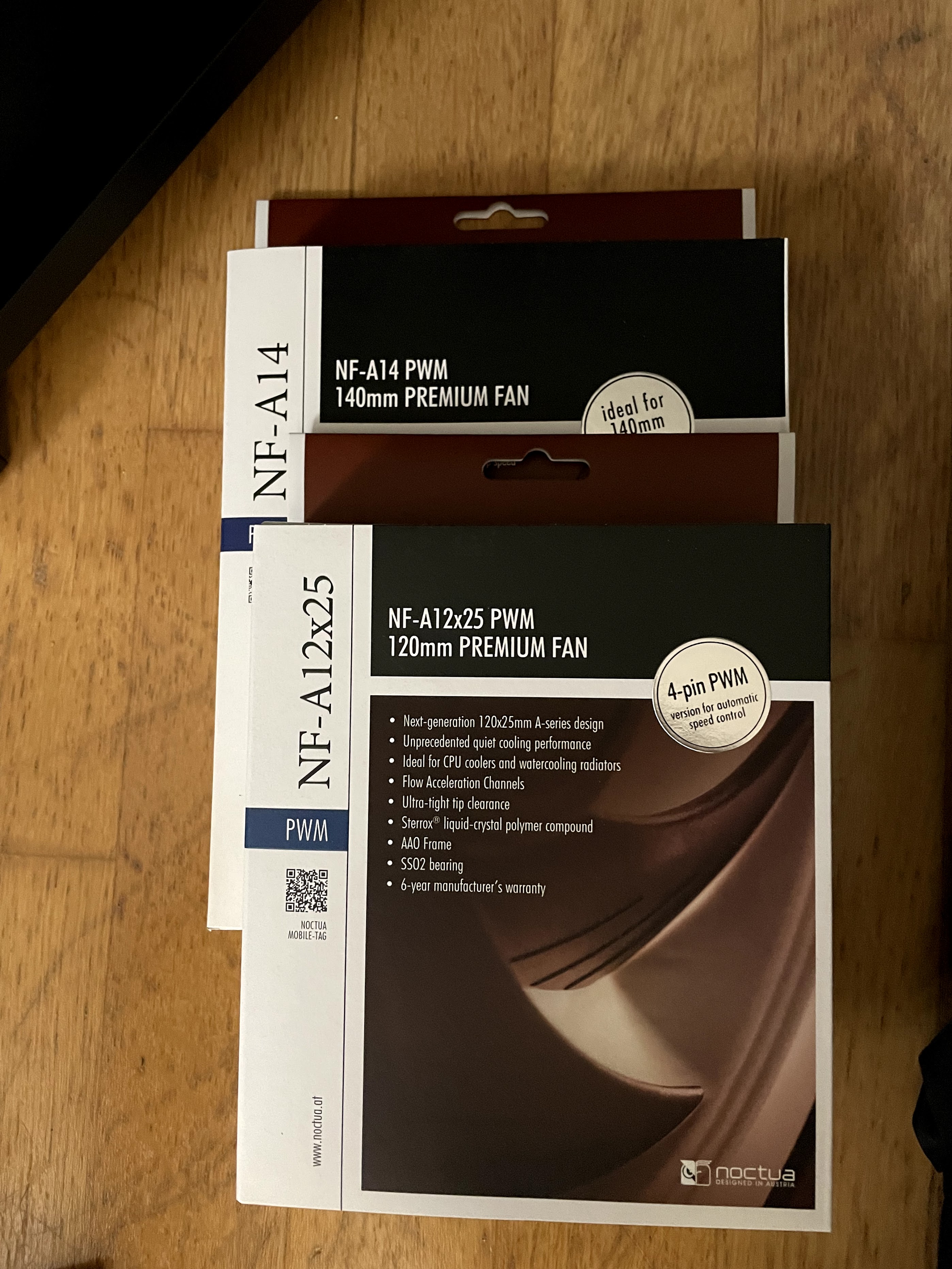
<p>I have been happy with <a href="https://noctua.at/">Noctua</a> fans for many years. In this
build, I’m using only Noctua fans so that I can reach goal 2 (silent, no loud
fan noise):</p>


<a href="https://michael.stapelberg.ch/posts/2021-07-10-linux-25gbit-internet-router-pc-build/2021-06-01-noctua-fans.jpg"><img
  srcset="https://michael.stapelberg.ch/posts/2021-07-10-linux-25gbit-internet-router-pc-build/2021-06-01-noctua-fans_hu_442c2416abff03ce.jpg 2x,https://michael.stapelberg.ch/posts/2021-07-10-linux-25gbit-internet-router-pc-build/2021-06-01-noctua-fans_hu_50a7fa25d3bac78.jpg 3x"
  src="https://michael.stapelberg.ch/posts/2021-07-10-linux-25gbit-internet-router-pc-build/2021-06-01-noctua-fans_hu_3a318768393597d1.jpg"
  alt="Noctua fans" title="Noctua fans"
  width="600"
  height="800"
  style="

border: 1px solid #000;

"
  
  loading="lazy"></a>


<p>These fans are large (140mm), so they can spin on slow speeds and still be
effective.</p>
<p>The specific fan configuration I ended up with:</p>
<ul>
<li>1 Noctua NF-A14 PWM 140mm in the front, pulling air out of the case</li>
<li>1 Noctua NF-A14 PWM 140mm in the top, pulling air into the case</li>
<li>1 Noctua NF-A12x25 PWM 120mm in the back, pulling air into the case</li>
<li>1 Noctua NH-L12S CPU fan</li>
</ul>
<p>Note that this is most likely overkill: I can well imagine that I could turn off
one of these fans entirely without a noticeable effect on temperatures. But I
wanted to be on the safe side and have a lot of cooling capacity, as I don’t
know how hot the Intel network cards run in practice.</p>
<h3 id="fan-controller">Fan Controller</h3>
<p>The ASRock B550 Taichi <a href="https://www.techpowerup.com/review/asrock-b550-taichi/7.html">comes with a Nuvoton
NCT6683D-T</a> fan
controller.</p>
<p>Unfortunately, ASRock seems to have set the Customer ID register to 0 instead of
<code>CUSTOMER_ID_ASROCK</code>, so you need to load the <code>nct6683</code> Linux driver with its
<code>force</code> option.</p>
<p>Once the module is loaded, <code>lm-sensors</code> lists accurate PWM fan speeds, but the
temperature values are mislabeled and don’t quite match the temperatures I see
in the UEFI H/W Monitor:</p>
<pre tabindex="0"><code>nct6683-isa-0a20
Adapter: ISA adapter
fan1:              471 RPM  (min =    0 RPM)
fan2:                0 RPM  (min =    0 RPM)
fan3:                0 RPM  (min =    0 RPM)
fan4:                0 RPM  (min =    0 RPM)
fan5:                0 RPM  (min =    0 RPM)
fan6:                0 RPM  (min =    0 RPM)
fan7:                0 RPM  (min =    0 RPM)
Thermistor 14:     +45.5 C  (low  =  +0.0 C)
                            (high =  +0.0 C, hyst =  +0.0 C)
                            (crit =  +0.0 C)  sensor = thermistor
AMD TSI Addr 98h:  +40.0 C  (low  =  +0.0 C)
                            (high =  +0.0 C, hyst =  +0.0 C)
                            (crit =  +0.0 C)  sensor = AMD AMDSI
intrusion0:       OK
beep_enable:      disabled
</code></pre><p>At least with the <code>nct6683</code> Linux driver, there is no way to change the PWM fan
speed: the corresponding files in the <code>hwmon</code> interface are marked read-only.</p>
<p>At this point I accepted that I won’t be able to work with the fan controller
from Linux, and tried just configuring static fan control settings in the UEFI
setup.</p>
<p>But despite identical fan settings, one of my 140mm fans would end up turned
off. I’m not sure why — is it an unclean PWM signal, or is there just a bug in
the fan controller?</p>
<p>Controlling the fans to reliably spin at a low speed is vital to reach goal 2
(low noise), so I looked around for third-party fan controllers and found the
<a href="https://www.corsair.com/eu/en/Categories/Products/Accessories-%7C-Parts/iCUE-CONTROLLERS/iCUE-Commander-PRO-Smart-RGB-Lighting-and-Fan-Speed-Controller/p/CL-9011110-WW">Corsair Commander
Pro</a>,
which <a href="https://blog.ktz.me/a-usb-fan-controller-that-now-works-under-linux/">a blog post explains is compatible with
Linux</a>.</p>
<h3 id="server-disk">Server Disk</h3>
<p>This part of the build is not router-related, but I figured if I have a fast
machine with a fast network connection, I could add a fast big disk to it and
retire my other server PC.</p>
<p>Specifically, I chose the Samsung 970 EVO Plus M.2 SSD with 2 TB of
capacity. This disk can <a href="https://www.tomshardware.com/reviews/samsung-970-evo-plus-ssd,5608.html">deliver 3500 MB/s of sequential read
throughput</a>,
which is more than the ≈3000 MB/s that a 25 Gbit/s link can handle.</p>
<h3 id="graphics-card">Graphics Card</h3>
<p>An important part of computer builds for me is making troubleshooting and
maintenance as easy as possible. In my current tech landscape, that translates
to connecting an HDMI monitor and a USB keyboard, for example to boot from a
different device, to enter the UEFI setup, or to look at Linux console messages.</p>
<p>Unfortunately, the Ryzen 5 5600X does not have integrated graphics, so to get
any graphics output, we need to install a graphics card. I chose the Zotac
GeForce GT 710 Zone Edition, because it was the cheapest available card (60 CHF)
that’s passively cooled.</p>
<p>An alternative to using a graphics card might be to use a PCIe IPMI card like
the <a href="https://www.asrockrack.com/general/productdetail.asp?Model=PAUL#Specifications">ASRock
PAUL</a>,
however these seem to be harder to find, and more expensive.</p>
<p>Longer-term, I think the best option would be to use the Ryzen 5 5600G with
integrated graphics, but that model only <a href="https://www.pcmag.com/news/amds-new-ryzen-5000-g-series-will-come-with-an-integrated-gpu">becomes available later this
year</a>.</p>
<aside class="admonition note">
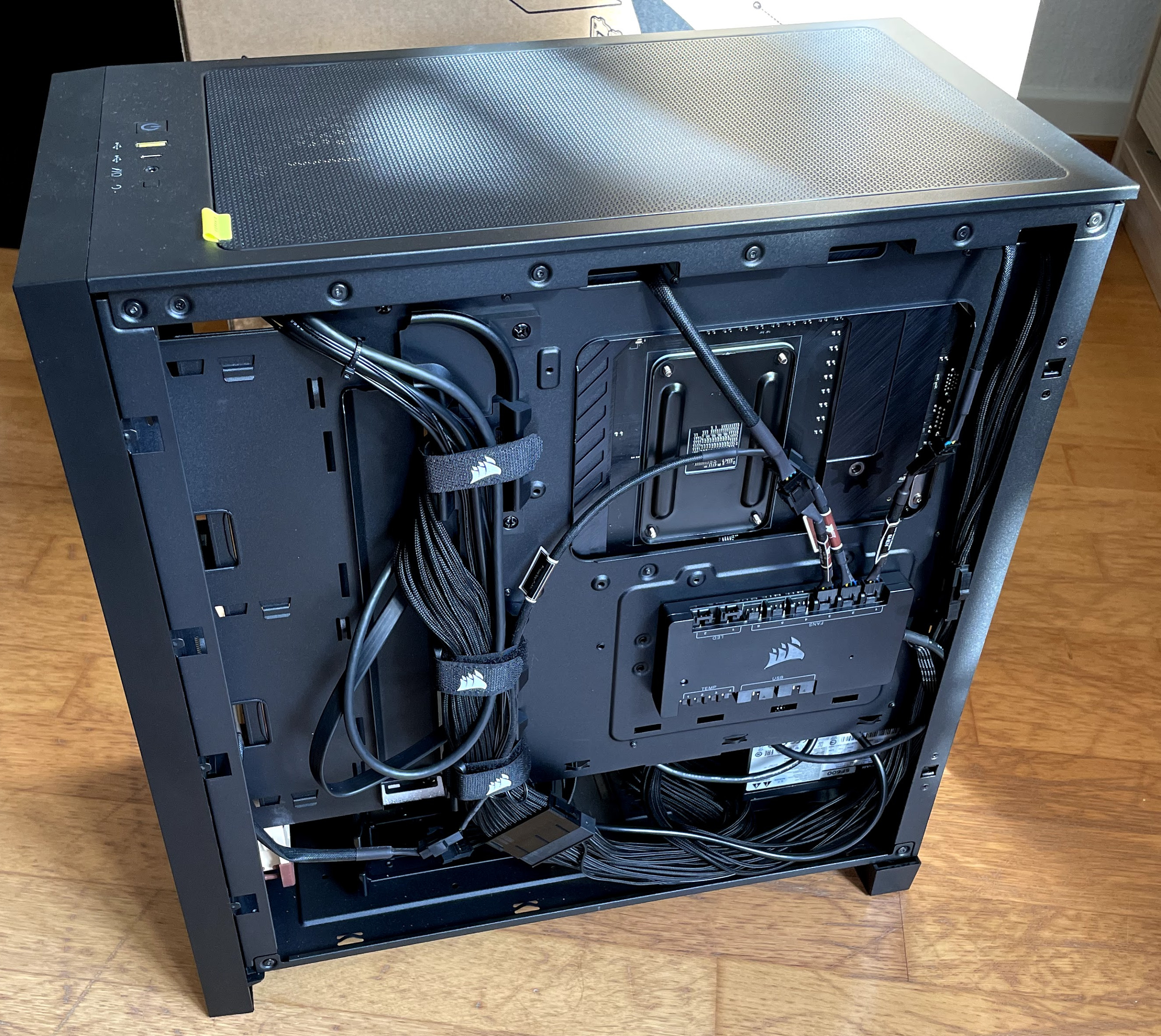
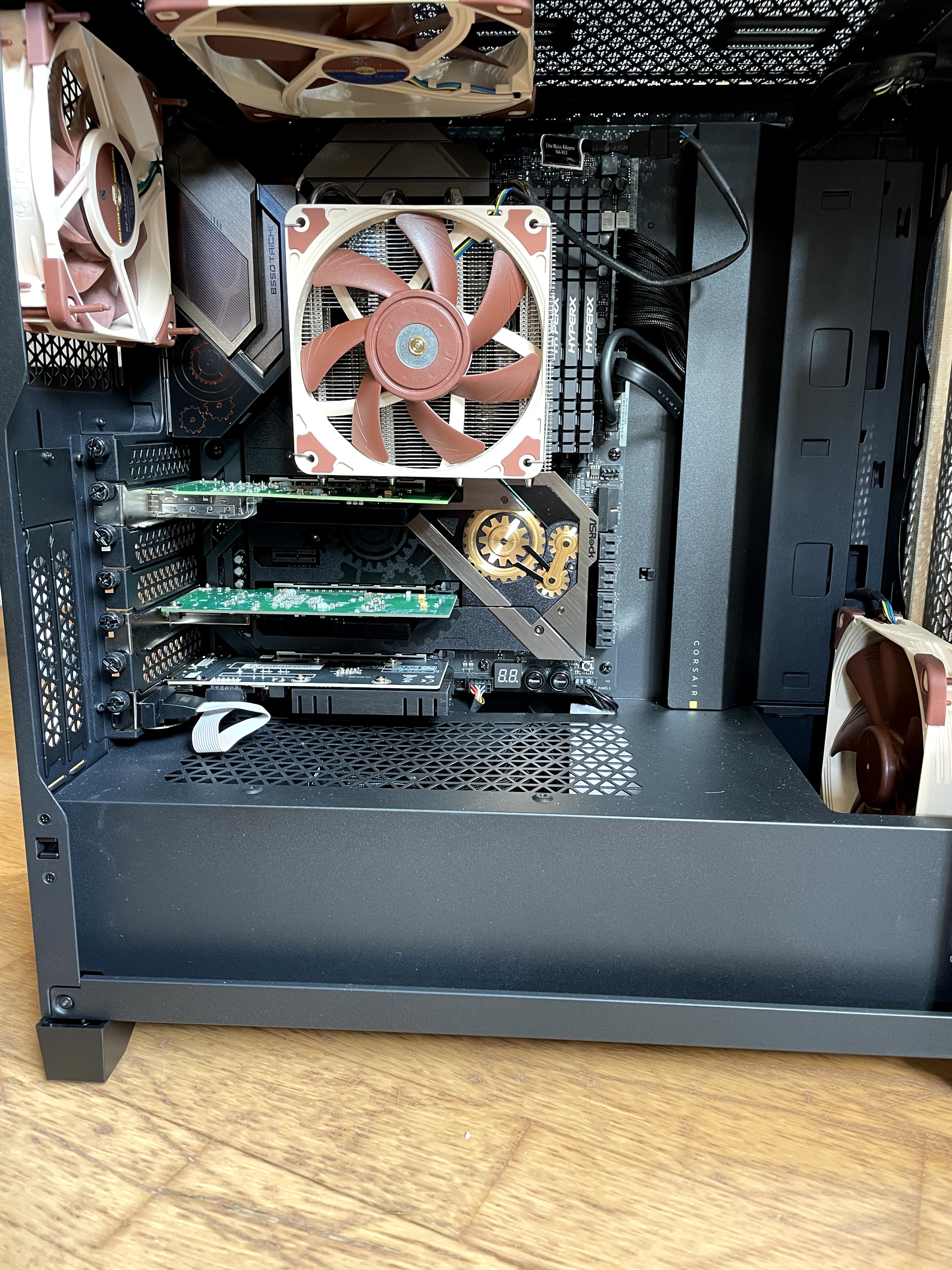
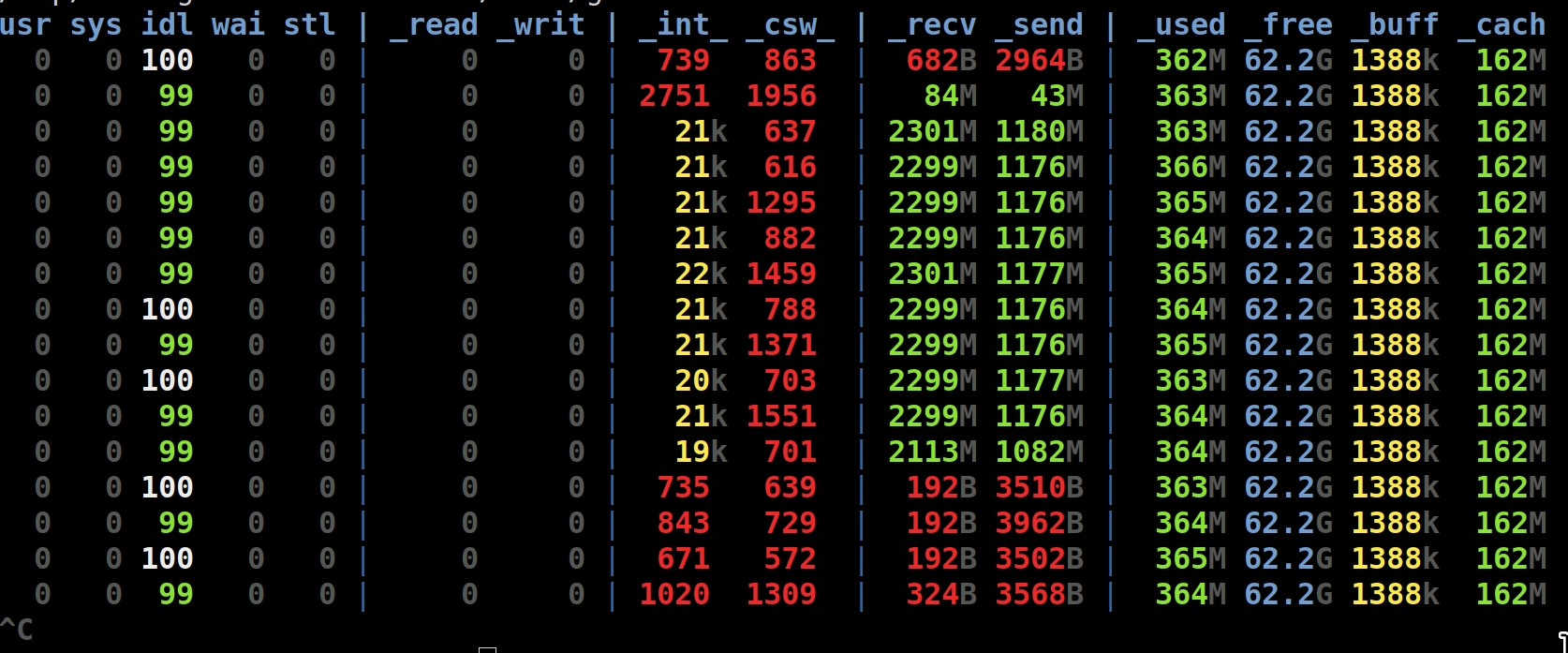
  <div class="note-container">
    <div class="note-icon" style="width: 20px; height: 20px">
      <svg id="exclamation-icon" width="100%" height="100%" viewBox="0 0 24 24" version="1.1" xmlns="http://www.w3.org/2000/svg" xmlns:xlink="http://www.w3.org/1999/xlink" xml:space="preserve" style="fill-rule:evenodd;clip-rule:evenodd;stroke-linejoin:round;stroke-miterlimit:1.41421;">
    <path d="M0,0L24,0L24,24L0,24L0,0Z" style="fill:none;"/>
    <g transform="matrix(1.2,0,0,1.2,-2.4,-2.4)">
        <path d="M12,2C6.48,2 2,6.48 2,12C2,17.52 6.48,22 12,22C17.52,22 22,17.52 22,12C22,6.48 17.52,2 12,2ZM13,17L11,17L11,15L13,15L13,17ZM13,13L11,13L11,7L13,7L13,13Z" style="fill-rule:nonzero;"/>
    </g>
</svg>

    </div>
    <div class="admonition-content"><strong>Update (2023):</strong> As <a href="#cpu-and-chipset">described above</a>, I switched to the
Ryzen 7 PRO 5750GE, and its integrated HDMI output works like a charm :)</div>
  </div>
</aside>

<h3 id="component-list">Component List</h3>
<p>I’m listing 2 different options here. Option A is what I built (router+server),
but Option B is a lot cheaper if you only want a router. Both options use the
same base components:</p>
<table>
  <thead>
      <tr>
          <th>Price</th>
          <th>Type</th>
          <th>Article</th>
      </tr>
  </thead>
  <tbody>
      <tr>
          <td>347 CHF</td>
          <td>Network card</td>
          <td><a href="https://www.fs.com/products/75603.html">FS.COM Intel XXV710, 2 × 25 Gbit/s (#75603)</a></td>
      </tr>
      <tr>
          <td>329 CHF</td>
          <td>Network card</td>
          <td><a href="https://www.fs.com/products/75602.html">FS.COM Intel XL710, 4 × 10 Gbit/s (#75602)</a></td>
      </tr>
      <tr>
          <td>395 CHF</td>
          <td>CPU</td>
          <td><a href="https://www.digitec.ch/de/s1/product/amd-ryzen-7-pro-5750ge-46ghz-tray-am4-460-ghz-8-core-prozessor-20796931">Ryzen 7 PRO 5750GE</a></td>
      </tr>
      <tr>
          <td>290 CHF</td>
          <td>Mainboard</td>
          <td><a href="https://www.digitec.ch/de/s1/product/asrock-b550-taichi-am4-amd-b550-atx-mainboard-13348335">ASRock B550 Taichi</a></td>
      </tr>
      <tr>
          <td>92 CHF</td>
          <td>Case</td>
          <td><a href="https://www.digitec.ch/de/s1/product/corsair-4000d-airflow-midi-tower-pc-gehaeuse-13552873">Corsair 4000D Airflow (Midi Tower)</a></td>
      </tr>
      <tr>
          <td>67 CHF</td>
          <td>Fan control</td>
          <td><a href="https://www.digitec.ch/de/s1/product/corsair-commander-pro-extern-6x-luefter-kontroller-6332927">Corsair Commander Pro</a></td>
      </tr>
      <tr>
          <td>65 CHF</td>
          <td>Case fan</td>
          <td><a href="https://www.digitec.ch/de/s1/product/noctua-nf-a14-pwm-140mm-1x-pc-luefter-657800">2 × Noctua NF-A14 PWM (140mm)</a></td>
      </tr>
      <tr>
          <td>62 CHF</td>
          <td>CPU fan</td>
          <td><a href="https://www.digitec.ch/de/s1/product/noctua-nh-l12s-7cm-cpu-kuehler-6817433">Noctua NH-L12S</a></td>
      </tr>
      <tr>
          <td>35 CHF</td>
          <td>Case fan</td>
          <td><a href="https://www.digitec.ch/de/s1/product/noctua-nf-a12x25-pwm-120mm-1x-pc-luefter-9161307">1 × Noctua NF-A12x25 PWM (120mm)</a></td>
      </tr>
      <tr>
          <td>60 CHF</td>
          <td>GPU</td>
          <td><a href="https://www.digitec.ch/de/s1/product/zotac-geforce-gt-710-zone-edition-1gb-grafikkarte-7526609">Zotac GeForce GT 710 Zone Edition (1GB)</a></td>
      </tr>
  </tbody>
</table>
<p>Base total: 1671 CHF</p>
<p><strong>Option A: Server extension</strong>. Because I had some parts lying around, and because I
wanted to use my router for serving files (from large RAM cache/fast disk), I
went with the following parts:</p>
<table>
  <thead>
      <tr>
          <th>Price</th>
          <th>Type</th>
          <th>Article</th>
      </tr>
  </thead>
  <tbody>
      <tr>
          <td>309 CHF</td>
          <td>Disk</td>
          <td><a href="https://www.digitec.ch/de/s1/product/samsung-970-evo-plus-2000gb-m2-2280-ssd-10339167">Samsung 970 EVO Plus 2000GB, M.2 2280</a></td>
      </tr>
      <tr>
          <td>439 CHF</td>
          <td>RAM</td>
          <td><a href="https://www.digitec.ch/de/s1/product/kingston-hyperx-predator-rgb-4x-16gb-ddr4-3600-dimm-288-ram-14062636">64GB HyperX Predator RAM (4x, 16GB, DDR4-3600, DIMM 288)</a></td>
      </tr>
      <tr>
          <td>127 CHF</td>
          <td>Power supply</td>
          <td><a href="https://www.digitec.ch/de/s1/product/corsair-sf600-platinum-600w-pc-netzteil-9034178">Corsair SF600 Platinum (600W)</a></td>
      </tr>
      <tr>
          <td>14 CHF</td>
          <td>Power ext</td>
          <td><a href="https://www.digitec.ch/de/s1/product/silverstone-atx-24-24pin-verlaengerung-30cm-modding-sleeving-3456447">Silverstone ATX 24-24Pin Extension (30cm)</a></td>
      </tr>
      <tr>
          <td>10 CHF</td>
          <td>Power ext</td>
          <td><a href="https://www.digitec.ch/de/s1/product/silverstone-atx-extension-8-844pin-30cm-modding-sleeving-5808252">Silverstone ATX Extension 8-8(4+4)Pin (30cm)</a></td>
      </tr>
  </tbody>
</table>
<p>The Corsair SF600 power supply is not server-related, I just had it lying around. I’d
recommend going for the Corsair RM650x *2018* (which has longer cables) instead.</p>
<p>Server total: 2851 CHF</p>
<p><strong>Option B: Non-server (router only) alternative</strong>. If you’re <em>only</em> interested
in routing, you can opt for cheaper low-end disk and RAM, for example:</p>
<table>
  <thead>
      <tr>
          <th>Price</th>
          <th>Type</th>
          <th>Article</th>
      </tr>
  </thead>
  <tbody>
      <tr>
          <td>112 CHF</td>
          <td>Power supply</td>
          <td><a href="https://www.digitec.ch/de/s1/product/corsair-rm650x-2018-650w-pc-netzteil-8849945">Corsair RM650x *2018*</a></td>
      </tr>
      <tr>
          <td>33 CHF</td>
          <td>Disk</td>
          <td><a href="https://www.digitec.ch/de/s1/product/kingston-a400-120gb-m2-2280-ssd-10628775">Kingston A400 120GB M.2 SSD</a></td>
      </tr>
      <tr>
          <td>29 CHF</td>
          <td>RAM</td>
          <td><a href="https://www.digitec.ch/de/s1/product/crucial-ct4g4dfs8266-1x-4gb-ddr4-2666-dimm-288-ram-10447900">Crucial CT4G4DFS8266 4GB DDR4-2666 RAM</a></td>
      </tr>
  </tbody>
</table>
<p>Non-server total: 1845 CHF</p>
<aside class="admonition note">
  <div class="note-container">
    <div class="note-icon" style="width: 20px; height: 20px">
      <svg id="exclamation-icon" width="100%" height="100%" viewBox="0 0 24 24" version="1.1" xmlns="http://www.w3.org/2000/svg" xmlns:xlink="http://www.w3.org/1999/xlink" xml:space="preserve" style="fill-rule:evenodd;clip-rule:evenodd;stroke-linejoin:round;stroke-miterlimit:1.41421;">
    <path d="M0,0L24,0L24,24L0,24L0,0Z" style="fill:none;"/>
    <g transform="matrix(1.2,0,0,1.2,-2.4,-2.4)">
        <path d="M12,2C6.48,2 2,6.48 2,12C2,17.52 6.48,22 12,22C17.52,22 22,17.52 22,12C22,6.48 17.52,2 12,2ZM13,17L11,17L11,15L13,15L13,17ZM13,13L11,13L11,7L13,7L13,13Z" style="fill-rule:nonzero;"/>
    </g>
</svg>

    </div>
    <div class="admonition-content"><p>I had the Noctua NH-L12S CPU fan lying around, so I re-used it.</p>
<p>Noctua <a href="https://www.golem.de/news/nh-p1-noctuas-passiver-cpu-kuehler-schafft-125-watt-2106-157334.html">recently released a passive CPU
cooler</a>,
which might be an interesting alternative.</p>
</div>
  </div>
</aside>

<h2 id="asrock-b550-taichi-mainboard-uefi-setup">ASRock B550 Taichi Mainboard UEFI Setup</h2>
<p>To enable PCIe Bifurcation for our two PCIe 3.0 x8 card setup:</p>
<ol>
<li>Set <code>Advanced &gt; AMD PBS &gt; PCIe/GFX Lanes Configuration</code> <br>
to <code>x8x8</code>.</li>
</ol>
<p>To always turn on the PC after power is lost:</p>
<ol>
<li>Set <code>Advanced &gt; Onboard Devices Configuration &gt; Restore On AC Power Loss</code> <br>
to <code>Power On</code>.</li>
</ol>
<p>To PXE boot (via UEFI) on the onboard ethernet port (management), but disable
slow option roms for PXE boot on the FS.COM network cards:</p>
<ol>
<li>Set <code>Boot &gt; Boot From Onboard LAN</code> <br>
to <code>Enabled</code>.</li>
<li>Set <code>Boot &gt; CSM (Compatibility Support Module) &gt; Launch PXE OpROM Policy</code> <br>
to <code>UEFI only</code>.</li>
</ol>
<h2 id="fan-controller-setup">Fan Controller Setup</h2>
<p>The <a href="https://www.corsair.com/eu/en/Categories/Products/Accessories-%7C-Parts/iCUE-CONTROLLERS/iCUE-Commander-PRO-Smart-RGB-Lighting-and-Fan-Speed-Controller/p/CL-9011110-WW">Corsair Commander Pro</a> fan controller is well-supported on Linux.</p>
<p>After enabling the Linux kernel option <code>CONFIG_SENSORS_CORSAIR_CPRO</code>, the device
shows up in the <code>hwmon</code> subsystem.</p>
<p>You can completely spin up (100% PWM) or turn off (0% PWM) a fan like so:</p>
<pre tabindex="0"><code># echo 255 &gt; /sys/class/hwmon/hwmon3/pwm1
# echo 0 &gt; /sys/class/hwmon/hwmon3/pwm1
</code></pre><p>I run my fans at 13% PWM, which translates to about 226 rpm:</p>
<pre tabindex="0"><code># echo 33 &gt; /sys/class/hwmon/hwmon3/pwm1
# cat /sys/class/hwmon/hwmon3/fan1_input
226
</code></pre><p>Conveniently, the Corsair Commander Pro stores your settings even when power is
lost. So you don’t even need to run a permanent fan control process, a one-off
adjustment might be sufficient.</p>
<h2 id="power-usage">Power Usage</h2>
<p>The PC consumes about 48W of power when idle (only management network connected)
by default without further tuning. Each extra network link increases power usage
by ≈1W:</p>


<a href="https://michael.stapelberg.ch/posts/2021-07-10-linux-25gbit-internet-router-pc-build/2021-06-11-power-network-link.jpg"><img
  srcset="https://michael.stapelberg.ch/posts/2021-07-10-linux-25gbit-internet-router-pc-build/2021-06-11-power-network-link_hu_a8c8b47c0963decd.jpg 2x,https://michael.stapelberg.ch/posts/2021-07-10-linux-25gbit-internet-router-pc-build/2021-06-11-power-network-link_hu_66569c182981f8d5.jpg 3x"
  src="https://michael.stapelberg.ch/posts/2021-07-10-linux-25gbit-internet-router-pc-build/2021-06-11-power-network-link_hu_a4416ec6acf84f92.jpg"
  alt="graph showing power consumption when enabling network links" title="graph showing power consumption when enabling network links"
  width="600"
  height="370"
  style="

border: 1px solid #000;

"
  
  loading="lazy"></a>


<p>Enabling all <a href="https://wiki.gentoo.org/wiki/Ryzen#Kernel">Ryzen-related options</a>
in my Linux kernel and switching to the powersave CPU frequency governor lowers
power usage by ≈1W.</p>
<p>On some mainboards, you might need to <a href="https://twitter.com/falcon3754/status/1403102789367119876">force-enable Global
C-States</a> to save
power. Not on the B550 Taichi, though.</p>
<p>I tried undervolting the CPU, but that didn’t even make ≈1W of difference in
power usage. Potentially making my setup unreliable is not worth that little
power saving to me.</p>
<p>I measured these values using a <a href="https://www.conrad.ch/de/p/homematic-hm-es-pmsw1-pl-dn-r5-funk-schaltaktor-1-fach-funk-steckdose-2300-w-2507749.html">Homematic
HM-ES-PMSw1-Pl-DN-R5</a>
I had lying around.</p>
<h2 id="performance">Performance</h2>
<p>Goal 1 is to saturate 25 Gbit/s, for example using two 10 Gbit/s downloads. I’m
talking about large bulk transfers here, not many small transfers.</p>
<aside class="admonition note">
  <div class="note-container">
    <div class="note-icon" style="width: 20px; height: 20px">
      <svg id="exclamation-icon" width="100%" height="100%" viewBox="0 0 24 24" version="1.1" xmlns="http://www.w3.org/2000/svg" xmlns:xlink="http://www.w3.org/1999/xlink" xml:space="preserve" style="fill-rule:evenodd;clip-rule:evenodd;stroke-linejoin:round;stroke-miterlimit:1.41421;">
    <path d="M0,0L24,0L24,24L0,24L0,0Z" style="fill:none;"/>
    <g transform="matrix(1.2,0,0,1.2,-2.4,-2.4)">
        <path d="M12,2C6.48,2 2,6.48 2,12C2,17.52 6.48,22 12,22C17.52,22 22,17.52 22,12C22,6.48 17.52,2 12,2ZM13,17L11,17L11,15L13,15L13,17ZM13,13L11,13L11,7L13,7L13,13Z" style="fill-rule:nonzero;"/>
    </g>
</svg>

    </div>
    <div class="admonition-content">If you’re interested in the “many small packets” scenario, check out <a href="https://netoptimizer.blogspot.com/2014/05/the-calculations-10gbits-wirespeed.html">“The
calculations: 10Gbit/s
wirespeed”</a>
for a good intro, and <a href="https://twitter.com/fragstone/status/1401807613642280963">Thomas Fragstein’s benchmark tool
recommendations</a>. I
haven’t run any such tests yet.</div>
  </div>
</aside>

<p>To get a feel for the performance/headroom of the router build, I ran 3 different tests.</p>
<h3 id="test-a-10-gbits-bridging-throughput">Test A: 10 Gbit/s bridging throughput</h3>
<p>For this test, I connected 2 PCs to the router’s XL710 network card and used <a href="https://manpages.debian.org/iperf3.1"><code>iperf3(1)</code></a>
 to generate a 10 Gbit/s TCP stream between the
2 PCs. The router doesn’t need to modify the packets in this scenario, only
forward them, so this should be the lightest load scenario.</p>


<a href="https://michael.stapelberg.ch/posts/2021-07-10-linux-25gbit-internet-router-pc-build/2021-06-06-bridging.jpg"><img
  srcset="https://michael.stapelberg.ch/posts/2021-07-10-linux-25gbit-internet-router-pc-build/2021-06-06-bridging_hu_63b7dcab260ed5da.jpg 2x,https://michael.stapelberg.ch/posts/2021-07-10-linux-25gbit-internet-router-pc-build/2021-06-06-bridging_hu_5475bb54000ea962.jpg 3x"
  src="https://michael.stapelberg.ch/posts/2021-07-10-linux-25gbit-internet-router-pc-build/2021-06-06-bridging_hu_bdfd7c7fd26eb217.jpg"
  alt="bridging throughput" title="bridging throughput"
  width="600"
  height="315"
  style="

border: 1px solid #000;

"
  
  loading="lazy"></a>


<h3 id="test-b-10-gbits-nat-throughput">Test B: 10 Gbit/s NAT throughput</h3>
<p>In this test, the 2 PCs were connected such that the router performs <a href="https://en.wikipedia.org/wiki/Network_address_translation">Network
Address Translation
(NAT)</a>, which is
required for downloads from the internet via IPv4.</p>
<p>This scenario is slightly more involved, as the router needs to modify
packets. But, as we can see below, a 10 Gbit/s NAT stream consumes barely more
resources than 10 Gbit/s bridging:</p>


<a href="https://michael.stapelberg.ch/posts/2021-07-10-linux-25gbit-internet-router-pc-build/2021-06-12-nat.jpg"><img
  srcset="https://michael.stapelberg.ch/posts/2021-07-10-linux-25gbit-internet-router-pc-build/2021-06-12-nat_hu_c9b0e45d03d5dcc2.jpg 2x,https://michael.stapelberg.ch/posts/2021-07-10-linux-25gbit-internet-router-pc-build/2021-06-12-nat_hu_75da3d2b3943c3d1.jpg 3x"
  src="https://michael.stapelberg.ch/posts/2021-07-10-linux-25gbit-internet-router-pc-build/2021-06-12-nat_hu_125a1d3a75d7946b.jpg"
  alt="NAT throughput" title="NAT throughput"
  width="600"
  height="250"
  style="

border: 1px solid #000;

"
  
  loading="lazy"></a>


<h3 id="test-c-4--10-gbits-tcp-streams">Test C: 4 × 10 Gbit/s TCP streams</h3>
<p>In this test, I wanted to max out the XL710 network card, so I connected 4 PCs
and started an <a href="https://manpages.debian.org/iperf3.1"><code>iperf3(1)</code></a>
 benchmark between each PC
and the router itself, simultaneously.</p>
<p>This scenario consumes about 16% CPU, meaning we’ll most likely have plenty of
headroom even when all ports are maxed out!</p>


<a href="https://michael.stapelberg.ch/posts/2021-07-10-linux-25gbit-internet-router-pc-build/2021-06-14-four.jpg"><img
  srcset="https://michael.stapelberg.ch/posts/2021-07-10-linux-25gbit-internet-router-pc-build/2021-06-14-four_hu_a26916d77b2d2437.jpg 2x,https://michael.stapelberg.ch/posts/2021-07-10-linux-25gbit-internet-router-pc-build/2021-06-14-four_hu_e917dd9e02ac8fc4.jpg 3x"
  src="https://michael.stapelberg.ch/posts/2021-07-10-linux-25gbit-internet-router-pc-build/2021-06-14-four_hu_819b175988e15a2f.jpg"
  alt="four 10 Gbit/s streams" title="four 10 Gbit/s streams"
  width="600"
  height="292"
  style="

border: 1px solid #000;

"
  
  loading="lazy"></a>


<p>Tip: make sure to enable the <code>CONFIG_IRQ_TIME_ACCOUNTING</code> Linux kernel option to
<a href="https://tanelpoder.com/posts/linux-hiding-interrupt-cpu-usage/">include IRQ handlers in CPU usage
numbers</a> for
accurate measurements.</p>
<h2 id="alternatives-considered">Alternatives considered</h2>
<p>The passively-cooled SuperServer E302-9D comes with 2 SFP+ ports (10 Gbit/s). It
even comes with 2 PCIe 3.0 x8 capable slots. Unfortunately it seems impossible
to currently buy this machine, at least in Switzerland.</p>
<p>You can find a few more suggestions in the replies of <a href="https://twitter.com/zekjur/status/1361414105211437056">this Twitter
thread</a>. Most are either
unavailable, require a lot more DIY work (e.g. a custom case), or don’t support
25 Gbit/s.</p>
<h2 id="router-software-router7-porting">Router software: router7 porting</h2>
<p>I wrote <a href="https://router7.org/">router7</a>, my own small home internet router
software in Go, back in 2018, and have been using it ever since.</p>
<p>I don’t have time to support any users, so I don’t recommend anyone else use
router7, unless the project really excites you, and the lack of support doesn’t
bother you! Instead, you might be better served with a more established and
supported router software option. Popular options include
<a href="https://en.wikipedia.org/wiki/OPNsense">OPNsense</a> or
<a href="https://en.wikipedia.org/wiki/OpenWrt">OpenWrt</a>. See also Wikipedia’s <a href="https://en.wikipedia.org/wiki/List_of_router_and_firewall_distributions">List of
router and firewall
distributions</a>.</p>
<p>To make router7 work for this 25 Gbit/s router PC build, I had to make a few
adjustments.</p>
<p>Because we are using UEFI network boot instead of BIOS network boot, I first had
to make the PXE boot implementation in router7’s installer <a href="https://github.com/rtr7/tools/commits/00be57a557a5fb2bf8958fbc1417f57ab17fc54b">work with UEFI PXE
boot</a>.</p>
<p>I then enabled a few additional <a href="https://github.com/rtr7/kernel/commits/8694ece47fb07ffeea8a96dc48eb8faa3969250a">kernel options for network and storage
drivers</a>
in router7’s kernel.</p>
<p>To router7’s control plane code, I <a href="https://github.com/rtr7/router7/commits/b88ddd41c377087cc4b6d1fe6c7a5550399a730c">added bridge network device
configuration</a>,
which in my previous 2-port router setup was not needed.</p>
<p>During development, I compiled a few Linux programs statically or copied them
with their dependencies (→ <a href="https://gokrazy.org/prototyping/">gokrazy
prototyping</a>) to run them on router7, such as
<a href="https://manpages.debian.org/sensors.1"><code>sensors(1)</code></a>
, <a href="https://manpages.debian.org/ethtool.8"><code>ethtool(8)</code></a>
,
as well as iproute2’s <a href="https://manpages.debian.org/ip.8"><code>ip(8)</code></a>
 and <a href="https://manpages.debian.org/bridge.8"><code>bridge(8)</code></a>
 implementation.</p>
<h2 id="next-steps">Next Steps</h2>
<p>Based on my tests, the hardware I selected seems to deliver enough performance
to use it for distributing a 25 Gbit/s upstream link across multiple 10 Gbit/s
devices.</p>
<p>I won’t know for sure until the <a href="https://twitter.com/fiber7_ch">fiber7</a> Point Of
Presence (POP, German Anschlusszentrale) close to my home is upgraded to support
25 Gbit/s “Fiber7-X2” connections. As I mentioned, unfortunately <a href="https://twitter.com/init7/status/1403287499175235584">the upgrade
plan is delayed</a> due to
the component shortage. I’ll keep you posted!</p>
<h2 id="other-builds">Other Builds</h2>
<p>In case my build doesn’t exactly match your requirements, perhaps these others
help inspire you:</p>
<ul>
<li><a href="https://medium.com/@sdier/new-internet-service-calls-for-a-new-router-4dbebbdc6dbd">Scott Dier’s Intel NUC 9 Pro build</a></li>
</ul>
<h2 id="appendix-a-dpdk-test">Appendix A: DPDK test</h2>
<p><a href="https://twitter.com/ipngnetworks">Pim</a> ran a <a href="https://www.dpdk.org/">DPDK</a>
based loadtester called <a href="https://trex-tgn.cisco.com/">T-Rex</a> on this
machine. Here’s his summary of the test:</p>
<p>For DPDK, this hardware does 4x10G at 64b frames. It does not do 6x10G as it
tops out at 62Mpps using 4 cores (of 15.5Mpps per core).</p>
<p>I couldn&rsquo;t test 25G symmetric [because we lacked a 25G DAC cable], but
extrapolating from the numbers, 3 CPUs source and sink ~24.6Gbit per core, so
we&rsquo;d probably make it, leaving 1 core for OS and 2 cores for controlplane.</p>
<p>If the machine had a 12 core Ryzen, it would saturate all NICs with room to
spare. So that&rsquo;s what I&rsquo;ll end up buying :)</p>


<a href="https://michael.stapelberg.ch/posts/2021-07-10-linux-25gbit-internet-router-pc-build/2021-07-13-dpdk-test.png"><img
  srcset="https://michael.stapelberg.ch/posts/2021-07-10-linux-25gbit-internet-router-pc-build/2021-07-13-dpdk-test_hu_2a8808a0d5f67656.png 2x,https://michael.stapelberg.ch/posts/2021-07-10-linux-25gbit-internet-router-pc-build/2021-07-13-dpdk-test_hu_e3b4cf1bf6b18c6c.png 3x"
  src="https://michael.stapelberg.ch/posts/2021-07-10-linux-25gbit-internet-router-pc-build/2021-07-13-dpdk-test_hu_d7b5585b28218787.png"
  alt="DPDK test" title="DPDK test"
  width="600"
  height="447"
  style="

border: 1px solid #000;

"
  
  loading="lazy"></a>


]]></content>
  </entry>
  <entry>
    <title type="html"><![CDATA[How I configured and then promptly returned a MikroTik CCR2004 router for Fiber7]]></title>
    <link href="https://michael.stapelberg.ch/posts/2021-05-28-configured-and-returned-mikrotik-ccr2004-for-fiber7/"/>
    <id>https://michael.stapelberg.ch/posts/2021-05-28-configured-and-returned-mikrotik-ccr2004-for-fiber7/</id>
    <published>2021-05-28T14:57:00+02:00</published>
    <content type="html"><![CDATA[<p>init7 recently announced that with their <a href="https://www.init7.net/en/internet/fiber7/">FTTH fiber offering
Fiber7</a>, they will now sell and
connect you with 25 Gbit/s (Fiber7-X2) or 10 Gbit/s (Fiber7-X) fiber optics, if
you want more than 1 Gbit/s.</p>
<p>This is possible thanks to the upgrade of their network infrastructure as part
of their “lifecycle management”, meaning the old networking gear was declared as
end-of-life. The new networking gear supports not only SFP+ modules (10 Gbit/s),
but also SFP28 modules (25 Gbit/s).</p>
<p>Availability depends on the <a href="https://www.init7.net/en/infrastructure/fiber7-pops/">POP (Point Of Presence, German «Anschlusszentrale»)
you’re connected to</a>. My
POP is planned to be upgraded in September.</p>
<p>Nevertheless, I wanted to already prepare my end of the connection, and ordered
the only router that <a href="https://www.init7.net/en/internet/hardware/">init7 currently lists as compatible with
Fiber7-X/X2</a>: the MikroTik
CCR2004-1G-12S+2XS.</p>


<a href="https://michael.stapelberg.ch/posts/2021-05-28-configured-and-returned-mikrotik-ccr2004-for-fiber7/mikrotik-ccr2004.jpg"><img
  srcset="https://michael.stapelberg.ch/posts/2021-05-28-configured-and-returned-mikrotik-ccr2004-for-fiber7/mikrotik-ccr2004_hu_3e681715b76ff6d6.jpg 2x,https://michael.stapelberg.ch/posts/2021-05-28-configured-and-returned-mikrotik-ccr2004-for-fiber7/mikrotik-ccr2004_hu_38e88e2076077cc3.jpg 3x"
  src="https://michael.stapelberg.ch/posts/2021-05-28-configured-and-returned-mikrotik-ccr2004-for-fiber7/mikrotik-ccr2004_hu_f136ae7899e35186.jpg"
  alt="MikroTik CCR2004-1G-12S&#43;2XS" title="MikroTik CCR2004-1G-12S&#43;2XS"
  width="600"
  height="347"
  style="

border: 1px solid #000;

"
  
  loading="lazy"></a>


<p>The rest of this article walks through what I needed to configure (a lot,
compared to Ubiquiti or OpenWRT) in the hope that it helps other MikroTik users,
and then ends in <a href="#returned">Why I returned it</a>.</p>
<h2 id="configuration">Configuration</h2>
<p>Connect an Ethernet cable to the management port on the MikroTik and:</p>
<ol>
<li>log into the system using <code>ssh admin@192.168.88.1</code></li>
<li>point a web browser to “Webfig” at http://192.168.88.1/ (no login required)</li>
</ol>
<h2 id="update-firmware">Update firmware</h2>
<p>Update the CCR2004 to the latest firmware version. At the time of writing, the
Long-term RouterOS track is <a href="https://mikrotik.com/download">at version 6.47.9</a>
for the CCR2004 (ARM64):</p>
<ol>
<li>Use <code>/system package print</code> to display the current version.</li>
<li>Upload <code>routeros-arm64-6.47.9.npk</code> using Webfig.</li>
<li><code>/system reboot</code> and verify that <code>/system package print</code> shows <code>6.47.9</code> now.</li>
<li><code>/system routerboard upgrade</code> to upgrade the firmware of the underlying chipsets, etc. Enter <code>y</code> at the prompt, wait for a response of &ldquo;echo: system,info,critical Firmware upgraded successfully, please reboot for changes to take effect&rdquo;</li>
<li><code>/system reboot</code> again and verify that <code>/system routerboard print</code> has the line <code>current-firmware:6.47.9</code> now.</li>
</ol>
<h2 id="set-up-auth">Set up auth</h2>
<p>Set a password to prevent others from logging into the router:</p>
<pre tabindex="0"><code>/user set admin password=secret
</code></pre><p>Additionally, you can enable passwordless SSH key login, if you
want.</p>
<ol>
<li>
<p>Create an RSA key, because <a href="https://forum.mikrotik.com/viewtopic.php?t=109143">ed25519 keys are not
supported</a>:</p>
<pre tabindex="0"><code>% ssh-keygen -t rsa
Generating public/private rsa key pair.
Enter file in which to save the key: /home/michael/.ssh/id_mikrotik
</code></pre></li>
<li>
<p>Upload the <code>id_mikrotik.pub</code> file in Webfig</p>
</li>
<li>
<p>Import the SSH public key for the <code>admin</code> user:</p>
<pre tabindex="0"><code>/user ssh-keys import user=admin public-key-file=id_mikrotik.pub
</code></pre></li>
</ol>
<h2 id="lock-down-the-router">Lock down the router</h2>
<ol>
<li>
<p><a href="https://help.mikrotik.com/docs/display/ROS/Webfig#Webfig-EnableHTTPS">Enable HTTPS in Webfig</a>.</p>
</li>
<li>
<p>Disable all remote access except for SSH and HTTPS:</p>
<pre tabindex="0"><code>/ip service disable telnet,ftp,www,api,api-ssl,winbox
</code></pre></li>
<li>
<p>Follow <a href="https://wiki.mikrotik.com/wiki/Manual:Securing_Your_Router#Neighbor_Discovery">MikroTik Securing Your
Router</a>
recommendations:</p>
<pre tabindex="0"><code>/tool mac-server set allowed-interface-list=none
/tool mac-server mac-winbox set allowed-interface-list=none
/tool mac-server ping set enabled=no
/tool bandwidth-server set enabled=no
/ip ssh set strong-crypto=yes
/ip neighbor discovery-settings set discover-interface-list=none
</code></pre></li>
</ol>
<h2 id="enable-dhcpv6-client">Enable DHCPv6 Client</h2>
<p>For some reason, you need to explicitly enable IPv6 in 2021:</p>
<pre tabindex="0"><code>/system package enable ipv6
/system reboot
</code></pre><p>MikroTik says this is a precaution so that users don’t end up with default-open
firewall settings for IPv6. But then why don’t they just add some default
firewall rules?!</p>
<p>Anyway, to configure and immediately enable the DHCPv6 client, use:</p>
<pre tabindex="0"><code>/ipv6 dhcp-client add pool-name=fiber7 pool-prefix-length=64 interface=sfp28-1 add-default-route=yes use-peer-dns=no request=address,prefix
</code></pre><h3 id="modify-the-ipv6-duid">Modify the IPv6 DUID</h3>
<p>Unfortunately, MikroTik does not offer any user interface to set the IPv6 DUID,
which I need to configure to obtain my static IPv6 network prefix from my
provider’s DHCPv6 server.</p>
<p>Luckily, the DUID is included in backup files, so we can edit it and restore
from backup:</p>
<ol>
<li>
<p>Run <code>/system backup save</code></p>
</li>
<li>
<p>Download the backup file in Webfig by navigating to Files → Backup → Download.</p>
</li>
<li>
<p>Convert the backup file to hex in textual form, edit the DUID and convert it back to binary:</p>
<pre tabindex="0"><code>% xxd MikroTik-19700102-0111.backup MikroTik-19700102-0111.backup.hex

% emacs MikroTik-19700102-0111.backup.hex
# Search for “dhcp/duid” in the file and edit accordingly:
# got:  00030001085531dfa69e

% xxd -r MikroTik-19700102-0111.backup.hex MikroTik-19700102-0111-patched.backup
</code></pre></li>
<li>
<p>Upload the file in Webfig, then restore the backup:</p>
<p><code>/system backup load name=MikroTik-19700102-0111-patched.backup</code></p>
</li>
</ol>
<h2 id="enable-ipv6-router-advertisements">Enable IPv6 Router Advertisements</h2>
<p>To make the router assign an IPv6 address from the obtained pool for itself, and
then send IPv6 Router Advertisements to the network, set:</p>
<pre tabindex="0"><code>/ipv6 address add address=::1 from-pool=fiber7 interface=bridge1
/ipv6 nd add interface=bridge1 managed-address-configuration=yes other-configuration=yes
</code></pre><h2 id="enable-dhcpv4-client">Enable DHCPv4 Client</h2>
<p>To configure and immediately enable the <a href="https://wiki.mikrotik.com/wiki/Manual:IP/DHCP_Client">DHCPv4
client</a> on the upstream
port, use:</p>
<pre tabindex="0"><code>/ip dhcp-client add interface=sfp28-1 disabled=no
</code></pre><p>I also changed the MAC address to match my old router’s address, just to take
maximum precaution to avoid any Port Security related issues with my provider’s
DHCP server:</p>
<pre tabindex="0"><code>/interface ethernet set sfp28-1 mac-address=00:0d:fa:4c:0c:31
</code></pre><h2 id="enable-dns-server">Enable DNS Server</h2>
<p>By default, the Mikrotik Router will not respond to DNS Queries, when enabling remote requests make sure to firewall the DNS server from responding to DNS Queries from the greater internet. Otherwise you will find yourself participating in DNS DDOS attacks.</p>
<pre tabindex="0"><code>/ip dns set allow-remote-requests=yes
/ip firewall filter add chain=input protocol=tcp port=53 in-interface=sfp28-1 action=drop
/ip firewall filter add chain=input protocol=udp port=53 in-interface=sfp28-1 action=drop
</code></pre><h2 id="enable-dhcpv4-server">Enable DHCPv4 Server</h2>
<p>First, let’s bundle all SFP+ ports into a single bridge interface:</p>
<pre tabindex="0"><code>/interface bridge add name=bridge1
/interface bridge port add bridge=bridge1 interface=sfp-sfpplus1 hw=yes
/interface bridge port add bridge=bridge1 interface=sfp-sfpplus2 hw=yes
/interface bridge port add bridge=bridge1 interface=sfp-sfpplus3 hw=yes
/interface bridge port add bridge=bridge1 interface=sfp-sfpplus4 hw=yes
/interface bridge port add bridge=bridge1 interface=sfp-sfpplus5 hw=yes
/interface bridge port add bridge=bridge1 interface=sfp-sfpplus6 hw=yes
/interface bridge port add bridge=bridge1 interface=sfp-sfpplus7 hw=yes
/interface bridge port add bridge=bridge1 interface=sfp-sfpplus8 hw=yes
/interface bridge port add bridge=bridge1 interface=sfp-sfpplus9 hw=yes
/interface bridge port add bridge=bridge1 interface=sfp-sfpplus10 hw=yes
/interface bridge port add bridge=bridge1 interface=sfp-sfpplus11 hw=yes
/interface bridge port add bridge=bridge1 interface=sfp-sfpplus12 hw=yes
</code></pre><p>This means we’ll use the device like a big switch with routing between the
switch and the uplink port <code>sfp28-1</code>.</p>
<aside class="admonition note">
  <div class="note-container">
    <div class="note-icon" style="width: 20px; height: 20px">
      <svg id="exclamation-icon" width="100%" height="100%" viewBox="0 0 24 24" version="1.1" xmlns="http://www.w3.org/2000/svg" xmlns:xlink="http://www.w3.org/1999/xlink" xml:space="preserve" style="fill-rule:evenodd;clip-rule:evenodd;stroke-linejoin:round;stroke-miterlimit:1.41421;">
    <path d="M0,0L24,0L24,24L0,24L0,0Z" style="fill:none;"/>
    <g transform="matrix(1.2,0,0,1.2,-2.4,-2.4)">
        <path d="M12,2C6.48,2 2,6.48 2,12C2,17.52 6.48,22 12,22C17.52,22 22,17.52 22,12C22,6.48 17.52,2 12,2ZM13,17L11,17L11,15L13,15L13,17ZM13,13L11,13L11,7L13,7L13,13Z" style="fill-rule:nonzero;"/>
    </g>
</svg>

    </div>
    <div class="admonition-content"><strong>Note</strong>: I don’t know if this configuration reduces performance. I find
MikroTik’s documentation regarding hardware offloading and performance not the
clearest. Then again, the CCR2004 has no hardware offloading whatsoever (?) <a href="https://forum.mikrotik.com/viewtopic.php?t=173065">as
per a forum post</a>.</div>
  </div>
</aside>

<p>To configure the DHCPv4 Server, configure an IP address, then start the setup
wizard:</p>
<pre tabindex="0"><code>/ip address add address=10.0.0.1/24 interface=bridge1
/ip dhcp-server setup
Select interface to run DHCP server on

dhcp server interface: bridge1
Select network for DHCP addresses

dhcp address space: 10.0.0.0/24
Select gateway for given network

gateway for dhcp network: 10.0.0.1
Select pool of ip addresses given out by DHCP server

addresses to give out: 10.0.0.2-10.0.0.240
Select DNS servers

dns servers: 10.0.0.1,8.8.8.8
Select lease time

lease time: 20m
</code></pre><h2 id="enable-ipv4-nat">Enable IPv4 NAT</h2>
<p>We need NAT to route all IPv4 traffic over our single public IP address:</p>
<pre tabindex="0"><code>/ip firewall nat add action=masquerade chain=srcnat out-interface=sfp28-1
</code></pre><p>Disable NAT services for security, e.g. to mitigate against NAT slipstreaming
attacks:</p>
<pre tabindex="0"><code>/ip firewall service-port disable ftp,tftp,irc,h323,sip,pptp,udplite,dccp,sctp
</code></pre><p>I can observe ≈10-20% CPU load when doing a Gigabit speed test over IPv4.</p>
<h2 id="todo-list">TODO list</h2>
<p>The following features I did not get around to configuring, but they were on my
list:</p>
<ul>
<li><a href="https://help.mikrotik.com/docs/display/ROS/First+Time+Configuration">IPv4 port forwardings</a></li>
<li>Cloudflare DynDNS update script</li>
<li><a href="https://wiki.mikrotik.com/wiki/Setting_static_DNS_record_for_each_DHCP_lease">DNS resolution for DHCP hostnames</a></li>
</ul>
<h2 id="returned">Why I returned it</h2>
<p>Initially, I thought the device’s fan spins up only at boot, and then the large
heatsink takes care of all cooling needs. Unfortunately, after an hour or so
into my experiment, I noticed that the MikroTik would spin up the fan for a
whole minute or so occasionally! Very annoying.</p>
<p>I also ran into weird DNS slow-downs, which I didn’t fully diagnose. In
Wireshark, it looked like my machine sent 2 DNS queries but received only 1 DNS
result, and then waited for a timeout.</p>
<p>I also noticed that I have a few more unexpected dependencies such as my home
automation using DHCP lease state by subscribing to an MQTT topic. Addressing
this issue and other similar little problems would have taken a bunch more time
and would have resulted in a less reliable system than I have today.</p>
<p>Since I last used MikroTik in 2014 the software seems to have barely changed. I
wish they finally implemented some table-stakes features like DNS resolution for
DHCP hostnames.</p>
<p>Given all the above, I no longer felt like getting enough value for the money
from the MikroTik, and found it easier to just switch back to <a href="https://router7.org/">my own
router7</a> and return the MikroTik.</p>
<p>I will probably stick with the router7 software, but exchange the PC Engines APU
with the smallest PC that has enough PCI-E bandwidth for a multi-port SFP28
network card.</p>
<h2 id="appendix-a-full-configuration">Appendix A: Full configuration</h2>
<pre tabindex="0"><code># may/28/2021 11:40:15 by RouterOS 6.47.9
# software id = 6YZE-HKM8
#
# model = CCR2004-1G-12S+2XS
/interface bridge
add name=bridge1
/interface ethernet
set [ find default-name=sfp28-1 ] auto-negotiation=no mac-address=00:0d:fa:4c:0c:31
/interface wireless security-profiles
set [ find default=yes ] supplicant-identity=MikroTik
/ip pool
add name=dhcp_pool0 ranges=10.0.0.2-10.0.0.240
/ip dhcp-server
add address-pool=dhcp_pool0 disabled=no interface=bridge1 lease-time=20m name=dhcp1
/interface bridge port
add bridge=bridge1 interface=sfp-sfpplus1
add bridge=bridge1 interface=sfp-sfpplus2
add bridge=bridge1 interface=sfp-sfpplus3
add bridge=bridge1 interface=sfp-sfpplus4
add bridge=bridge1 interface=sfp-sfpplus5
add bridge=bridge1 interface=sfp-sfpplus6
add bridge=bridge1 interface=sfp-sfpplus7
add bridge=bridge1 interface=sfp-sfpplus8
add bridge=bridge1 interface=sfp-sfpplus9
add bridge=bridge1 interface=sfp-sfpplus10
add bridge=bridge1 interface=sfp-sfpplus11
add bridge=bridge1 interface=sfp-sfpplus12
/ip neighbor discovery-settings
set discover-interface-list=none
/ip address
add address=192.168.88.1/24 comment=defconf interface=ether1 network=192.168.88.0
add address=10.0.0.1/24 interface=bridge1 network=10.0.0.0
/ip dhcp-client
add disabled=no interface=sfp28-1 use-peer-dns=no
/ip dhcp-server lease
add address=10.0.0.54 mac-address=DC:A6:32:02:AA:10
/ip dhcp-server network
add address=10.0.0.0/24 dns-server=10.0.0.1 domain=lan gateway=10.0.0.1
/ip dns
set allow-remote-requests=yes servers=8.8.8.8,8.8.4.4,2001:4860:4860::8888,2001:4860:4860::8844
/ip firewall nat
add action=masquerade chain=srcnat out-interface=sfp28-1 to-addresses=0.0.0.0
/ip firewall service-port
set ftp disabled=yes
set tftp disabled=yes
set irc disabled=yes
set h323 disabled=yes
set sip disabled=yes
set pptp disabled=yes
set udplite disabled=yes
set dccp disabled=yes
set sctp disabled=yes
/ip service
set telnet disabled=yes
set ftp disabled=yes
set www disabled=yes
set www-ssl certificate=webfig disabled=no
set api disabled=yes
set winbox disabled=yes
set api-ssl disabled=yes
/ip ssh
set strong-crypto=yes
/ipv6 address
add address=::1 from-pool=fiber7 interface=bridge1
/ipv6 dhcp-client
add add-default-route=yes interface=sfp28-1 pool-name=fiber7 request=address,prefix use-peer-dns=no
/ipv6 nd
add interface=bridge1 managed-address-configuration=yes other-configuration=yes
/system clock
set time-zone-name=Europe/Zurich
/system logging
add topics=dhcp
/tool bandwidth-server
set enabled=no
/tool mac-server
set allowed-interface-list=none
/tool mac-server mac-winbox
set allowed-interface-list=none
/tool mac-server ping
set enabled=no
</code></pre>]]></content>
  </entry>
  <entry>
    <title type="html"><![CDATA[Home network 10 Gbit/s upgrade]]></title>
    <link href="https://michael.stapelberg.ch/posts/2021-05-16-home-network-fiber-10-gbits-upgrade/"/>
    <id>https://michael.stapelberg.ch/posts/2021-05-16-home-network-fiber-10-gbits-upgrade/</id>
    <published>2021-05-16T17:33:16+02:00</published>
    <content type="html"><![CDATA[<p>After <a href="/posts/2020-08-09-fiber-link-home-network/">adding a fiber link to my home
network</a>, I am upgrading that link
from 1 Gbit/s to 10 Gbit/s.</p>
<p>As a reminder, conceptually the fiber link is built using two media converters
from/to ethernet:</p>


<a href="https://michael.stapelberg.ch/posts/2021-05-16-home-network-fiber-10-gbits-upgrade/2020-08-04-media-converters.jpg"><img
  srcset="https://michael.stapelberg.ch/posts/2021-05-16-home-network-fiber-10-gbits-upgrade/2020-08-04-media-converters_hu_3e23d110e39648be.jpg 2x,https://michael.stapelberg.ch/posts/2021-05-16-home-network-fiber-10-gbits-upgrade/2020-08-04-media-converters_hu_d98ea7db6a7d19aa.jpg 3x"
  src="https://michael.stapelberg.ch/posts/2021-05-16-home-network-fiber-10-gbits-upgrade/2020-08-04-media-converters_hu_48b0b6dae3ea2ca2.jpg"
  alt="0.9mm thin fiber cables" title="0.9mm thin fiber cables"
  width="600"
  height="217"
  style="

border: 1px solid #000;

"
  
  loading="lazy"></a>


<p>Schematically, this is what’s connected to both ends:</p>


<a href="https://michael.stapelberg.ch/posts/2021-05-16-home-network-fiber-10-gbits-upgrade/2021-05-15-bottleneck-1g.svg"><img
  src="https://michael.stapelberg.ch/posts/2021-05-16-home-network-fiber-10-gbits-upgrade/2021-05-15-bottleneck-1g.svg"
  alt="1 Gbit/s bottleneck" title="1 Gbit/s bottleneck"
  style="

border: 1px solid #000;

margin-right: 1rem"
  
  loading="lazy"></a>


<p>All links are 1 Gbit/s, so it’s easy to see that, for example, transfers between
chuchi↔router7 and storage2↔midna cannot both use 1 Gbit/s at the same time.</p>
<p>This upgrade serves 2 purposes:</p>
<ol>
<li>
<p><strong>Raise the floor to 1 Gbit/s end-to-end</strong>: Ensure that serving large files
(e.g. distri Linux images and packages) does no longer impact, and is no
longer impacted by, other bandwidth flows that also use this transfer link in
my home network, e.g. daily backups.</p>
</li>
<li>
<p><strong>Raise the ceiling to 10 Gbit/s</strong>: Make it possible to selectively upgrade
Linux PCs on either end of the link to 10 Gbit/s peak bandwidth.</p>
</li>
</ol>
<p>Note that the internet uplink remains untouched at 1 Gbit/s — only transfers
within the home network can happen at 10 Gbit/s.</p>
<h2 id="replacing-the-media-converters-with-mikrotik-switches">Replacing the media converters with Mikrotik switches</h2>
<p>We first replace both media converters and switches with a <a href="https://mikrotik.com/product/crs305_1g_4s_in">Mikrotik
CRS305-1G-4S+IN</a>.</p>


<a href="https://michael.stapelberg.ch/posts/2021-05-16-home-network-fiber-10-gbits-upgrade/2020-07-30-mikrotiks-featured.jpg"><img
  srcset="https://michael.stapelberg.ch/posts/2021-05-16-home-network-fiber-10-gbits-upgrade/2020-07-30-mikrotiks-featured_hu_e821cb4bd4e40c09.jpg 2x,https://michael.stapelberg.ch/posts/2021-05-16-home-network-fiber-10-gbits-upgrade/2020-07-30-mikrotiks-featured_hu_dc872f474db63a85.jpg 3x"
  src="https://michael.stapelberg.ch/posts/2021-05-16-home-network-fiber-10-gbits-upgrade/2020-07-30-mikrotiks-featured_hu_58107a735ac2e74c.jpg"
  alt="Mikrotik CRS305-1G-4S&#43;IN" title="Mikrotik CRS305-1G-4S&#43;IN"
  width="600"
  height="411"
  style="

border: 1px solid #000;

"
  
  loading="lazy"></a>


<p>This device <a href="https://www.digitec.ch/de/s1/product/mikrotik-crs305-1g-4sin-5ports-switch-9876046">costs 149 CHF on digitec</a> and comes with 5 ports:</p>
<ul>
<li>1 × RJ45 Ethernet port for management, can be used as a regular 1 Gbit/s port.</li>
<li>4 × SFP+ ports</li>
</ul>
<p>Each SFP+ port can be used with either an RJ-45 Ethernet or a fiber SFP+ module,
but beware! As <a href="https://twitter.com/Nexus2kSwiss/status/1394395280120897544">Nexus2kSwiss points out on
twitter</a>, the
Mikrotik supports <strong>at most 2 RJ-45 SFPs at a time</strong>!</p>
<h2 id="fiber-module-upgrade">Fiber module upgrade</h2>
<p>I’m using 10 Gbit/s fiber SFP+ modules for the fiber link between my kitchen and
living room.</p>
<p>To make use of the 10 Gbit/s link between the switches, all devices that should
get their guaranteed 1 Gbit/s end-to-end connection need to be connected
directly to a Mikrotik switch.</p>
<p>I’m connecting the PCs to the switch using Direct Attach Cables (DAC) where
possible. The advantage of DAC cables over RJ45 SFP+ modules is their lower
power usage and heat.</p>
<p>The resulting list of SFP modules used in the two Mikrotik switches looks like
so:</p>
<table>
  <thead>
      <tr>
          <th>Mikrotik 1 SFP</th>
          <th>speed</th>
          <th></th>
          <th>speed</th>
          <th>Mikrotik 2 SFP</th>
      </tr>
  </thead>
  <tbody>
      <tr>
          <td>chuchi</td>
          <td>10 Gbit/s DAC</td>
          <td></td>
          <td>10 Gbit/s DAC</td>
          <td>midna</td>
      </tr>
      <tr>
          <td>storage2</td>
          <td>1 Gbit/s  RJ45</td>
          <td></td>
          <td>1 Gbit/s RJ45</td>
          <td>router7</td>
      </tr>
      <tr>
          <td></td>
          <td>10 Gbit/s BiDi</td>
          <td>⬅ BiDi fiber link ➡</td>
          <td>10 Gbit/s BiDi</td>
          <td></td>
      </tr>
  </tbody>
</table>
<h2 id="hardware-sourcing">Hardware sourcing</h2>
<p>The total cost of this upgrade is 676 CHF, with the biggest chunk spent on the
Mellanox ConnectX-3 network cards and MikroTik switches.</p>
<h3 id="fs-fiber-store-order">FS (Fiber Store) order</h3>
<p><a href="https://www.FS.COM">FS.COM</a> was my go-to source for anything
fiber-related. Everything they have is very affordable, and products in stock at
their German warehouse arrive in Switzerland (and presumably other European
countries, too) within the same week.</p>
<table>
  <thead>
      <tr>
          <th>num</th>
          <th>price</th>
          <th>name</th>
      </tr>
  </thead>
  <tbody>
      <tr>
          <td>1 ×</td>
          <td>34 CHF</td>
          <td><a href="https://www.fs.com/de/products/74681.html">Generic Compatible 10GBASE-BX BiDi SFP+ 1270nm-TX/1330nm-RX 10km DOM Transceiver Module, FS P/N: SFP-10G-BX #74681</a></td>
      </tr>
      <tr>
          <td>1 ×</td>
          <td>34 CHF</td>
          <td><a href="https://www.fs.com/de/products/74682.html">Generic Compatible 10GBASE-BX BiDi SFP+ 1330nm-TX/1270nm-RX 10km DOM Transceiver Module, FS P/N: SFP-10G-BX #74682</a></td>
      </tr>
      <tr>
          <td>2 ×</td>
          <td>14 CHF</td>
          <td><a href="https://www.fs.com/de/products/74621.html">3m Generic Compatible 10G SFP+ Passive Direct Attach Copper Twinax Cable</a></td>
      </tr>
      <tr>
          <td>0 ×</td>
          <td>56 CHF</td>
          <td><del><a href="https://www.fs.com/de/products/74680.html">SFP+ Transceiver Modul - Generisch kompatibel 10GBASE-T SFP+ Kupfer RJ-45 30m, FS P/N: SFP-10G-T #74680</a></del></td>
      </tr>
  </tbody>
</table>
<h3 id="digitec-order">digitec order</h3>
<p>There are a few items that <a href="https://www.FS.COM">FS.COM</a> doesn’t stock. These I
bought at <a href="https://www.digitec.ch/">digitec</a>, a big and popular electronics
store in Switzerland. My thinking is that if products are available at digitec,
they most likely are available at your preferred big electronics store, too.</p>
<table>
  <thead>
      <tr>
          <th>num</th>
          <th>price</th>
          <th>name</th>
      </tr>
  </thead>
  <tbody>
      <tr>
          <td>2 ×</td>
          <td>149 CHF</td>
          <td><a href="https://www.digitec.ch/de/s1/product/mikrotik-crs305-1g-4sin-5ports-switch-9876046">Mikrotik CRS305-1G-4S+IN</a> switch</td>
      </tr>
  </tbody>
</table>
<h3 id="misc-order">misc order</h3>
<p>The Mellanox cards are not as widely available as I’d like.</p>
<p>I’m waiting for an FS.COM card to arrive, which might be a better choice.</p>
<table>
  <thead>
      <tr>
          <th>num</th>
          <th>price</th>
          <th>name</th>
      </tr>
  </thead>
  <tbody>
      <tr>
          <td>2 ×</td>
          <td>129 EUR</td>
          <td><a href="https://www.heise.de/preisvergleich/nvidia-mellanox-connectx-3-en-10g-mcx311a-xcat-a2508412.html">Mellanox ConnectX-3 MCX311A-XCAT</a></td>
      </tr>
  </tbody>
</table>
<h2 id="mikrotik-switch-setup">Mikrotik switch setup</h2>
<p>I want to use my switches only as switches, not for any routing or other layer 3
features that might reduce bandwidth, so I first reboot the <a href="https://mikrotik.com/product/crs305_1g_4s_in">MikroTik
CRS305-1G-4S+</a> into SwOS:</p>
<ol>
<li>
<p>In the web interface menu, navigate to <em>System → Routerboard →
Settings</em>, open the <em>Boot OS</em> drop-down and select option
<em>SwOS</em>.</p>
</li>
<li>
<p>In the web interface menu, navigate to <em>System → Reboot</em>.</p>
</li>
<li>
<p>After the device rebooted, change the hostname which was reset to <code>MikroTik</code>.</p>
</li>
</ol>
<p>Next, upgrade the firmware to 2.12 to fix a weird issue with certain
combinations of SFP modules (SFP-10G-BX in SFP1, SFP-10G-T in SFP2):</p>
<ol>
<li>In the SwOS web interface, select the <em>Upgrade</em> tab, then click
<em>Download &amp; Upgrade</em>.</li>
</ol>
<h2 id="network-card-setup-linux">Network card setup (Linux)</h2>
<p>After booting with the Mellanox ConnectX3 in a PCIe slot, the card should show
up in <a href="https://manpages.debian.org/dmesg.8"><code>dmesg(8)</code></a>
:</p>
<div class="highlight"><pre tabindex="0" style="background-color:#f0f0f0;-moz-tab-size:4;-o-tab-size:4;tab-size:4;display:grid;"><code class="language-text" data-lang="text"><span style="display:flex;"><span>mlx4_core: Mellanox ConnectX core driver v4.0-0
</span></span><span style="display:flex;"><span>mlx4_core: Initializing 0000:03:00.0
</span></span><span style="display:flex;"><span>mlx4_core 0000:03:00.0: DMFS high rate steer mode is: disabled performance optimized steering
</span></span><span style="display:flex; background-color:#d8d8d8"><span>mlx4_core 0000:03:00.0: 31.504 Gb/s available PCIe bandwidth (8.0 GT/s PCIe x4 link)
</span></span><span style="display:flex;"><span>mlx4_en: Mellanox ConnectX HCA Ethernet driver v4.0-0
</span></span><span style="display:flex;"><span>mlx4_en 0000:03:00.0: Activating port:1
</span></span><span style="display:flex;"><span>mlx4_en: 0000:03:00.0: Port 1: Using 16 TX rings
</span></span><span style="display:flex;"><span>mlx4_en: 0000:03:00.0: Port 1: Using 16 RX rings
</span></span><span style="display:flex;"><span>mlx4_en: 0000:03:00.0: Port 1: Initializing port
</span></span><span style="display:flex;"><span>mlx4_en 0000:03:00.0: registered PHC clock
</span></span><span style="display:flex;"><span>mlx4_core 0000:03:00.0 enp3s0: renamed from eth0
</span></span><span style="display:flex;"><span>&lt;mlx4_ib&gt; mlx4_ib_add: mlx4_ib: Mellanox ConnectX InfiniBand driver v4.0-0
</span></span><span style="display:flex;"><span>&lt;mlx4_ib&gt; mlx4_ib_add: counter index 1 for port 1 allocated 1
</span></span><span style="display:flex;"><span>mlx4_en: enp3s0: Steering Mode 1
</span></span><span style="display:flex;"><span>mlx4_en: enp3s0: Link Up</span></span></code></pre></div>
<p>Another way to verify the device is running at maximum speed on the computer’s
PCIe bus, is to ensure <code>LnkSta</code> matches <code>LnkCap</code> in the <a href="https://manpages.debian.org/lspci.8"><code>lspci(8)</code></a>
 output:</p>
<div class="highlight"><pre tabindex="0" style="background-color:#f0f0f0;-moz-tab-size:4;-o-tab-size:4;tab-size:4;display:grid;"><code class="language-text" data-lang="text"><span style="display:flex;"><span>% sudo lspci -vv
</span></span><span style="display:flex;"><span>03:00.0 Ethernet controller: Mellanox Technologies MT27500 Family [ConnectX-3]
</span></span><span style="display:flex;"><span>	Subsystem: Mellanox Technologies Device 0055
</span></span><span style="display:flex;"><span>[…]
</span></span><span style="display:flex;"><span>	Capabilities: [60] Express (v2) Endpoint, MSI 00
</span></span><span style="display:flex;"><span>[…]
</span></span><span style="display:flex; background-color:#d8d8d8"><span>		LnkCap:	Port #8, Speed 8GT/s, Width x4, ASPM L0s, Exit Latency L0s unlimited
</span></span><span style="display:flex;"><span>			ClockPM- Surprise- LLActRep- BwNot- ASPMOptComp+
</span></span><span style="display:flex;"><span>		LnkCtl:	ASPM Disabled; RCB 64 bytes, Disabled- CommClk+
</span></span><span style="display:flex;"><span>			ExtSynch- ClockPM- AutWidDis- BWInt- AutBWInt-
</span></span><span style="display:flex; background-color:#d8d8d8"><span>		LnkSta:	Speed 8GT/s (ok), Width x4 (ok)
</span></span><span style="display:flex;"><span>			TrErr- Train- SlotClk+ DLActive- BWMgmt- ABWMgmt-
</span></span><span style="display:flex;"><span>[…]</span></span></code></pre></div>
<p>You can verify your network link is running at 10 Gbit/s using <a href="https://manpages.debian.org/ethtool.8"><code>ethtool(8)</code></a>
:</p>
<div class="highlight"><pre tabindex="0" style="background-color:#f0f0f0;-moz-tab-size:4;-o-tab-size:4;tab-size:4;display:grid;"><code class="language-text" data-lang="text"><span style="display:flex;"><span>% sudo ethtool enp3s0
</span></span><span style="display:flex;"><span>Settings for enp3s0:
</span></span><span style="display:flex;"><span>	Supported ports: [ FIBRE ]
</span></span><span style="display:flex;"><span>	Supported link modes:   1000baseKX/Full
</span></span><span style="display:flex;"><span>	                        10000baseKR/Full
</span></span><span style="display:flex;"><span>	Supported pause frame use: Symmetric Receive-only
</span></span><span style="display:flex;"><span>	Supports auto-negotiation: No
</span></span><span style="display:flex;"><span>	Supported FEC modes: Not reported
</span></span><span style="display:flex;"><span>	Advertised link modes:  1000baseKX/Full
</span></span><span style="display:flex;"><span>	                        10000baseKR/Full
</span></span><span style="display:flex;"><span>	Advertised pause frame use: Symmetric
</span></span><span style="display:flex;"><span>	Advertised auto-negotiation: No
</span></span><span style="display:flex;"><span>	Advertised FEC modes: Not reported
</span></span><span style="display:flex; background-color:#d8d8d8"><span>	Speed: 10000Mb/s
</span></span><span style="display:flex;"><span>	Duplex: Full
</span></span><span style="display:flex;"><span>	Auto-negotiation: off
</span></span><span style="display:flex;"><span>	Port: Direct Attach Copper
</span></span><span style="display:flex;"><span>	PHYAD: 0
</span></span><span style="display:flex;"><span>	Transceiver: internal
</span></span><span style="display:flex;"><span>	Supports Wake-on: d
</span></span><span style="display:flex;"><span>	Wake-on: d
</span></span><span style="display:flex;"><span>        Current message level: 0x00000014 (20)
</span></span><span style="display:flex;"><span>                               link ifdown
</span></span><span style="display:flex;"><span>	Link detected: yes</span></span></code></pre></div>
<h2 id="benchmarking-batch-transfers">Benchmarking batch transfers</h2>
<p>As mentioned in the introduction, routing 10 Gbit/s is out of scope in this
article. If you’re interested in routing performance, check out Andree Toonk’s
<a href="https://toonk.io/linux-kernel-and-measuring-network-throughput/index.html">post which confirms that Linux can route 10 Gbit/s at line
rate</a>.</p>
<p>The following sections cover individual batch transfers of large files, not many
small flows.</p>
<h3 id="iperf3-speed-test">iperf3 speed test</h3>
<p>Out of the box, the speeds that <a href="https://manpages.debian.org/iperf3.1"><code>iperf3(1)</code></a>
 measures
are decent:</p>
<pre tabindex="0"><code>chuchi % iperf3 --version
iperf 3.6 (cJSON 1.5.2)
Linux chuchi 4.19.0-16-amd64 #1 SMP Debian 4.19.181-1 (2021-03-19) x86_64
Optional features available: CPU affinity setting, IPv6 flow label, SCTP, TCP congestion algorithm setting, sendfile / zerocopy, socket pacing, authentication

chuchi % iperf3 --server
[…]

midna % iperf3 --version          
iperf 3.9 (cJSON 1.7.13)
Linux midna 5.12.1-arch1-1 #1 SMP PREEMPT Sun, 02 May 2021 12:43:58 +0000 x86_64
Optional features available: CPU affinity setting, IPv6 flow label, TCP congestion algorithm setting, sendfile / zerocopy, socket pacing, authentication

midna % iperf3 --client chuchi.lan
Connecting to host 10.0.0.173, port 5201
[  5] local 10.0.0.76 port 43168 connected to 10.0.0.173 port 5201
[ ID] Interval           Transfer     Bitrate         Retr  Cwnd
[  5]   0.00-1.00   sec  1.10 GBytes  9.42 Gbits/sec    0   1.62 MBytes       
[  5]   1.00-2.00   sec  1.09 GBytes  9.41 Gbits/sec    0   1.70 MBytes       
[  5]   2.00-3.00   sec  1.10 GBytes  9.41 Gbits/sec    0   1.70 MBytes       
[  5]   3.00-4.00   sec  1.09 GBytes  9.41 Gbits/sec    0   1.78 MBytes       
[  5]   4.00-5.00   sec  1.09 GBytes  9.41 Gbits/sec    0   1.87 MBytes       
[  5]   5.00-6.00   sec  1.10 GBytes  9.42 Gbits/sec    0   1.87 MBytes       
[  5]   6.00-7.00   sec  1.10 GBytes  9.42 Gbits/sec    0   1.87 MBytes       
[  5]   7.00-8.00   sec  1.10 GBytes  9.41 Gbits/sec    0   1.87 MBytes       
[  5]   8.00-9.00   sec  1.09 GBytes  9.41 Gbits/sec    0   1.96 MBytes       
[  5]   9.00-10.00  sec  1.09 GBytes  9.38 Gbits/sec  402   1.52 MBytes       
- - - - - - - - - - - - - - - - - - - - - - - - -
[ ID] Interval           Transfer     Bitrate         Retr
[  5]   0.00-10.00  sec  11.0 GBytes  9.41 Gbits/sec  402             sender
[  5]   0.00-10.00  sec  11.0 GBytes  9.40 Gbits/sec                  receiver

iperf Done.
</code></pre><h3 id="http-speed-test">HTTP speed test</h3>
<p>Downloading a file from an <a href="https://manpages.debian.org/nginx.1"><code>nginx(1)</code></a>
 web server using <a href="https://manpages.debian.org/curl.1"><code>curl(1)</code></a>
 is fast, too:</p>
<pre tabindex="0"><code>% curl -o /dev/null http://chuchi.lan/distri/supersilverhaze/img/distri-disk.img.zst
  % Total    % Received % Xferd  Average Speed   Time    Time     Time  Current
                                 Dload  Upload   Total   Spent    Left  Speed
100  934M  100  934M    0     0  1118M      0 --:--:-- --:--:-- --:--:-- 1117M
</code></pre><p>Note that this download was served from RAM (Linux page cache). The next upgrade
I need to do in this machine is replace the SATA SSD with an NVMe SSD, because
the disk is now the bottleneck.</p>
<h2 id="conclusion">Conclusion</h2>
<p>This was a pleasantly simple upgrade: plug in a bunch of new hardware and batch
transfers become faster.</p>
<p>The Mikrotik switch provides great value for money, and the Mellanox ConnectX-3
cards work well, provided you can find them.</p>
<h2 id="appendix-a-switching-from-rj45-sfp-modules-to-direct-attach-cables">Appendix A: Switching from RJ45 SFP+ modules to Direct Attach Cables</h2>
<p>Originally, I connected all PCs to the MikroTik switches with RJ45 SFP+ modules
for two reasons:</p>
<ol>
<li>I bought <a href="https://www.digitec.ch/de/s1/product/intel-x550-t2-pci-express-30-netzwerkadapter-5926807">Intel
X550-T2</a>
PCIe 10 Gbit/s network cards that RJ45 as my first choice.</li>
<li>The SFP+ modules are backwards-compatible and can be used with 1 Gbit/s RJ45
devices, too, which makes for a nice incremental upgrade path.</li>
</ol>
<p>However, I later was made aware that the RJ45 SFP+ modules use significantly
more power and run significantly hotter than Direct Attach Cables (DAC).</p>
<p>I measured it: each RJ45 SFP+ module was causing my BiDi SFP+ module to run 5℃
hotter!</p>


<a href="https://michael.stapelberg.ch/posts/2021-05-16-home-network-fiber-10-gbits-upgrade/2021-06-06-sfp-temperatures.jpg"><img
  srcset="https://michael.stapelberg.ch/posts/2021-05-16-home-network-fiber-10-gbits-upgrade/2021-06-06-sfp-temperatures_hu_7ab9f123a162f81f.jpg 2x,https://michael.stapelberg.ch/posts/2021-05-16-home-network-fiber-10-gbits-upgrade/2021-06-06-sfp-temperatures_hu_66d13233859705e.jpg 3x"
  src="https://michael.stapelberg.ch/posts/2021-05-16-home-network-fiber-10-gbits-upgrade/2021-06-06-sfp-temperatures_hu_6f5d2f38ef835d7a.jpg"
  
  width="600"
  height="269"
  style="

border: 1px solid #000;

"
  
  loading="lazy"></a>


<p>Around 06/02 I replaced one RJ45 SFP+ module with a Direct Attach Cable.</p>
<p>Around 06/06 I replaced the remaining RJ45 SFP+ module with another Direct
Attach Cable.</p>
<p>As you can see, this caused a 10℃ drop in temperature of the BiDi SFP+ module.</p>
<p>The MikroTik is still uncomfortably hot, making it hard to work with when it’s
powered on.</p>
<h2 id="appendix-b-network-card-setup-linux-with-intel-x550-t2">Appendix B: Network card setup (Linux) with Intel X550-T2</h2>
<p>For reference, here is the Network card setup (Linux) section, but with the
Intel X550-T2 that I previously used.</p>
<p>After booting with the Intel X550-T2 in a PCIe slot, the card should show up in
<a href="https://manpages.debian.org/dmesg.8"><code>dmesg(8)</code></a>
:</p>
<div class="highlight"><pre tabindex="0" style="background-color:#f0f0f0;-moz-tab-size:4;-o-tab-size:4;tab-size:4;display:grid;"><code class="language-text" data-lang="text"><span style="display:flex;"><span>ixgbe: Intel(R) 10 Gigabit PCI Express Network Driver
</span></span><span style="display:flex;"><span>ixgbe 0000:03:00.0: Multiqueue Enabled: Rx Queue count = 16, Tx Queue count = 16 XDP Queue count = 0
</span></span><span style="display:flex; background-color:#d8d8d8"><span>ixgbe 0000:03:00.0: 31.504 Gb/s available PCIe bandwidth (8.0 GT/s PCIe x4 link)
</span></span><span style="display:flex;"><span>ixgbe 0000:03:00.0: MAC: 4, PHY: 0, PBA No: H86377-006
</span></span><span style="display:flex;"><span>ixgbe 0000:03:00.0: Intel(R) 10 Gigabit Network Connection
</span></span><span style="display:flex;"><span>libphy: ixgbe-mdio: probed
</span></span><span style="display:flex;"><span>ixgbe 0000:03:00.1: Multiqueue Enabled: Rx Queue count = 16, Tx Queue count = 16 XDP Queue count = 0
</span></span><span style="display:flex; background-color:#d8d8d8"><span>ixgbe 0000:03:00.1: 31.504 Gb/s available PCIe bandwidth (8.0 GT/s PCIe x4 link)
</span></span><span style="display:flex;"><span>ixgbe 0000:03:00.1: MAC: 4, PHY: 0, PBA No: H86377-006
</span></span><span style="display:flex;"><span>tun: Universal TUN/TAP device driver, 1.6
</span></span><span style="display:flex;"><span>ixgbe 0000:03:00.1: Intel(R) 10 Gigabit Network Connection
</span></span><span style="display:flex;"><span>libphy: ixgbe-mdio: probed
</span></span><span style="display:flex;"><span>ixgbe 0000:03:00.0 enp3s0f0: renamed from eth0
</span></span><span style="display:flex;"><span>ixgbe 0000:03:00.1 enp3s0f1: renamed from eth1
</span></span><span style="display:flex;"><span>pps pps0: new PPS source ptp1
</span></span><span style="display:flex;"><span>ixgbe 0000:03:00.0: registered PHC device on enp3s0f0
</span></span><span style="display:flex;"><span>pps pps1: new PPS source ptp2
</span></span><span style="display:flex;"><span>ixgbe 0000:03:00.1: registered PHC device on enp3s0f1</span></span></code></pre></div>
<p>I think if you only use 1 of the card’s 2 network ports, you might not hit any
bottlenecks even when running the card only at <a href="https://en.wikipedia.org/wiki/PCI_Express#History_and_revisions">PCIe 3.0 ×2 link
speed</a>, but I
haven’t verified this!</p>
<p>Another way to verify the device is running at maximum speed on the computer’s
PCIe bus, is to ensure <code>LnkSta</code> matches <code>LnkCap</code> in the <a href="https://manpages.debian.org/lspci.8"><code>lspci(8)</code></a>
 output:</p>
<div class="highlight"><pre tabindex="0" style="background-color:#f0f0f0;-moz-tab-size:4;-o-tab-size:4;tab-size:4;display:grid;"><code class="language-text" data-lang="text"><span style="display:flex;"><span>% sudo lspci -vv
</span></span><span style="display:flex;"><span>[…]
</span></span><span style="display:flex;"><span>03:00.0 Ethernet controller: Intel Corporation Ethernet Controller 10G X550T (rev 01)
</span></span><span style="display:flex;"><span>        Subsystem: Intel Corporation Ethernet Converged Network Adapter X550-T2
</span></span><span style="display:flex;"><span>[…]
</span></span><span style="display:flex;"><span>        Capabilities: [a0] Express (v2) Endpoint, MSI 00
</span></span><span style="display:flex;"><span>[…]
</span></span><span style="display:flex; background-color:#d8d8d8"><span>                LnkCap: Port #0, Speed 8GT/s, Width x4, ASPM L0s L1, Exit Latency L0s &lt;2us, L1 &lt;16us
</span></span><span style="display:flex;"><span>                        ClockPM- Surprise- LLActRep- BwNot- ASPMOptComp+
</span></span><span style="display:flex;"><span>                LnkCtl: ASPM Disabled; RCB 64 bytes, Disabled- CommClk+
</span></span><span style="display:flex;"><span>                        ExtSynch- ClockPM- AutWidDis- BWInt- AutBWInt-
</span></span><span style="display:flex; background-color:#d8d8d8"><span>                LnkSta: Speed 8GT/s (ok), Width x4 (ok)
</span></span><span style="display:flex;"><span>                        TrErr- Train- SlotClk+ DLActive- BWMgmt- ABWMgmt-
</span></span><span style="display:flex;"><span>[…]</span></span></code></pre></div>
<p>You can verify your network link is running at 10 Gbit/s using <a href="https://manpages.debian.org/ethtool.8"><code>ethtool(8)</code></a>
:</p>
<div class="highlight"><pre tabindex="0" style="background-color:#f0f0f0;-moz-tab-size:4;-o-tab-size:4;tab-size:4;display:grid;"><code class="language-text" data-lang="text"><span style="display:flex;"><span>% sudo ethtool enp3s0f1 
</span></span><span style="display:flex;"><span>Settings for enp3s0f1:
</span></span><span style="display:flex;"><span>	Supported ports: [ TP ]
</span></span><span style="display:flex;"><span>	Supported link modes:   100baseT/Full
</span></span><span style="display:flex;"><span>	                        1000baseT/Full
</span></span><span style="display:flex; background-color:#d8d8d8"><span>	                        10000baseT/Full
</span></span><span style="display:flex;"><span>	                        2500baseT/Full
</span></span><span style="display:flex;"><span>	                        5000baseT/Full
</span></span><span style="display:flex;"><span>	Supported pause frame use: Symmetric
</span></span><span style="display:flex;"><span>	Supports auto-negotiation: Yes
</span></span><span style="display:flex;"><span>	Supported FEC modes: Not reported
</span></span><span style="display:flex;"><span>	Advertised link modes:  100baseT/Full
</span></span><span style="display:flex;"><span>	                        1000baseT/Full
</span></span><span style="display:flex;"><span>	                        10000baseT/Full
</span></span><span style="display:flex;"><span>	Advertised pause frame use: Symmetric
</span></span><span style="display:flex;"><span>	Advertised auto-negotiation: Yes
</span></span><span style="display:flex;"><span>	Advertised FEC modes: Not reported
</span></span><span style="display:flex; background-color:#d8d8d8"><span>	Speed: 10000Mb/s
</span></span><span style="display:flex;"><span>	Duplex: Full
</span></span><span style="display:flex;"><span>	Auto-negotiation: on
</span></span><span style="display:flex;"><span>	Port: Twisted Pair
</span></span><span style="display:flex;"><span>	PHYAD: 0
</span></span><span style="display:flex;"><span>	Transceiver: internal
</span></span><span style="display:flex;"><span>	MDI-X: Unknown
</span></span><span style="display:flex;"><span>	Supports Wake-on: d
</span></span><span style="display:flex;"><span>	Wake-on: d
</span></span><span style="display:flex;"><span>        Current message level: 0x00000007 (7)
</span></span><span style="display:flex;"><span>                               drv probe link
</span></span><span style="display:flex;"><span>	Link detected: yes</span></span></code></pre></div>
<h2 id="appendix-c-bios-update-for-mellanox-connectx-3">Appendix C: BIOS update for Mellanox ConnectX-3</h2>
<p>On my Supermicro X11SSZ-QF mainboard, the Mellanox ConnectX-3 would not
establish a link. The Mellanox Linux kernel driver logged a number of errors:</p>
<pre tabindex="0"><code>kernel: mlx4_en: enp1s0: CQE error - cqn 0x8e, ci 0x0, vendor syndrome: 0x57 syndrome: 0x4
kernel: mlx4_en: enp1s0: Related WQE - qpn 0x20d, wqe index 0x0, wqe size 0x40
kernel: mlx4_en: enp1s0: Scheduling port restart
kernel: mlx4_core 0000:01:00.0: Internal error detected:
kernel: mlx4_core 0000:01:00.0: device is going to be reset
kernel: mlx4_core 0000:01:00.0: crdump: devlink snapshot disabled, skipping
kernel: mlx4_core 0000:01:00.0: device was reset successfully
kernel: mlx4_en 0000:01:00.0: Internal error detected, restarting device
kernel: &lt;mlx4_ib&gt; mlx4_ib_handle_catas_error: mlx4_ib_handle_catas_error was started
kernel: &lt;mlx4_ib&gt; mlx4_ib_handle_catas_error: mlx4_ib_handle_catas_error ended
kernel: mlx4_core 0000:01:00.0: command 0x21 failed: fw status = 0x1
kernel: pcieport 0000:00:1c.0: AER: Uncorrected (Fatal) error received: 0000:00:1c.0
kernel: pcieport 0000:00:1c.0: PCIe Bus Error: severity=Uncorrected (Fatal), type=Transaction Layer, (Receiver ID)
kernel: mlx4_core 0000:01:00.0: command 0x43 failed: fw status = 0x1
kernel: infiniband mlx4_0: ib_query_port failed (-5)
kernel: pcieport 0000:00:1c.0:   device [8086:a110] error status/mask=00040000/00010000
kernel: pcieport 0000:00:1c.0:    [18] MalfTLP                (First)
kernel: pcieport 0000:00:1c.0: AER:   TLP Header: 4a000001 01000004 00000000 00000000
kernel: mlx4_core 0000:01:00.0: mlx4_pci_err_detected was called
kernel: mlx4_core 0000:01:00.0: Fail to set mac in port 1 during unregister
systemd-networkd[313]: enp1s0: Link DOWN
kernel: mlx4_en: enp1s0: Failed activating Rx CQ
kernel: mlx4_en: enp1s0: Failed restarting port 1
kernel: mlx4_en: enp1s0: Link Down
kernel: mlx4_en: enp1s0: Close port called
systemd-networkd[313]: enp1s0: Lost carrier
kernel: mlx4_en 0000:01:00.0: removed PHC
kernel: mlx4_core 0000:01:00.0: mlx4_restart_one_up: ERROR: mlx4_load_one failed, pci_name=0000:01:00.0, err=-5
kernel: mlx4_core 0000:01:00.0: mlx4_restart_one was ended, ret=-5
systemd-networkd[313]: enp1s0: DHCPv6 lease lost
kernel: pcieport 0000:00:1c.0: AER: Root Port link has been reset
kernel: mlx4_core 0000:01:00.0: mlx4_pci_resume was called
kernel: mlx4_core 0000:01:00.0: Multiple PFs not yet supported - Skipping PF
kernel: mlx4_core 0000:01:00.0: mlx4_pci_resume: mlx4_load_one failed, err=-22
kernel: pcieport 0000:00:1c.0: AER: device recovery successful
</code></pre><p>What helped was to update the X11SSZ-QF BIOS to the latest version.</p>
]]></content>
  </entry>
  <entry>
    <title type="html"><![CDATA[Adding a fiber link to my home network]]></title>
    <link href="https://michael.stapelberg.ch/posts/2020-08-09-fiber-link-home-network/"/>
    <id>https://michael.stapelberg.ch/posts/2020-08-09-fiber-link-home-network/</id>
    <published>2020-08-09T14:53:53+02:00</published>
    <content type="html"><![CDATA[<h2 id="motivation">Motivation</h2>
<p>Despite using a FTTH internet connection since 2014, aside from the one fiber
uplink, I had always used network gear with 1 Gbit/s links over regular old rj45
cat5(e) cables.</p>
<hr>
<p>I liked the simplicity and uniformity of that setup, but decided it’s time to
add at least one fiber connection, to <strong>get rid of a temporary ethernet cable</strong>
that connected my kitchen with the rest of my network that is largely in the
living room and office.</p>
<p>The temporary ethernet cable was an experiment to verify that running a server
or two in my kitchen actually works (it does!). I used a <a href="https://www.digitec.ch/de/s1/product/hama-cat-6-flach-we-1000cm-netzwerkkabel-7465292">flat ethernet
cable</a>,
which is great for test setups like that, as you can often tape it onto the
walls and still close the doors.</p>
<p>So, we will replace one ethernet cable with one fiber cable and converters at
each end:</p>


<a href="https://michael.stapelberg.ch/posts/2020-08-09-fiber-link-home-network/2020-08-04-media-converters.jpg"><img
  srcset="https://michael.stapelberg.ch/posts/2020-08-09-fiber-link-home-network/2020-08-04-media-converters_hu_3e23d110e39648be.jpg 2x,https://michael.stapelberg.ch/posts/2020-08-09-fiber-link-home-network/2020-08-04-media-converters_hu_d98ea7db6a7d19aa.jpg 3x"
  src="https://michael.stapelberg.ch/posts/2020-08-09-fiber-link-home-network/2020-08-04-media-converters_hu_48b0b6dae3ea2ca2.jpg"
  alt="0.9mm thin fiber cables" title="0.9mm thin fiber cables"
  width="600"
  height="217"
  style="

border: 1px solid #000;

"
  
  loading="lazy"></a>


<p>Why is it good to switch from copper ethernet cables to fiber in this case?
Fiber cables are <strong>smaller and hence easier to fit</strong> into existing cable
ducts. While regular ethernet cable is way too thick to fit into any of the
existing ducts in my flat, I was hoping that fiber might fit!</p>
<p>When I actually received the cables, I was surprised <strong>how much thinner</strong> fiber
cables actually can be: there are 0.9mm cables, which are so thin, they can be
hidden in plain sight! I had only ever seen 2mm fiber cables before, and the
0.9mm cables are incredibly light, flexible and thin! Even pasta is typically
thicker:</p>


<a href="https://michael.stapelberg.ch/posts/2020-08-09-fiber-link-home-network/2020-08-04-glasnudeln.jpg"><img
  srcset="https://michael.stapelberg.ch/posts/2020-08-09-fiber-link-home-network/2020-08-04-glasnudeln_hu_7ee691541cfe1da4.jpg 2x,https://michael.stapelberg.ch/posts/2020-08-09-fiber-link-home-network/2020-08-04-glasnudeln_hu_834b228ab9af61c6.jpg 3x"
  src="https://michael.stapelberg.ch/posts/2020-08-09-fiber-link-home-network/2020-08-04-glasnudeln_hu_5bb82d3204ed2dff.jpg"
  alt="Preparing a delicious pot of glass noodles ;)" title="Preparing a delicious pot of glass noodles ;)"
  width="600"
  height="450"
  style="

border: 1px solid #000;

"
  
  loading="lazy"></a>


<p><small><em>Preparing a delicious pot of glass noodles ;)</em></small></p>
<hr>
<p>The cable shown above comes from <a href="https://www.FS.COM/company/about_us.html">the fiber store
FS.COM</a>, which different people have
praised on multiple occasions, so naturally I was curious to give them a shot
myself.</p>
<p>Also, for the longest time, it was my understanding that fiber connectors can
only be put onto fiber cables using expensive (≫2000 CHF) machines. A while ago
I heard about <strong>field assembly connectors</strong> so I wanted to verify that those
indeed work.</p>
<hr>
<p>Aside from practical reasons, playing around with fiber networking also makes
for a good hobby during a pandemic :)</p>
<h2 id="hardware-selection">Hardware Selection</h2>
<p>I ordered all my fiber equipment at <a href="https://www.FS.COM">FS.COM</a>: everything
they have is very affordable, and products in stock at their German warehouse
arrive in Switzerland (and presumably other European countries) within the same
week.</p>
<p>If you are in the luxurious position to have enough physical space and agility
to pull through an entire fiber cable, <strong>without having to remove any
connectors</strong>, you can make a new network connection with just a few parts:</p>
<table>
  <thead>
      <tr>
          <th>amt</th>
          <th>price</th>
          <th>total</th>
          <th>article</th>
          <th>note</th>
      </tr>
  </thead>
  <tbody>
      <tr>
          <td>2x</td>
          <td>36 CHF</td>
          <td>72 CHF</td>
          <td><a href="https://www.fs.com/de-en/products/101473.html">#101473</a></td>
          <td><a href="https://www.fs.com/de-en/products/101473.html">1 Gbit/s media converter RJ45/SFP</a></td>
      </tr>
      <tr>
          <td>1x</td>
          <td>8.5 CHF</td>
          <td>8.5 CHF</td>
          <td><a href="https://www.FS.COM/de-en/products/75339.html">#39135</a></td>
          <td><a href="https://www.FS.COM/de-en/products/75339.html">1 Gbit/s BiDi SFP 1310nm-TX/1550nm-RX</a></td>
      </tr>
      <tr>
          <td>1x</td>
          <td>11 CHF</td>
          <td>11 CHF</td>
          <td><a href="https://www.FS.COM/de-en/products/75340.html">#39138</a></td>
          <td><a href="https://www.FS.COM/de-en/products/75340.html">1 Gbit/s BiDi SFP 1550nm-TX/1310nm-RX</a></td>
      </tr>
      <tr>
          <td>1x</td>
          <td>2.3 CHF</td>
          <td>2.3 CHF</td>
          <td><a href="https://www.FS.COM/de-en/products/12285.html">#12285</a></td>
          <td><a href="https://www.FS.COM/de-en/products/12285.html">fiber cable, 0.9mm LC UPC/LC UPC simplex</a></td>
      </tr>
  </tbody>
</table>
<p>I recommend buying an extra fiber cable or two so that you can accidentally
damage a cable and still have enough spares.</p>
<p>Total cost thus far: just under 100 CHF. If you have existing switches with a
free SFP slot, you can use those instead of the media converters and save most
of the cost.</p>
<hr>
<p>If you need to <strong>temporarily remove</strong> one or both of the fiber cable connector(s),
you also need field assembly connectors and a few tools in addition:</p>
<table>
  <thead>
      <tr>
          <th>amt</th>
          <th>price</th>
          <th>total</th>
          <th>article</th>
          <th>note</th>
      </tr>
  </thead>
  <tbody>
      <tr>
          <td>2x</td>
          <td>4 CHF</td>
          <td>8 CHF</td>
          <td><a href="https://www.FS.COM/de-en/products/35165.html">#35165</a></td>
          <td><a href="https://www.FS.COM/de-en/products/35165.html">LC/UPC 0.9mm pre-polished field assembly connector</a></td>
      </tr>
      <tr>
          <td>1x</td>
          <td>110 CHF</td>
          <td>110 CHF</td>
          <td><a href="https://www.FS.COM/de-en/products/14341.html">#14341</a></td>
          <td><a href="https://www.FS.COM/de-en/products/14341.html">High Precision Fibre Optic Cleaver FS-08C</a></td>
      </tr>
      <tr>
          <td>1x</td>
          <td>26 CHF</td>
          <td>26 CHF</td>
          <td><a href="https://www.FS.COM/de-en/products/14346.html">#14346</a></td>
          <td><a href="https://www.FS.COM/de-en/products/14346.html">Fibre Optic Kevlar Cutter</a></td>
      </tr>
      <tr>
          <td>1x</td>
          <td>14 CHF</td>
          <td>14 CHF</td>
          <td><a href="https://www.FS.COM/de-en/products/72812.html">#72812</a></td>
          <td><a href="https://www.FS.COM/de-en/products/72812.html">Fibre Optical Stripper</a></td>
      </tr>
  </tbody>
</table>
<p>I recommend buying twice the number of field assembly connectors, for practicing.</p>
<p>Personally, I screwed up two connectors before figuring out <a href="#field-assembly-connectors">how the process
goes</a>.</p>
<p>Total cost: about 160 CHF for the field assembly equipment, so 260 CHF in total.</p>
<hr>
<p>To boost your confidence in the resulting fiber, the following items are nice to
have, but you can get by without, if you’re on a budget.</p>
<table>
  <thead>
      <tr>
          <th>price</th>
          <th>article</th>
          <th>note</th>
      </tr>
  </thead>
  <tbody>
      <tr>
          <td>18 CHF</td>
          <td><a href="https://www.FS.COM/de-en/products/35388.html">#35388</a></td>
          <td><a href="https://www.FS.COM/de-en/products/35388.html">FVFL-204 Visual Fault Locator</a></td>
      </tr>
      <tr>
          <td>9.40 CHF</td>
          <td><a href="https://www.FS.COM/de-en/products/82730.html">#82730</a></td>
          <td><a href="https://www.FS.COM/de-en/products/82730.html">2.5mm to 1.25mm adapter for Visual Fault Locator</a></td>
      </tr>
      <tr>
          <td>4.10 CHF</td>
          <td><a href="https://www.FS.COM/de-en/products/14010.html">#14010</a></td>
          <td><a href="https://www.FS.COM/de-en/products/14010.html">1.25mm fiber clean swabs (100pcs)</a></td>
      </tr>
  </tbody>
</table>
<p>With the visual fault locator, you can shine a light through your fiber. You can
verify correct connector assembly by looking at how the light comes out of the
connector.</p>
<p>The fiber cleaning swabs are good to have in general, but for the field assembly
connector, you need to use alcohol-soaked wipes anyway (which FS.COM does not
stock).</p>
<p>The total cost for everything is just under 300 CHF.</p>
<h3 id="hardware-selection-process">Hardware Selection Process</h3>
<p>The large selection at FS.COM can be overwhelming to navigate at first. My
selection process went something like this:</p>
<p>My first constraint is using bi-directional (BiDi) fiber optics modules so that
I only need to lay a single fiber cable, as opposed to two fiber cables.</p>
<p>The second constraint is to use field assembly connectors.</p>
<p>If possible, I wanted to use <a href="https://community.FS.COM/blog/why-not-use-bend-insensitive-fiber-optic-cable-to-reduce-bend-radius.html">bend-insensitive
fiber</a>
so that I wouldn’t need to pay so much attention to the bend radius and have
more flexibility in where and how I can lay fiber.</p>
<p>With these constraints, there aren’t too many products left to combine. An
obvious and good choice are 0.9mm fiber cable using LC/UPC connectors.</p>
<h3 id="fscom-details">FS.COM details</h3>
<p>As of 2020-08-05, FS.COM states they have 5 warehouses in 4 locations:</p>
<ul>
<li>Delaware (US)</li>
<li>Munich (Germany)</li>
<li>Melbourne (Australia)</li>
<li>Shenzhen (China)</li>
</ul>
<p>They recently built another, bigger (7 km²) warehouse in Shenzhen, and now
produce inventory for the whole year.</p>
<p>By 2019, FS.COM had over 300,000 registered corporate customers, reaching nearly
200 million USD yearly sales.</p>
<h2 id="delivery-times">Delivery times</h2>
<p>As mentioned before, delivery times are quick when the products are in stock at
FS.COM’s German warehouse.</p>
<p>In my case, I put in my order on 2020-Jun-26.</p>
<p>The items that shipped from the German warehouse arrived on 2020-Jul-01.</p>
<p>Some items had to be manufactured and/or shipped from Asia. Those items arrived
after 3 more weeks, on 2020-Jul-24.</p>
<p>Unfortunately, FS.COM doesn’t stock any 0.9mm fiber cables in their German
warehouse right now, so be prepared for a few weeks of waiting time.</p>
<h2 id="laying-the-fiber">Laying The Fiber</h2>
<p>Use a cable puller to pull the fiber through existing cable ducts where
possible.</p>
<ul>
<li>
<p>In general, buy the thinnest one you can find. I have <a href="https://www.distrelec.ch/en/cable-pull-strap-10m-tools-495005/p/18092626">this 4mm diameter cable
puller</a>,
but a 3mm or even 2mm one would work in more situations.</p>
</li>
<li>
<p>I found it worthwhile to buy a brand one. It is distinctly better to handle
(less stiff, i.e. more flexible) than the cheap one I got, and thinner, too,
which is always good.</p>
</li>
</ul>
<p>In my experience, it generally did not work well to <strong>push</strong> the fiber into an
existing duct or alongside an existing cable. I really needed a cable
<strong>puller</strong>.</p>
<p>If you’re lucky and have enough space in your duct(s), you can leave the
existing connectors on the fiber. I have successfully just used a piece of tape
to fix the fiber connector on the cable puller, pushing down the nose
temporarily:</p>


<a href="https://michael.stapelberg.ch/posts/2020-08-09-fiber-link-home-network/2020-08-04-cable-puller.jpg"><img
  srcset="https://michael.stapelberg.ch/posts/2020-08-09-fiber-link-home-network/2020-08-04-cable-puller_hu_de94aab8f804a02e.jpg 2x,https://michael.stapelberg.ch/posts/2020-08-09-fiber-link-home-network/2020-08-04-cable-puller_hu_41c44694709316c6.jpg 3x"
  src="https://michael.stapelberg.ch/posts/2020-08-09-fiber-link-home-network/2020-08-04-cable-puller_hu_6a0246c8d3a4f567.jpg"
  alt="fiber cable taped to cable puller" title="fiber cable taped to cable puller"
  width="600"
  height="450"
  style="

border: 1px solid #000;

"
  
  loading="lazy"></a>


<p>Where there are no existing ducts, you may need to lay the fiber on top of the
wall. Obviously, this is tricky as soon as you need to make a connection going
through a wall: whereas copper ethernet cables can be bent and squeezed into
door frames, you quickly risk breaking fiber cables.</p>
<p>Luckily, the fiber is very light, so it’s very easy to fix to the wall with a
piece of tape:</p>


<a href="https://michael.stapelberg.ch/posts/2020-08-09-fiber-link-home-network/2020-08-04-wand-kabel.jpg"><img
  srcset="https://michael.stapelberg.ch/posts/2020-08-09-fiber-link-home-network/2020-08-04-wand-kabel_hu_6da6f1908125cdf.jpg 2x,https://michael.stapelberg.ch/posts/2020-08-09-fiber-link-home-network/2020-08-04-wand-kabel_hu_a5ad96cc720af30b.jpg 3x"
  src="https://michael.stapelberg.ch/posts/2020-08-09-fiber-link-home-network/2020-08-04-wand-kabel_hu_b4e6b0fcda31049.jpg"
  alt="fiber cables on the wall" title="fiber cables on the wall"
  width="600"
  height="450"
  style="

border: 1px solid #000;

"
  
  loading="lazy"></a>


<p>You can see the upstream internet fiber in the top right corner, which is rather
thick in comparison to my 0.9mm yellow fiber that’s barely visible in the middle
of the picture.</p>
<p>Note how the fiber entirely disappears behind the existing duct atop the
door!</p>
<p>Above, you can see the flat ethernet cable I have been using as a temporary
experiment.</p>
<hr>
<p>Where there is an existing cable that you can temporarily remove, it might be
possible to remove it, put the fiber in, and put the old cable back in,
too. This is possible because the 0.9mm fiber cable is so thin!</p>
<p>I’m using this technique to cross another wall where the existing cable duct is
too full, but there is a cable that can be removed and put back after pulling
the fiber through:</p>


<a href="https://michael.stapelberg.ch/posts/2020-08-09-fiber-link-home-network/2020-08-04-loch.jpg"><img
  srcset="https://michael.stapelberg.ch/posts/2020-08-09-fiber-link-home-network/2020-08-04-loch_hu_f4f5bad7211b279e.jpg 2x,https://michael.stapelberg.ch/posts/2020-08-09-fiber-link-home-network/2020-08-04-loch_hu_5d62e24874455add.jpg 3x"
  src="https://michael.stapelberg.ch/posts/2020-08-09-fiber-link-home-network/2020-08-04-loch_hu_5109ef24082e607a.jpg"
  alt="fiber cable next to existing cable" title="fiber cable next to existing cable"
  width="600"
  height="450"
  style="

border: 1px solid #000;

"
  
  loading="lazy"></a>


<p>…and on the other side of the wall:</p>


<a href="https://michael.stapelberg.ch/posts/2020-08-09-fiber-link-home-network/2020-08-04-dose.jpg"><img
  srcset="https://michael.stapelberg.ch/posts/2020-08-09-fiber-link-home-network/2020-08-04-dose_hu_43fe9127c531839e.jpg 2x,https://michael.stapelberg.ch/posts/2020-08-09-fiber-link-home-network/2020-08-04-dose_hu_3df8ed214c45fff2.jpg 3x"
  src="https://michael.stapelberg.ch/posts/2020-08-09-fiber-link-home-network/2020-08-04-dose_hu_a0af332138333692.jpg"
  alt="fiber cable next to existing socket" title="fiber cable next to existing socket"
  width="600"
  height="450"
  style="

border: 1px solid #000;

"
  
  loading="lazy"></a>


<p>Note how the fiber is thin enough to fit between the socket and duct!</p>
<hr>
<p><strong>Note:</strong> despite measuring how long a fiber cable I would need, my cable turned
out too short! While the cable was just as long as I had measured, with
distances exceeding 10m, it is a good idea to <strong>add a few meters spare</strong> on each
side of the connection.</p>
<h2 id="field-assembly-connectors">Field assembly connectors</h2>
<p>To give you an overview, these are the required steps at a high level:</p>
<ol>
<li>Cut the fiber with the <a href="https://www.FS.COM/de-en/products/14346.html">Fibre Optic Kevlar Cutter</a></li>
<li>Strip the fiber with the <a href="https://www.FS.COM/de-en/products/72812.html">Fibre Optical Stripper</a></li>
<li>Put the field assembly <em>jacket</em> onto the fiber</li>
<li>Cut the stripped fiber cleanly with the <a href="https://www.FS.COM/de-en/products/14341.html">High Precision Fibre Optic Cleaver FS-08C</a></li>
<li>Put the field assembly <em>connector</em> onto the fiber</li>
</ol>
<hr>
<p>I thought the following resources were useful:</p>
<ol>
<li>Pictograms: <a href="https://img-en.fs.com/file/user_manual/lc-field-assembly-connector-quick-start-guide-v1.0.pdf">PDF: FS.COM LC UPC field assembley connectors quick start
guide</a></li>
<li>Pictures: <a href="https://www.fs.com/de-en/products/35165.html">Installation Procedure on
FS.COM</a></li>
<li>Video: <a href="https://www.youtube.com/watch?v=epTzemeJjAw">YouTube: Terminate Fiber in 5
Minutes</a>: this video shows a
different product, but I found it helpful to see any field assembly connector
on video, and this is one of the better videos I could find.</li>
</ol>
<!-- TODO: include a link to my own video once published -->
<hr>
<p><strong>Beware:</strong> the little paper booklet that comes with the field assembly
connector contains measurements which are <strong>not to scale</strong>. I have suggested to
FS.COM that they fix this, but until then, you’ll need to use e.g. a tape
measure.</p>
<hr>
<p>For establishing an intuition of their different sizes, here are the different connectors:</p>


<a href="https://michael.stapelberg.ch/posts/2020-08-09-fiber-link-home-network/2020-08-07-fiber-cable-connector-size-featured.jpg"><img
  srcset="https://michael.stapelberg.ch/posts/2020-08-09-fiber-link-home-network/2020-08-07-fiber-cable-connector-size-featured_hu_93f85dba1a0a2306.jpg 2x,https://michael.stapelberg.ch/posts/2020-08-09-fiber-link-home-network/2020-08-07-fiber-cable-connector-size-featured_hu_31fef46d2cd4b6df.jpg 3x"
  src="https://michael.stapelberg.ch/posts/2020-08-09-fiber-link-home-network/2020-08-07-fiber-cable-connector-size-featured_hu_a51649f0efb346d2.jpg"
  alt="fiber cable connectors" title="fiber cable connectors"
  width="600"
  height="398"
  style="

border: 1px solid #000;

"
  
  loading="lazy"></a>


<p>From left to right:</p>
<ul>
<li>2.0mm fiber cable</li>
<li>cat6 ethernet cable</li>
<li>0.9mm fiber cable (LC/UPC factory)</li>
<li>0.9mm fiber cable (LC/UPC field assembly connector)</li>
</ul>
<p>The 0.9mm fiber cables come with smaller connectors than the 2.0mm fiber cables,
and that alone might be a reason to prefer them in some situations.</p>
<p>The field assembly connectors are pretty bulky in comparison, but since you can
attach them yourself after pulling only the cable through the walls and/or
ducts, you usually don’t care too much about their size.</p>
<h2 id="conclusion">Conclusion</h2>
<p>Modern fiber cables available at FS.COM are:</p>
<ul>
<li>thinner than I expected</li>
<li>more robust than I expected</li>
<li>cheaper than I expected</li>
<li>survive tighter bend radiuses than I expected</li>
</ul>
<p>Replacing this particular connection with a fiber connection was a smooth
process overall, and I would recommend it in other situations as well.</p>
<hr>
<p>I would claim that it is <strong>totally feasible</strong> for anyone with an hour of
patience to learn how to put a field assembly connector onto a fiber cable.</p>
<p>If labor cost is expensive in your country or you just like doing things
yourself, I can definitely recommend this approach. In case you mess the
connector up and don’t want to fix it yourself, you can always call an
electrician!</p>
<hr>
<p>Also check out the next blog post, <a href="/posts/2021-05-16-home-network-fiber-10-gbits-upgrade/">Home network 10 Gbit/s
upgrade</a>, where I
upgrade the 1G link to a 10G link!</p>
]]></content>
  </entry>
  <entry>
    <title type="html"><![CDATA[Review: Turris Omnia (with Fiber7)]]></title>
    <link href="https://michael.stapelberg.ch/posts/2017-03-25-turris-omnia/"/>
    <id>https://michael.stapelberg.ch/posts/2017-03-25-turris-omnia/</id>
    <published>2017-03-25T09:40:00+00:00</published>
    <content type="html"><![CDATA[<p>
The <a href="https://omnia.turris.cz/en/">Turris Omnia</a> is an open source
(an <a href="https://openwrt.org/">OpenWrt</a> fork) open hardware internet
router created and supported by nic.cz, the registry for the Czech Republic.
It’s the successor to their <a
href="https://project.turris.cz/en/">Project Turris</a>, but with better specs.
</p>
<p>
I was made aware of the Turris Omnia while it was being crowd-funded on
Indiegogo and decided to support the cause. I’ve been using OpenWrt on my
wireless infrastructure for many years now, and finding a decent router with
enough RAM and storage for the occasional experiment used to not be an easy
task. As a result, I had been using a very stable but also very old tp-link
WDR4300 for over 4 years.
</p>
<p>
For the last 2 years, I had been using <a href="/Artikel/fiber7_ubnt_erlite">a
Ubiquiti EdgeRouter Lite (Erlite-3)</a> with a tp-link MC220L media converter
and the aforementioned tp-link WDR4300 access point. Back then, that was one of
the few setups which delivered 1 Gigabit in passively cooled (quiet!) devices
running open source software.
</p>
<p>
With its hardware specs, the Turris Omnia promised to be a big upgrade over my
old setup: the project pages described the router to be capable of processing 1
Gigabit, equipped with a 802.11ac WiFi card and having an SFP slot for the
fiber transceiver I use to get online. Without sacrificing performance, the
Turris Omnia would replace 3 devices (media converter, router, WiFi access
point), which yields nice space and power savings.
</p>
<h3>Performance</h3>
<h4>Wired performance</h4>
<p>
As expected, the Turris Omnia delivers a full Gigabit. A typical <a
href="http://www.speedtest.net/result/6158405365">speedtest.net result</a> is
2ms ping, 935 Mbps down, 936 Mbps up. Speeds displayed by <code>wget</code> and
other tools max out at the same values as with the Ubiquiti EdgeRouter Lite.
Latency to well-connected targets such as Google remains at 0.7ms.
</p>
<h4>WiFi performance</h4>
<p>
I did a few quick tests on speedtest.net with the devices I had available, and
here are the results:
</p>
<table width="100%" style="max-width: 40em">
<tr>
<th>Client</th>
<th>Down (WDR4300)</th>
<th>Down (Omnia)</th>
<th>Up</th>
</tr>
<tr>
<td>ThinkPad X1 Carbon 2015</td>
<td>35 Mbps</td>
<td>470 Mbps</td>
<td>143 Mbps</td>
</tr>
<tr>
<td>MacBook Pro 13" Retina 2014</td>
<td>127 Mbps</td>
<td>540 Mbps</td>
<td>270 Mbps</td>
</tr>
<tr>
<td>iPhone SE</td>
<td>—</td>
<td>226 Mbps</td>
<td>227 Mbps</td>
</tr>
</table>
<h3>Compatibility (software/setup)</h3>
<p>
OpenWrt’s default setup at the time when I set up this router was the most
pleasant surprise of all: using <strong>the Turris Omnia with fiber7 is
literally Plug & Play</strong>. After opening the router’s wizard page in your
web browser, you literally need to click “Next” a few times and you’re online
with IPv4 and IPv6 configured in a way that will be good enough for many
people.
</p>
<p>
I realize this is due to Fiber7 using “just” DHCPv4 and DHCPv6 without
requiring credentials, but man is this nice to see. Open source/hardware
devices which just work out of the box are not something I’m used to :-).
</p>
<p>
One thing I ended up changing, though: in the default setup (at the time when I
tried it), hostnames sent to the DHCP server would not automatically
<strong>resolve locally via DNS</strong>. I.e., I could not use <code>ping
beast</code> without any further setup to send ping probes to my gaming
computer. To fix that, for now one needs <a
href="https://forum.turris.cz/t/how-to-configure-local-address-dns-resoultion-on-omnia/1000/4">to
disable KnotDNS in favor of dnsmasq’s built-in DNS resolver</a>. This will
leave you without KnotDNS’s DNSSEC support. But I prefer ease of use in this
particular trade-off.
</p>
<h3>Compatibility (hardware)</h3>
<p>
Unfortunately, the <a
href="https://forum.turris.cz/t/fiber7-switzerland-sfp-compatibility/995">SFPs
which Fiber7 sells/requires are not immediately compatible with the Turris
Omnia</a>. If I understand correctly, the issue is related to speed
negotiation.
</p>
<p>
After months of discussion in the Turris forum and not much success on fixing
the issue, Fiber7 now offers to disable speed negotiation on your port if you
send them an email. Afterwards, your SFPs will work in media converters such as
the tp-link MC220L <strong>and</strong> the Turris Omnia.
</p>
<p>
The downside is that debugging issues with your port becomes harder, as Fiber7
will no longer be able to see whether your device correctly negotiates speed,
the link will just always be forced to “up”.
</p>
<h3>Updates</h3>
<p>
The Turris Omnia’s automated updates are a big differentiator: without
having to do anything, the Turris Omnia will install new software versions
automatically. This feature alone will likely improve your home network’s
security and this feature alone justifies buying the router in my eyes.
</p>
<p>
Of course, automated upgrades constitute a certain risk: if the new software
version or the upgrade process has a bug, things might break. This <a
href="https://forum.turris.cz/t/turris-os-3-6-out-now/3605/69?u=secure">happened
once to me</a> in the 6 months that I have been using this router. I still
haven’t seen a statement from the Turris developers about this particular
breakage — I wish they would communicate more.
</p>
<p>
Since you can easily restore your configuration from a backup, I’m not too
worried about this. In case you’re travelling and really need to access your
devices at home, I would recommend to temporarily disable the automated
upgrades, though.
</p>
<h3>Product Excellence</h3>
<p>
One feature I love is that the <strong>brightness of the LEDs</strong> can be
controlled, to the point where you can turn them off entirely. It sounds
trivial, but the result is that I don’t have to apply tape to this device to
dim its LEDs. To not disturb watching movies, playing games or having guests
crash on the living room couch, I can turn the LEDs off and only turn them back
on when I actually need to look at them for something — in practice, that’s
never, because the router just works.
</p>
<p>
<strong>Recovering</strong> the software after horribly messing up an
experiment is pretty easy: when holding the reset button for a certain number
of seconds, the device enters a mode where a new firmware file is flashed to
the device from a plugged-in USB memory stick. What’s really nice is that the
mode is indicated by the color of the LEDs, saving you other device’s tedious
counting which I tend to always start at the wrong second. This is a very good
compromise between saving cost and pleasing developers.
</p>
<p>
The Turris Omnia has a <strong>serial port</strong> readily accessible via a
pin header that’s reachable after opening the device. I definitely expected an
easily accessible serial port in a device which targets open source/hardware
enthusiasts. In fact, I have two ideas to make that serial port even better:
</p>
<ol>
<li>
Label the pins on the board — that doesn’t cost a cent more and spares some
annoying googling for a page which isn’t highly ranked in the search results.
Sparing some googling is a good move for an internet router: chances are that
accessing the internet will be inconvenient while you’re debugging your
router.
</li>
<li>
Expose the serial port via USB-C. The HP 2530-48G switch does this: you don’t
have to connect a USB2serial to a pin header yourself, rather you just plug in
a USB cable which you’ll probably carry anyway. Super convenient!
</li>
</ol>
<h3>Conclusion</h3>
<p>
tl;dr: if you can afford it, buy it!
</p>
<p>
I’m very satisfied with the Turris Omnia. I like how it is both open source and
open hardware. I rarely want to do development with my main internet router,
but when I do, the Turris Omnia makes it pleasant. The performance is as good
as advertised, and I have not noticed any stability problems with neither the
router itself nor the WiFi.
</p>
<p>
I outlined above how the next revision of the router could be made ever so
slightly more perfect, and I described the issues I ran into (SFP compatibility
and an update breaking my non-standard setup). If these aren’t deal-breakers to
you, which sounds unlikely, you should definitely consider the Turris Omnia!
</p>
]]></content>
  </entry>
  <entry>
    <title type="html"><![CDATA[Fiber7 performance]]></title>
    <link href="https://michael.stapelberg.ch/posts/2014-09-05-fiber7_performance/"/>
    <id>https://michael.stapelberg.ch/posts/2014-09-05-fiber7_performance/</id>
    <published>2014-09-05T12:00:00+00:00</published>
    <content type="html"><![CDATA[<p>
Ever since I moved to Zürich, I wanted to get a fiber internet connection. I’ve
lived with a 6 Mbps DSL line at my parent’s place for about 10 years, so I was
looking forward to a lot more Megabits and a lot less latency. For reasons that
I won’t go into in this article, it took me about a year to get a fiber
connection, and in the end I had to go with Swisscom (instead of <a
href="http://www.init7.ch/">init7</a> on top of EWZ).
</p>
<p>
But then <a href="http://www.fiber7.ch/">fiber7</a> launched. They provide a 1
Gbps symmetrical connection (Swisscom provided a 1 Gbps/100 Mbps down/up
connection) for a lot less money than Swisscom, and with native, static IPv6.
</p>
<p>
A couple of people are interested in how fiber7 performs, and after being
connected for about 2 months, I think I can answer this question by now :-).
</p>
<h2>Latency</h2>
<p>
I started running smokeping to see how my internet connection performs back
when I was with Swisscom, because they had some routing issues to certain
networks. This would manifest itself with getting 50 KB/s transfer rates,
which is unacceptable for image boards or any other demanding application.
</p>
<p>
So, here is the smokeping output for google.ch during the time period that
covers both my Swisscom line, the temporary cablecom connection and finally
fiber7:
</p>
<p><img src="/Bilder/fiber_ping_google_ch_annotated.png" width="800" height="424"
alt="smokeping latency to google.ch (annotated)"></p>
<p>
What you can see is that with Swisscom, I had a 6 ms ping time to google.ch.
Interestingly, once I used the MikroTik RB2011 instead of the Swisscom-provided
internet box, the latency improved to 5&nbsp;ms.
</p>
<p>
Afterwards, latency changed twice. For the first change, I’m not sure what
happened. It could be that Swisscom turned up a new, less loaded port to peer
with Google. Or perhaps they configured their systems in a different way, or
exchanged some hardware. The second change is relatively obvious: Swisscom
enabled GGC, the <a href="https://peering.google.com/about/ggc.html">Google
Global Cache</a>. GGC is a caching server provided by Google that is placed
within the ISP’s own network, typically providing much better latencies (due to
being placed very close to the customer) and reducing the traffic between the
ISP and Google. I’m confident that Swisscom uses that because of the reverse
pointer record of the IP address to which google.ch resolves to. So with that,
latency is between 1&nbsp;ms and 3&nbsp;ms.
</p>
<p>
Because switching to Fiber7 involves recabling the physical fiber connection in
the POP, there is a 2-day downtime involved. During that time I used <a
href="http://www.upc-cablecom.ch/en/get-cable/cable-information/basic-digital-offer/">UPC
cablecom’s free offering</a>, which is a 2&nbsp;Mbps cable connection that you can
use for free (as long as you pay for the cable connection itself, and after
paying 50 CHF for the modem itself).
</p>
<p>
As you can see on the graph, the cable connection has a surprisingly good
latency of around 8&nbsp;ms to google.ch — until you start using it. Then it’s
clear that 2 Mbps is not enough and the latency shoots through the roof.
</p>
<p>
The pleasant surprise is that fiber7’s ping time to google.ch is about
0.6&nbsp;ms (!). They achieve such low latency <a
href="https://twitter.com/fiber7_ch/status/508344516622159872">with a dedicated
10 gig interconnect to Google at the Interxion in Glattbrugg</a>.
</p>
<h2>Longer-term performance</h2>
<p><img src="/Bilder/fiber_ping_google_ch_week.png" width="697" height="315"
alt="smokeping latency measurements to google.ch over more than a week"></p>
<p>
Let me say that I’m very happy with the performance of my internet connection.
Some of the measurements where packet loss is registered may be outside of
fiber7’s control, or even caused by me, when recabling my equipment for
example. Overall, the latency is fine and consistent, much more so than with
Swisscom. I have never experienced an internet outage during the two months
I’ve been with fiber7 now.
</p>
<p>
Also, while I am not continuously monitoring my bandwidth, rest assured that
whenever I download something, I am able to utilize the full Gigabit, meaning I
get an aggregate speed of 118 MB/s from servers that support it. Such servers
are for example one-click hosters like uploaded, but also Debian mirrors (as
soon as you download from multiple ones in parallel).
</p>
<h2>Conclusion</h2>
<p>
tl;dr: fiber7 delivers. Incredible latency, no outages (yet), full download speed.
</p>
]]></content>
  </entry>
  <entry>
    <title type="html"><![CDATA[Configuring a Ubiquiti EdgeRouter Lite (Erlite-3) for Fiber7]]></title>
    <link href="https://michael.stapelberg.ch/posts/2014-08-11-fiber7_ubnt_erlite/"/>
    <id>https://michael.stapelberg.ch/posts/2014-08-11-fiber7_ubnt_erlite/</id>
    <published>2014-08-11T09:55:00+00:00</published>
    <content type="html"><![CDATA[<p>
I immediately ordered a <a href="http://www.fiber7.ch/">fiber7</a> internet
connection once it became available, and I’ve been connected since a few weeks.
They offer a 1 Gbps symmetrical fiber connection, with native (static) IPv6 and
no traffic limit — for 65 CHF per month (about 54 €).
</p>
<p>
In the order form, they let you choose whether you want to order a
pre-configured MikroTik RB2011UiAS-2HnD including fiber optic and fiber patch
cable. I assumed this would be an excellent choice, so I ordered it.
</p>
<p>
I really like the MikroTik device. Its CLI and web interface are well
thought-out and easy to use once you understand their way of thinking. It’s
small, absolutely silent and just works. However, there’s one shortcoming: it
doesn’t do IPv4 hardware acceleration (they call it “fast path”) when you
enable NAT, which you need for a fiber7 connection. Thus, the top bandwidth
maxes out at 500 to 600 Mbps, so effectively you only use half of your
available bandwidth.
</p>
<p>
Therefore, I looked around for other routers which can do a full Gigabit
WAN-to-LAN, i.e. with IPv4-NAT enabled. The selection of routers that can do
that is very small, see for example <a
href="http://www.smallnetbuilder.com/lanwan/router-charts/view">the
smallnetbuilder WAN-to-LAN router charts</a>.
</p>
<p>
In my first try, I went with the Netgear R7000 (“Nighthawk”) which is the
highest-performing router with regards to WAN-to-LAN bandwidth on
smallnetbuilder. It indeed does hardware acceleration for IPv4-NAT, so you
<strong>can</strong> reach the full 118 MB/s TCP bandwidth that a Gigabit line
offers. However, the firmware does not do DHCPv6-PD (Prefix Delegation), even
though it’s certified as IPv6-ready. There are alternative firmwares, e.g.
Tomato and DD-WRT. Tomato (v121 as of writing) comes with the kernel module
that enables IPv4-NAT hardware acceleration, but has a nasty bug: the latency
jumps up to 500ms for most of your packets, which is clearly not acceptable.
DD-WRT does not come with such a kernel module because they use a newer kernel,
so the speed maxes out at 400 Mbps (that’s what they claim, I didn’t even
bother testing it).
</p>
<h2>Ubiquiti EdgeRouter Lite (Erlite-3)</h2>
<p>
So, as a second try, I ordered what everyone recommended me in the first place:
the <a href="http://www.ubnt.com/edgemax/edgerouter-lite/">Ubiquiti EdgeRouter
Lite (Erlite-3)</a>.
</p>
<p>
The EdgeRouter Lite (tested with firmware v1.5.0 and v1.6.0) offers IPv4 and
IPv6 offloading, and in fact reaches Gigabit line rate (118 MB/s measured TCP
performance). An unwelcome surprise is that hardware acceleration only works
when <strong>not</strong> using bridging at all, so if you want to connect two
devices to your router in the same subnet, like a computer and a switch, you
cannot do that. Effectively, the EdgeRouter needs to sit between the internet
connection and a switch.
</p>
<p>
With regards to the web interface of EdgeOS: the web interface feels very
polished and modern, but it seems to lack a number of features that are only
accessible in the CLI interface. The MikroTik web interface had a much higher
coverage of features. In general, I like how Ubiquiti does many things right,
though: firmware updates are quick and painless, the model selection and
download on their website is very simple to find and use, and you even get a
link to the relevant GPL tarball without asking :).
</p>
<h2>Properly disconnecting your old router</h2>
<p>
First of all, you should disconnect the MikroTik (or your current router) from
the network. I recommend doing that by explicitly disabling both DHCP clients,
so that the fiber7 router knows you are not using the old device any more. This
is important because fiber7 uses a Cisco feature called “IP source guard”,
which will disable any MAC address on your port that does not have a DHCP
lease. Therefore, if you just switch routers, you need to wait for the old
lease to expire before you get a new lease. In my first tests, this worked
relatively well, but then a lease got stuck for some reason and I had to
escalate the problem to their NOC. So, better disable the DHCP:
</p>
<pre>
/ip dhcp-client set disabled=yes numbers=0
/ipv6 dhcp-client set disabled=yes numbers=0
</pre>
<h2>Configuring the EdgeRouter Lite for fiber7</h2>
<p>
In my configuration, I connect a switch to eth0 and a media converter (the
TP-LINK MC220L) to eth1. Pay attention to configure the media converter to
“auto”, not “force”. In both cases you’ll get a link, but with “force”, you
will not get any replies to your packets.
</p>
<p>
A general tip: if you mess up your IP configuration, you can always use the
link-local address of the EdgeRouter and SSH into that. Find the link-local
address using <code>ping6 ff02::1%eth0</code>.
</p>
<p>
After logging into the web interface, set the eth1 address to DHCP and it
should get a public IPv4 address from fiber7. Afterwards, enable NAT by
clicking on NAT → Add Source NAT Rule. Set the outbound interface to eth1 and
select the “masquerade” radio button. You’ll also need to switch to the
“services” tab and enable a DHCP and DNS server. This should give you IPv4
connectivity to the internet.
</p>
<p>
Now on to IPv6. Since EdgeOS version 1.6.0, DHCPv6-PD is an easily usable
feature. Log into the router using <code>ssh ubnt@192.168.1.1</code>, then run
the following commands:
</p>
<pre>
configure
set interfaces ethernet eth1 dhcpv6-pd pd 0 prefix-length /48
set interfaces ethernet eth1 dhcpv6-pd pd 0 interface eth0 service slaac
set interfaces ethernet eth1 dhcpv6-pd pd 0 interface eth0 prefix-id :0
commit
save
exit
reboot
</pre>
<p>
The <code>prefix-length</code> specifies how big the prefix is that the ISP is
giving us; a <code>/48</code> in the case of fiber7. The next lines specify
that we want to use <a href="http://en.wikipedia.org/wiki/SLAAC">SLAAC</a> to
hand out addresses of the delegated prefix on <code>eth0</code>. The
<code>prefix-id</code> is used for the part after the /48, so if you set it to
e.g. <code>ff23</code>, and your prefix is <code>2a02:168:4a09::/48</code>, the
EdgeRouter will announce <code>2a02:168:4a09:ff23::/64</code> on
<code>eth0</code>.
</p>
<p>
For me, the reboot was necessary after changing settings, so try rebooting if
things don’t work as they should.
</p>
<p>
When running <code>ip -6 address show dev eth0</code> you should see that
the router added an IPv6 address like
<code>2a02:168:4a09:0:de9f:dbff:fe81:a905/64</code> to eth0.
</p>
<p>
That’s it! On clients you should be able to <code>ping6 google.ch</code> now
and get replies.
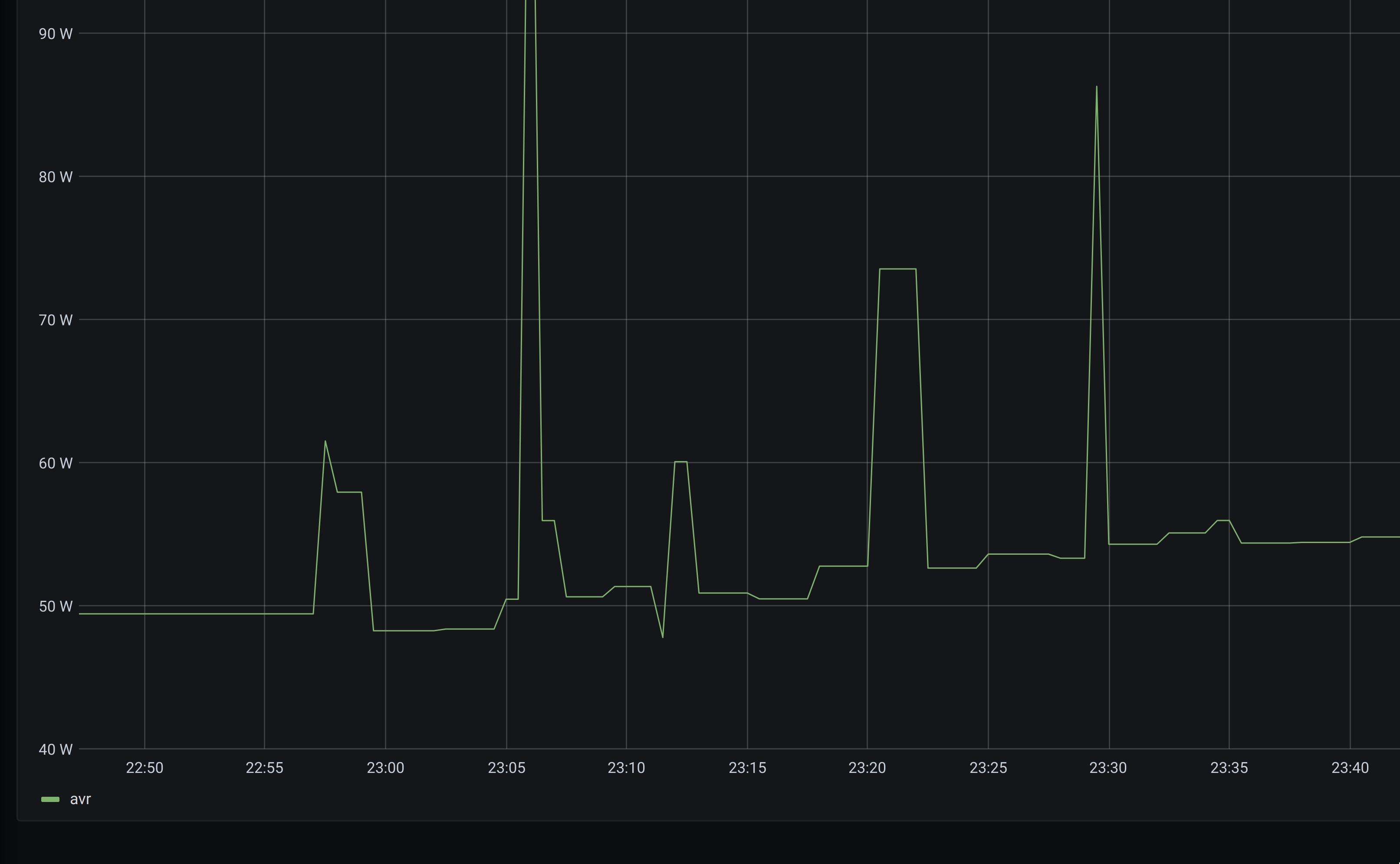
</p>
<h2>Bonus: Configuring a DHCPv6-DUID</h2>
<p>
fiber7 wants to hand out static IPv6 prefixes based on the DHCPv6 option 37,
but that’s not ready yet. Until then, they offer you to set a static prefix
based on your DUID (a device identifier based on the MAC address of your
router). Since I switched from the MikroTik, I needed to port its DUID to the
EdgeRouter to keep my static prefix.
</p>
<p>
Luckily, wide-dhcpv6 reads a file called dhcp6c_duid that you can create with
the proper DUID. The file starts with a 16-bit integer containing the length of
the DUID, followed by the raw DUID:
</p>
<pre>
echo -en '\x00\x0a\x00\x03\x00\x01\x4c\x5e\x0c\x43\xbf\x39' > /var/lib/dhcpv6/dhcp6c_duid
</pre>
<h2>Conclusion</h2>
<p>
I can see why fiber7 went with the MikroTik as their offer for customers: it
combines a media converter (for fiber to ethernet), a router, a switch and a
wifi router. In my configuration, those are now all separate devices: the
TP-LINK MC220L (27 CHF), the Ubiquiti EdgeRouter Lite Erlite-3 (170 CHF) and
the TP-LINK WDR4300 (57 CHF). The ping latency to google.ch has gone up from
0.6ms to 0.7ms due to the additional device, but the download rate is about
twice as high, so I think this is the setup that I’ll keep for a while — until
somebody comes up with an all-in-one device that provides the same features and
achieves the same rates :-).
</p>
<h2>Appendix: IPv6 with EdgeOS &lt; 1.7.0</h2>
<p>
For EdgeOS 1.6.0, you’ll need to add router advertisement settings:
</p>
<pre>
configure
set interfaces ethernet eth1 dhcpv6-pd pd 0 prefix-length /48
set interfaces ethernet eth1 dhcpv6-pd pd 0 interface eth0 service slaac
set interfaces ethernet eth1 dhcpv6-pd pd 0 interface eth0 prefix-id :0
set interfaces ethernet eth0 ipv6 router-advert prefix ::/64
set interfaces ethernet eth0 ipv6 router-advert radvd-options
  "RDNSS 2001:4860:4860::8888 {};"
commit
save
exit
reboot
</pre>
<h2>Appendix: IPv6 with EdgeOS &lt; 1.6.0</h2>
<p>
IPv6 is a bit harder, since EdgeOS in its current version (1.5.0) does not
support DHCPv6-PD via its Web or CLI interface. The necessary software
(wide-dhcpv6) is included, though, so we can configure it manually.
</p>
<p>
For the next steps, you need to know the transfer network IP range, which seems
to be different for every fiber7 POP (location). You can get it by either using
DHCPv6 and looking at the address you get, by checking your MikroTik
configuration (if you have one) or by asking fiber7. In my case, the range is
<code>2a02:168:2000:5::/64</code>, but I’ve heard from others that they have
<code>2a02:168:2000:9::/64</code>.
</p>
<p>
Use <code>ssh ubnt@192.168.1.1</code> to log into the CLI. In order to set the
proper IPv6 address on the transfer network, run <code>ip -6 address show dev
eth1</code> and look for a line that says <code>inet6
fe80::de9f:dbff:fe81:a906/64 scope link</code>. Copy everything after the
<code>::</code> and prefix it with <code>2a02:168:2000:5:</code> (your fiber7
transfer network range), then configure that as static IPv6 address on eth1 and
set the default route (and enable IPv6 offloading):
</p>
<pre>
configure
set system offload ipv6 forwarding enable
set interfaces ethernet eth1 address 2a02:168:2000:5:de9f:dbff:fe81:a906/64
set protocols static route6 ::/0 next-hop 2a02:168:2000:5::1 interface eth1
commit
save
exit
</pre>
<p>
Now you should be able to run <code>ping6 google.ch</code> and get a reply.
We still need to enable DHCPv6 though so that the router gets a prefix and
hands that out to its clients. Run <code>sudo -s</code> to get a root shell and
configure DHCPv6:
</p>
<pre>
cat >/etc/wide-dhcpv6/dhcp6c-script-zkj <<'EOT'
#!/bin/sh
# wide-dhcpv6-client 20080615-12 does not properly close
# file descriptors when starting the script.
# https://bugs.debian.org/757848
exec 4>&- 5>&- 6>&- 7>&-
# To prevent radvd from sending the final router advertisment
# that unconfigures the prefixes.
killall -KILL radvd
/etc/init.d/radvd restart
exit 0
EOT
chmod +x /etc/wide-dhcpv6/dhcp6c-script-zkj
<p>cat &gt;/etc/wide-dhcpv6/dhcp6c.conf &laquo;&lsquo;EOT&rsquo;
interface eth1 {
send ia-pd 0;
request domain-name-servers;
script &ldquo;/etc/wide-dhcpv6/dhcp6c-script-zkj&rdquo;;
};</p>
<p>id-assoc pd 0 {
prefix-interface eth0 {
sla-id 1;
sla-len 0;
};
};
EOT</p>
<p>sed -i &rsquo;s/eth0/eth1/g&rsquo; /etc/default/wide-dhcpv6-client</p>
<p>cat &gt;/config/scripts/post-config.d/dhcpv6.sh &laquo;&lsquo;EOT&rsquo;
#!/bin/sh
/etc/init.d/wide-dhcpv6-client start
EOT
chmod +x /config/scripts/post-config.d/dhcpv6.sh</p>
<p>/config/scripts/post-config.d/dhcpv6.sh
</pre></p>
<p>
Now, when running <code>ip -6 address show dev eth0</code> you should see that
the router added an IPv6 address like
<code>2a02:168:4a09:0:de9f:dbff:fe81:a905/48</code> to eth0. Let’s enable
router advertisments so that clients get an IPv6 address, route and DNS server:
</p>
<pre>
configure
set interfaces ethernet eth0 ipv6 router-advert prefix ::/64
set interfaces ethernet eth0 ipv6 router-advert radvd-options
  "RDNSS 2001:4860:4860::8888 {};"
commit
save
exit
</pre>
<p>
That’s it! On clients you should be able to <code>ping6 google.ch</code> now and get replies.
</p>
]]></content>
  </entry>
</feed>